Incremental Backup Calculator
Estimate backup repository size, daily incremental transfer, synthetic full impact, backup window throughput, and restore chain length for a home server or NAS.
⚙️Backup presets
📝Backup plan inputs
Backup sizing results
🗄️Backup method grid
Forever incremental
Synthetic full
Active full
Reverse incremental
Snapshot replication
GFS retention
📊Live backup metrics
📅Retention size breakdown
| Retention | Incrementals | Full Anchors | Estimated Repository |
|---|---|---|---|
| 7 days | Calculating | Calculating | Calculating |
🔗Backup method comparison
| Method | Storage Pattern | Restore Behavior | Home Server Note |
|---|---|---|---|
| Forever incremental | One full plus deltas | Longer chain unless merged | Efficient for local NAS targets |
| Synthetic full | Full rebuilt from existing blocks | Shorter chain after each cadence | Needs target IO during merge |
| Active full | Fresh full copy each cadence | Simple full plus few increments | Reliable but space hungry |
| Reverse incremental | Latest point kept as full | Fast latest restore | Useful for VM-heavy labs |
| Snapshot replication | Changed blocks and metadata | Rollback by snapshot point | Strong with ZFS or Btrfs |
⏱️Backup window throughput reference
| Sustained Speed | Per Hour | 6 Hour Window | Typical Target |
|---|---|---|---|
| 25 MB/s | 88 GB | 527 GB | Slow cloud upload |
| 80 MB/s | 281 GB | 1.65 TB | 1GbE NAS share |
| 250 MB/s | 879 GB | 5.15 TB | 2.5GbE backup NAS |
| 800 MB/s | 2.81 TB | 16.88 TB | 10GbE disk array |
🏠Common home server scenarios
| Scenario | Full Size | Change Rate | Suggested Retention |
|---|---|---|---|
| Family document NAS | 1 to 3 TB | 1% to 3% | 30 to 60 days |
| Photo and video archive | 6 to 20 TB | 1% to 5% | 60 to 180 days |
| Proxmox VM cluster | 2 to 12 TB | 5% to 15% | 14 to 35 days |
| Media library mirror | 20 to 100 TB | 0.5% to 2% | 14 to 45 days |
💡Backup planning tips
Hard drives is deceivingly large. They seem to have a lot of room when they’re mostly empty.
The problem is that backup software doesn’t use disk space like file storage, it tracks changed blocks and uses pointers and metadata which increase in size over time. A simple way this can go wrong: if you think there’s enough space for your daily changes or retention period, then the repository will fill up as backups silently fails in the background. Anyone thinking that a terabyte equals precisely one thousand gigabytes of available backup storage are at risk.
How to Calculate Your Backup Storage Needs
When you add the expected size of your protected data and the approximate amount it’s changing every day, the calculator (above) do the rest. There’s no more guessing about how many restore point you should retain before it fills up. You specify the total size of the data from which you’re taking backups (terabytes is typically used), and then estimate what percent of it are changing on a daily basis.
Rates is low for static data like photo archive and high for a development server with active databases. The calculator adds the compression and deduplication ratios to illustrate the actual storage footprint. This is where most first-time home lab builders go wrong: They size based off the raw file size rather than the smaller, deduplicated block size.
File compression reduces amount of disk space needed for repeating patterns in files. Deduplication takes it one step further and removes duplicate blocks from various parts of your system or on other server. If you’re running several virtual machine using the same OS image, deduplication will significanly reduce storage requirements. Use this calculator to vary the savings percentage based on your workload.
Go easy with the estimates. Overestimating your storage demands is always better then running out three weeks into a month-long retention period. What’s your retention policy? How fast can your data be restored if something go wrong? For most ransomware cases, it’ll be enough to cover a month or so because it takes time before anyone realize that their system is infected. A 60-day period makes people feel better.
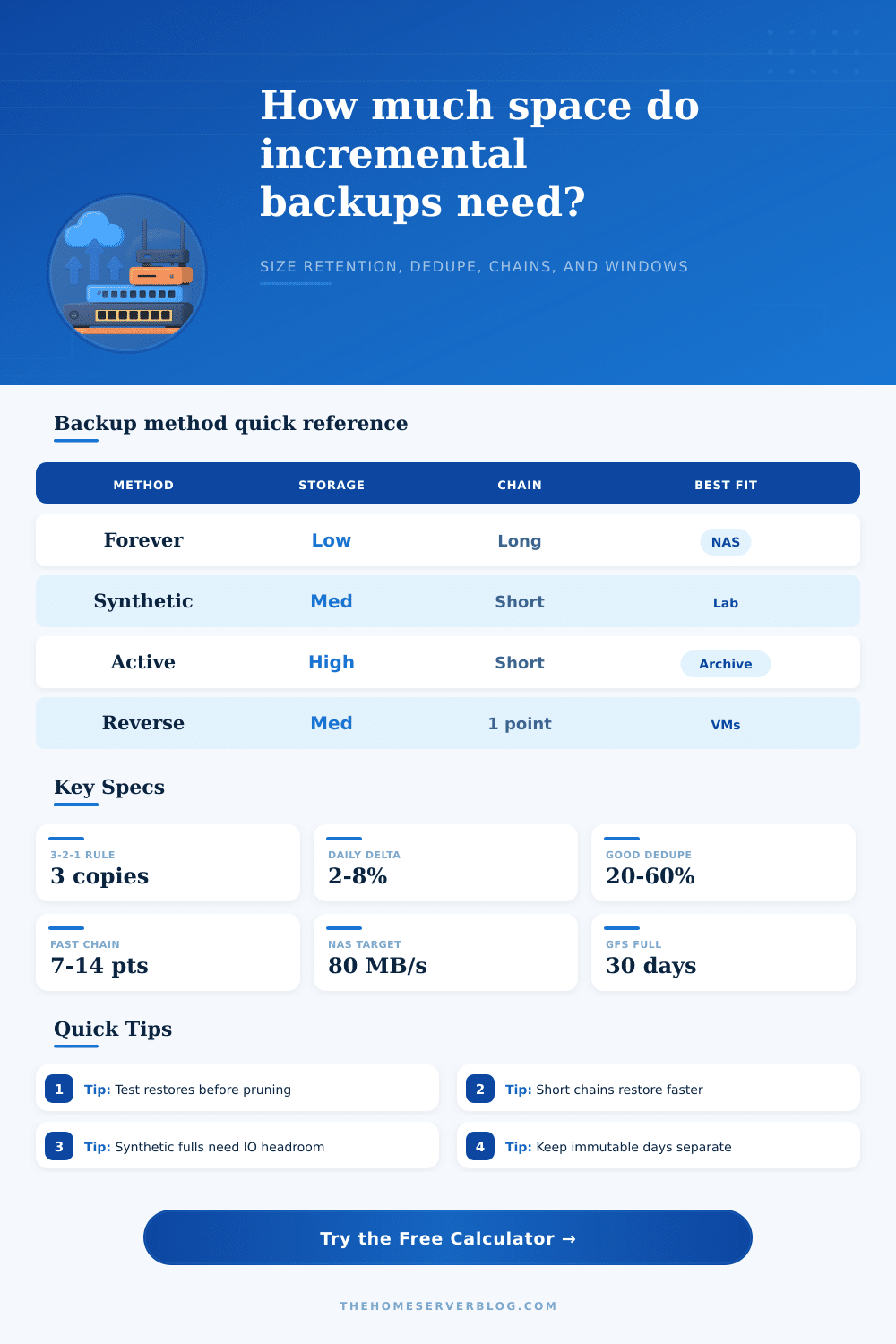
Finally, the calculator estimates the size of the repository given the length of time (assuming your preferred type of backup). If you choose forever incremental, it saves room by backing up just the changes since previous full backup… But the longer the chain, the slower the restore operation. To reduce the chain, synthetic full backups reconstructs an entire copy from whatever blocks is available at the moment.
It’s a tradeoff between storage efficiency vs. Restore performance, and this kind of decision lie at the heart of any serious backup plan. More than you’d expect, it’s about how long the chain is. To recover data, the system has to play all those incremental blocks back to previous full anchor. So the longer the chain, the slower the restore. If speed is what you’re after, shorter chains is better.
Your cadence settings will tell the tool what your worst-case restore points are. Tweak the synthetic full frequency to get the right blend of restore performance and storage use. Some people wants quick recovery, others want to save space. There’s no right or wrong; just tradeoffs with awareness.
There’s also a ceiling to your success imposed by network bandwidth. You might have unlimited storage space but if your connection won’t accommodate transferring all of your changed files in the backup window, then it doesn’t matter how many of them there are. This calculation approximates how fast your link should be to pack all your day’s changes into a given period. Does uploading twenty megabytes per second limit your connection? Then make sure whatever you change each day fits inside that bucket while backups runs. Any excess will cause jobs to pile up and interfere with production time.
Those are all just numbers on a screen. At the end of the day, your backup plan is only as strong as its most recent successful restore. It’s that math that builds a supportable system. It is one that would of let you run out of storage space. Or it might silently fail backups. But don’t assume that because it matches the math, it will keep you safe.
Regularly test your restores. Make sure it gets your stuff back exactly as expected. That’s what the math gives you. Discipline makes sure you get the files when needed.