HomeServerBlog WordPress capacity planner
WordPress Hosting Resource Calculator
Estimate CPU cores, RAM, PHP-FPM worker capacity, and database query load from monthly visits, peak concurrency, cache hit rate, plugins, media size, PHP worker memory, and WordPress cron activity.
Calculation breakdown
Hosting capacity verdict
The meter tracks configured PHP worker pressure against the recommended worker target.
| Workload | Cache behavior | PHP pressure | Hosting note |
|---|---|---|---|
| Static blog or docs | 90% to 98% page cache hits | Low except admin and search | CPU can be small if cache warmup is reliable. |
| WooCommerce cart and checkout | Product pages cache, cart routes bypass | Medium to high during campaigns | Keep more PHP workers and DB buffer headroom. |
| Membership or LMS | Logged-in pages often bypass cache | High during lessons and dashboards | Object cache and tuned queries matter more than CDN alone. |
| News burst or viral post | Excellent if page cache is primed | Spiky on misses and comment/admin traffic | Use cache preloading and enough worker burst room. |
| Image-heavy portfolio | HTML cache helps, media still stresses disk | Medium while thumbnails generate | Use offloaded media or strong local NVMe for variants. |
| Page cache hit rate | Dynamic share | Typical cause | Resource effect |
|---|---|---|---|
| 95% to 99% | Very small | Mostly anonymous pages and static assets | PHP workers sit idle most of the time. |
| 85% to 95% | Small | Normal blog with search, admin, forms, and comments | Balanced VPS sizing usually works well. |
| 65% to 85% | Noticeable | Shop, logged-in users, personalization, query strings | CPU, PHP workers, and database QPS climb quickly. |
| 40% to 65% | Large | Membership, LMS, or bypassed checkout paths | Size like an application server, not a static site. |
| Under 40% | Most pages dynamic | Private dashboards, poor cache rules, admin-heavy usage | DB tuning and horizontal PHP pools become important. |
| Resource | Calculator driver | Watch metric | Practical limit |
|---|---|---|---|
| CPU cores | Uncached RPS, plugin cost, DB QPS, cron work | Load average, steal time, PHP wait | Bursts feel slow before average CPU reaches 100%. |
| RAM GB | PHP workers, worker memory, DB buffer, object cache | Swap, OOM kills, cache hit ratio | Do not spend all RAM on PHP children. |
| PHP workers | Cache misses times modeled PHP service time | Listen queue, max children reached | Too many workers can starve MariaDB and OS cache. |
| Database load | DB queries per page and dynamic request rate | Slow queries, buffer pool hits, QPS | Query shape can matter more than raw QPS. |
| Storage IO | Media GB, thumbnails, backups, transients | IO wait, disk queue, write latency | NVMe helps cache churn and media processing. |
| Preset | Modeled pattern | Main bottleneck | First tuning step |
|---|---|---|---|
| Small Blog VPS | Mostly cached editorial traffic | RAM if too many PHP workers are configured | Keep page cache warm and workers modest. |
| WooCommerce Starter | Mixed cacheable browsing and dynamic checkout | PHP workers and DB writes | Exclude only cart paths, not all product pages. |
| Membership Site | Logged-in page views and account screens | Dynamic PHP and object cache misses | Add Redis and profile dashboard queries. |
| News Burst Day | High anonymous spike with warm cache | Miss bursts and cron overlap | Preload top URLs and defer background work. |
| LMS Course Portal | Lesson progress and quizzes | Queries per page and admin-ajax | Separate long actions from front-end requests. |
| Multisite Network | Many small sites sharing one stack | Plugin overhead and object cache key volume | Standardize plugins and watch global tables. |
Traffic isn’t everything: Don’t make an estimate of how much traffic you get and then guess which plan fits. That’s always either overkill, or else it mean you’re going to run out of resources in middle of busy periods. In truth, WordPress isn’t a simple static brochure site. It’s a dynamic application with multiple moving part behind the scenes. These include processing PHP scripts, running database queries, and managing various cache layers. To understand what a website actualy does “under the hood” every time someone visits a page, you need to dig deeper than surface level of traffic numbers.
Enter the numbers into the calculator above and it’ll do the math for you. It takes some abstract measurements, concurrent visitors, cache hit rates… And turns them into concrete hardware requirements, but knowing what those inputs mean make it easier to believe in results.
Why You Need More Than Just Traffic Numbers
Begin by entering your monthly visits, but don’t stop there; immediately add your peak concurrency. Twenty-thousand monthly visits arriving in a viral burst are much more resource-intensive different than twenty-thousand visits spread out evenly over time. Servers can’t bank their CPU cycles for later. They has to deal with demand when it arrives, so your maximum server capacity is typically determined by its busiest hour of the month.
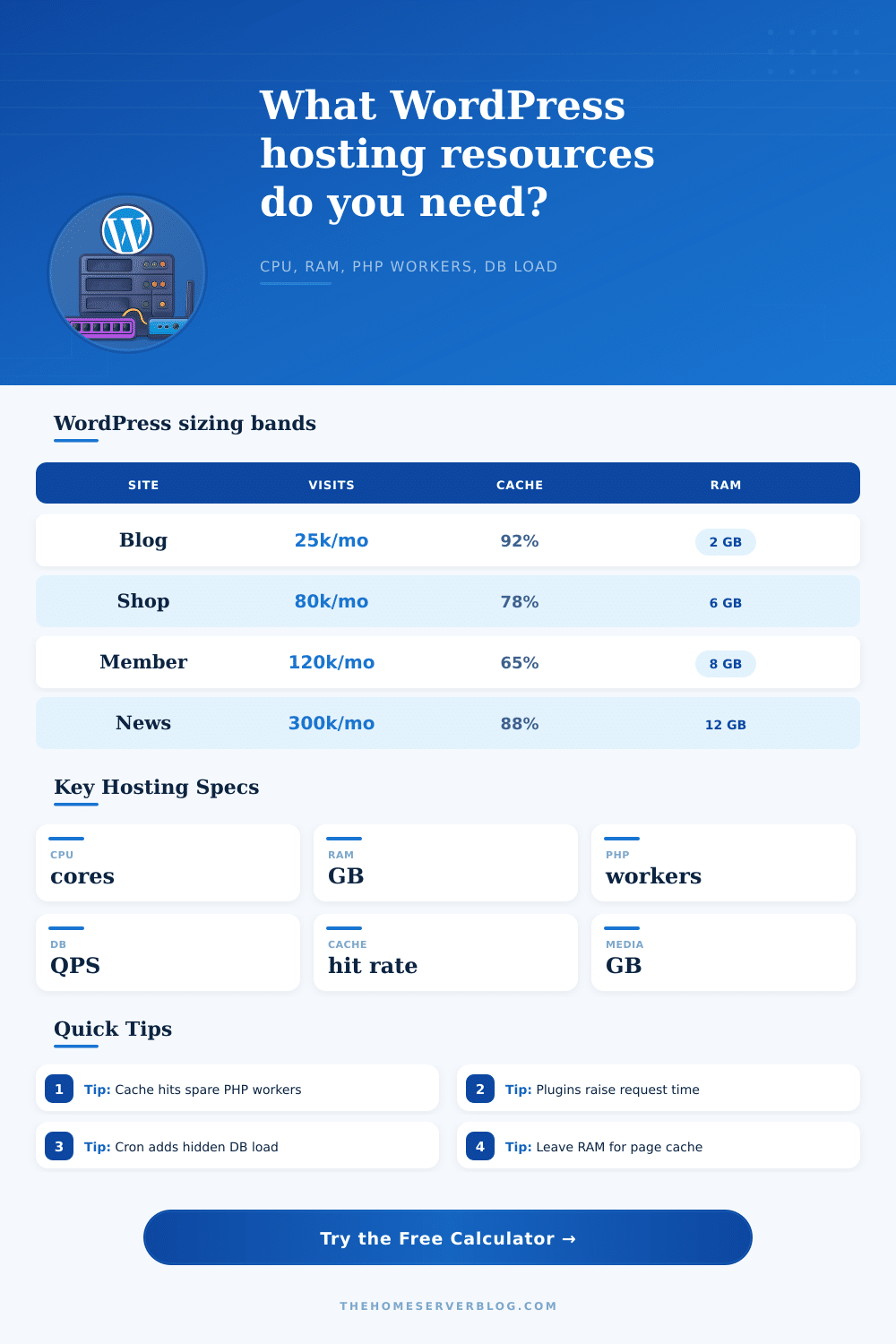
The single biggest way available to you for controlling resources is the cache hit rate. If the server serves a cached page, it just spits out some static HTML, cheap & fast: no database, no PHP. But when the cache miss, the server has to wake up. This happens if something is fresh or if user is logged in. The server then spins up a PHP worker, connects to MySQL, runs a bunch of queries and assembles page from scratch. That’s where the CPU cores and RAM come into play.
The good news is, if you’ve got a lot of anonymous reader and your cache rate is good, you can get away with little hardware. The page has a reference table that spells all this out, showing how a news site with equal traffic could require less PHP power than an equally trafficked membership site due to the former having great caching.
The other wrinkle is that plugins all hook into the WordPress core, meaning they all adds their own set of database queries to each individual page load. Twenty apparently light-weight SEO tools or security scanners can realy start multiplying your number of database queries. The calculator takes account of this as well, it factors in the number of plugin you have when calculating how long it will take each request to finish. Each dynamic page loads slower with each additional plugin, which means each PHP worker sits in a server slot for an extra-long time. Fewer slots mean less total throughput. In order to serve the same level of traffic, you may require more workers, workers that eat up memory.
Most home lab hosts run into trouble when it comes to memory sizing. The temptation is to dedicate as much as possible of any available RAM to running as many PHP-FPM workers as will fit to be as fast as possible, but that’s a trick; your operating system also require free RAM to cache files from its filesystem and keep buffer pools for databases. Starve the kernel or MariaDB, and now you are waiting on disk input/output rather than CPU. Even though there’s a pile of processing power under the hood, your server feel sluggish. Don’t go too far in one direction or the other. Leave some headroom so your object caches (e.g., Redis) can load the data you use most often into memory. This avoids querying it from the database again at all.
Don’t forget about background processes, too. Scheduled backups, email queues, and even WordPress cron jobs all run behind the scenes. In the default WP-Cron system, these jobs is triggered by each page view. They can cause database load and CPU spikes at random points throughout the day. If you’re using the default WP-Cron system, migrating those processes to an actual server-side cron schedule will keep things running smoothly. That way, your daily traffic spike doesn’t happen right when a heavy import job runs.
You should of planned for this. The goal is not just to survive a traffic spike but to maintain a consistent experience. Your model represent your exact combination of dynamic vs. Cached content. Instead of guessing, you plan. You build a machine sized to serve exactly the kind of work you do. The site begins to feel responsive again when you match your hardware to reality instead of your fears of possible future growth.
You no longer fight the server. Now you can get down to business. Writing content for the humans present to read it is what realy matters.