ZFS RAIDZ3 Calculator
Estimate practical usable capacity for RAIDZ3 vdevs after parity, TB to TiB conversion, filesystem overhead, compression, snapshots, free-space reserve, and hot spares.
Full RAIDZ3 Breakdown
Drive spec values are planning assumptions for common CMR HDD and data-center SSD classes; always confirm the exact model before ordering shelves, HBAs, or replacement spares.
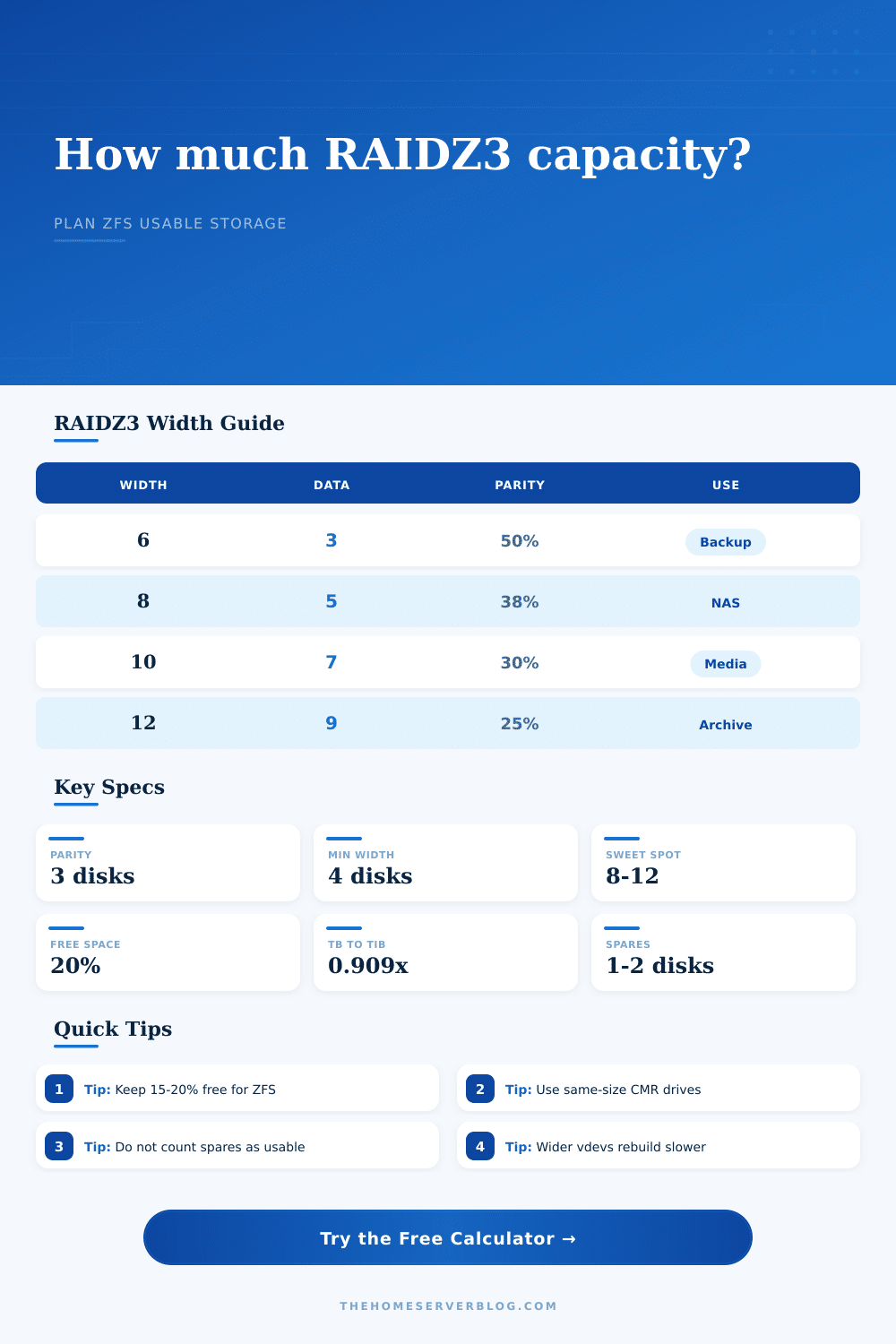
| Drives per vdev | Data columns | Parity overhead | Typical home-server use |
|---|---|---|---|
| 6-wide RAIDZ3 | 3 data + 3 parity | 50.0% | Small backup pool with high redundancy |
| 8-wide RAIDZ3 | 5 data + 3 parity | 37.5% | Compact NAS or mixed family storage |
| 10-wide RAIDZ3 | 7 data + 3 parity | 30.0% | Media library with room for snapshots |
| 12-wide RAIDZ3 | 9 data + 3 parity | 25.0% | Large archive vdev in a 12-bay chassis |
| 16-wide RAIDZ3 | 13 data + 3 parity | 18.8% | Cold archive where rebuild time is acceptable |
| Decimal drive size | Binary size | 8-wide RAIDZ3 data | 12-wide RAIDZ3 data |
|---|---|---|---|
| 8 TB | 7.28 TiB | 36.38 TiB before reserves | 65.48 TiB before reserves |
| 12 TB | 10.91 TiB | 54.57 TiB before reserves | 98.23 TiB before reserves |
| 16 TB | 14.55 TiB | 72.76 TiB before reserves | 130.97 TiB before reserves |
| 20 TB | 18.19 TiB | 90.95 TiB before reserves | 163.71 TiB before reserves |
| 22 TB | 20.01 TiB | 100.04 TiB before reserves | 180.08 TiB before reserves |
| Planning item | Conservative value | Why it matters | Calculator input |
|---|---|---|---|
| Free-space target | 15% to 25% | Leaves room for copy-on-write updates and fragmentation control | Keep-free target |
| Snapshot reserve | 5% to 20% | Prevents snapshots and replication from crowding live datasets | Snapshot / reservation |
| Compression | 1.00x to 1.50x | Media barely compresses; VM images and documents often do | Compression ratio |
| Hot spares | 1 to 2 drives | Useful for remote or unattended shelves, but not usable capacity | Hot spares |
| Vdev expansion | Add full vdevs | Pool IOPS and capacity grow most predictably vdev by vdev | Number of vdevs |
| Project | Layout | Raw installed | Practical note |
|---|---|---|---|
| Family backup NAS | 6 x 4 TB RAIDZ3 | 24 TB before spares | Very redundant, lower capacity efficiency |
| All-purpose home NAS | 8 x 8 TB RAIDZ3 | 64 TB before spares | Balanced for photos, PCs, and light apps |
| Media archive | 10 x 12 TB RAIDZ3 | 120 TB before spares | Good parity ratio for large sequential files |
| Homelab VM storage | 2 vdevs of 8 x 10 TB | 160 TB before spares | More vdevs improve random I/O behavior |
| Rack archive shelf | 4 vdevs of 12 x 22 TB | 1056 TB before spares | Large, slow-changing data with strict monitoring |
That’s an expensive tradeoff: You’re giving up some amount of raw capacity for the chance that you’ll be able to recover after three drive fail at the same time and you still don’t lose any data. If your data mean anything to you, this is a tradeoff you’re willing to make.
And yes, the calculator does this math for you: Plug in your drive sizes and count, and it will tell you how much of that total gets eaten up by parity. It doesn’t require a guess on your part, just know what all those numbers mean.
How ZFS Storage Works
Because here’s the first place most builders trip up: Drives come from manufacturers in decimal terabyte sizes, but when ZFS reports its space back to you, it’s reporting binary tebibyte size. This difference right there reduce your pool by almost ten percent before you even set up your first vdev.
Next is the parity penalty. Every vdev contains three of its disks devoted to storing parity information. With eight disks, that’s nearly forty percent of your total disk space wasted on keeping things safe. That’s a high price but it’s the cost of doing business with your data.
There are other space wasters, as well, those pesky space hogs that don’t show up in any directory listing. Because ZFS is a copy-on-write filesystem, it requires available space to do its thing. If you fill a pool to capacity, your data will start fragmenting, leading to poor performance. A typical recommendation is to leave 20 percent free space for general use, with higher workloads such as virtual machines demanding additional breathing space.
You can set those reserve settings in the tool which also displays how much raw installed capacity you have versus what’s available to you. Forget about those buffers and you may suddenly discover your pool is full, with snapshots failing and replication jobs stalled.
Another factor affecting how much storage you actualy have is compression rates. Your media files won’t compress very well so a movie library will closely resemble its raw numbers. Storage efficiency: Compress text documents, databases, and virtual machine images to create more usable free space. To do this, you must understand the type of data you store; assuming a reasonable compression rate will then provide some cushion for your storage capacity. You should of test before planning to count on it; static media mixed with heavily-compressible data will produce an unpredictable mushy-average result.
If you go wider than that, you’ll get more efficient. A six-drive vdev wastes half its capacity on parity. A dozen drives? Only a quarter.)
However, there’s risk in rebuilding such a wide drive. But if that means rebuilding a 12-drive array, it will take significantly longer, lengthening the window of opportunity for another drive to die and thus lose your data. That’s what the reference table at the bottom of the page explain in order to help you find the right balance between efficiency and exposure.
An eight- or ten-drive vdev strikes me as the sweet spot for most home users: It provides a decent parity ratio but doesn’t leave you exposed while you’re maintaining things.
Unattended systems can benefit from hot spares, which will replace themselves automatically after a drive dies. They don’t count toward usable capacity, however. It’s easy to get caught in the trap of counting them; this isn’t storage space! Spare parts are intended for backup purposes only (and therefore you’ll be disappointed if you count on it).
In the end, it’s less about maximizing every single megabyte than creating a system that will survive a hardware failure without triggering a rescue mission. When the math matches the way you actualy live, the sense of panic subsides. You no longer worry about the dashboard; instead, you trust the engine.