Path MTU Discovery Calculator
Estimate tunnel MTU, TCP MSS clamp, encapsulation overhead, and DF ping probe sizes before packets fragment or disappear.
🖧PMTUD Presets
🔧Path and Tunnel Inputs
Full PMTUD Breakdown
🖥Equipment and Network Spec Comparison
📊Reference Tables
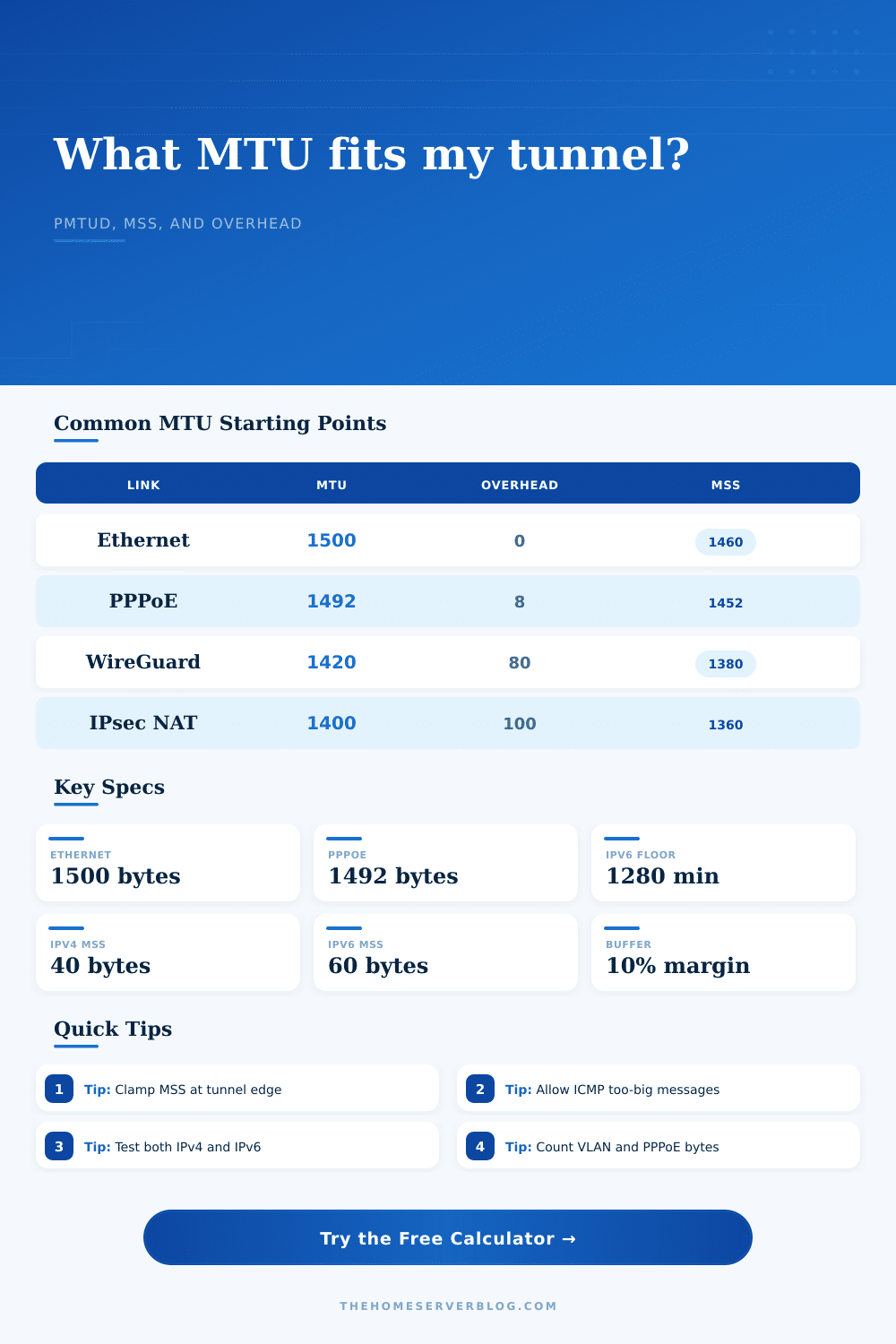
Common tunnel overhead and starting MTU values
| Path Type | Typical Overhead | Common Starting MTU | IPv4 MSS Start |
|---|---|---|---|
| Plain Ethernet IPv4 | 0 bytes beyond IP | 1500 bytes | 1460 bytes |
| PPPoE WAN | 8 bytes | 1492 bytes | 1452 bytes |
| GRE over IPv4 | 24 bytes | 1476 bytes | 1436 bytes |
| WireGuard over IPv4 UDP | 60 bytes | 1440 bytes | 1400 bytes |
| WireGuard over IPv6 UDP | 80 bytes | 1420 bytes | 1380 bytes |
| OpenVPN UDP AES-GCM | About 69 bytes | 1431 bytes | 1391 bytes |
| IPsec ESP with NAT-T | About 82 bytes | 1418 bytes | 1378 bytes |
| L2TP over IPsec NAT-T | About 100 bytes | 1400 bytes | 1360 bytes |
PMTUD and packet-too-big signal checklist
| Traffic Family | Discovery Signal | Common Breakage | Firewall Allowance |
|---|---|---|---|
| IPv4 PMTUD | ICMP destination unreachable, fragmentation needed | ICMP filtered by WAN or VPN edge | Allow type 3 code 4 inbound to sender path |
| IPv6 PMTUD | ICMPv6 packet too big | Over-filtered ICMPv6 control traffic | Allow type 2 packet-too-big messages |
| TCP MSS clamping | SYN packet MSS option rewrite | Clamp only on one tunnel direction | Apply at the tunnel ingress or firewall forward chain |
| UDP applications | Application retry or black-hole detection | No TCP MSS option to clamp | Lower interface MTU or tune app datagram size |
Link-layer and provider deductions
| Add-on | Bytes | Where It Appears | Calculator Use |
|---|---|---|---|
| 802.1Q VLAN tag | 4 | Trunks, router-on-a-stick, managed switch uplinks | Count when the provider or device enforces strict frame size |
| QinQ stacked VLAN | 8 | Metro Ethernet, lab carrier simulation, ISP handoff | Use two tags for service plus customer VLAN |
| PPPoE session | 8 | DSL, some fiber ONT handoffs, router WAN links | Subtract from the IP MTU before tunnel overhead |
| MPLS shim label | 4 each | Provider networks and advanced labs | Add as extra provider header when visible to your path |
| Jumbo frames | Variable | Storage VLAN, virtualization hosts, switch trunks | Use actual end-to-end supported MTU, not a single NIC setting |
Home lab scenario sizing examples
| Scenario | Underlay MTU | Encapsulation | Practical Target |
|---|---|---|---|
| Remote laptop to home WireGuard | 1500 or 1492 | UDP WireGuard, sometimes PPPoE | MTU 1380-1420, then verify with DF ping |
| Two sites through IPsec NAT-T | 1500 | ESP plus UDP 4500 | MSS 1360-1380 is a common first clamp |
| Proxmox VXLAN lab overlay | 9000 preferred | Outer IP, UDP, VXLAN, inner Ethernet | Raise underlay MTU or lower guest MTU consistently |
| Cloud VPS tunnel gateway | 1500 provider default | WireGuard, GRE, or IPsec | Use provider MTU docs, then test both directions |
💡PMTUD Notes
Sometimes you find yourself on a video call that freezes momentarily. Or, maybe you’re downloading something and only part of it stops, even though your internet speed appear to be just fine. Why does it feel like an internet issue, yet it’s not? It’s because it’s not a bandwidth issue. It’s because it’s a packet size issue.
Specifically, it means your data hits a tunnel that’s too big for its own good and gets silently dropped by the network. To prevent this, use this page to calculate your safe tunnel MTU. You should also calculation the encapsulation overhead and TCP MSS clamp. Use this to stop guessing about your tunnel size and start being able to reliably connect.
How to Fix Internet Connection Problems
So here’s the thing: wrapping more and more stuff around your packets can cause them to be dropped or fragmented. Every extra byte of VPN protocol, every VLAN tag, every layer of encryption make your packet bigger at both ends. And if you were already close to the usual 1500 byte maximum size of a typical packet, then you might actualy be pushing past the physical limit on the link after you’ve added another IPsec or WireGuard header.
At this point, your packet either gets dropped or it get broken up into multiple pieces (fragmented). Many routers will drop fragmented packets; otherwise you have a silent black hole in your hands. To avoid this, you should know precisely what amount of overhead your network stack incurs. Use the tool above to input your link speed and the type of tunneling you plan to run to get the answer. This saves you from having to count header bytes by hand for some complex nested configuration.
For example, what is the difference between a straight Ethernet connection and a PPPoE link? A lot. PPPoE, used frequently in DSL and fiber connections, take eight bytes out of your frame. That doesn’t sound like much. But now you don’t have eight bytes left to play with in the payload. Add that into an IPsec tunnel with NAT traversal, and you could be losing as many as 80 bytes or more after that. Your usable MTU has dropped from 1500 down to maybe 1400. And if your device isn’t smart enough to shrink its packet, it send 1500 bytes anyway, which then gets dropped by the intermediate router. Connection times out.
Here’s where the table on the page comes in. It details how various tunnels carve up your available space. One of the most common mistakes is thinking that just fixing the tunnel MTU is enough and forgetting to clamp the TCP Maximum Segment Size. During the TCP handshake, TCP uses the MSS value to determine how much data to send. If you reduce the interface MTU and don’t also reduce the MSS (Maximum Segment Size), then your device will attempt to send big packets anyway!
To fix this, you must force the sender to split up its packets so they can fit within the reduced tunnel size. A small config change has a huge impact on throughput. How do you know what MSS value to set? Use the calculator above which spits out the right value to enter on your tunnel endpoint or firewall. That way, when the devices negotiate their handshake, result will honor the new constraints.
Also consider your buffer on those numbers. You can input a percentage of extra space as a buffer in case you don’t know what’s happening there. For a straightforward home network, a five percent buffer might suffice. But if you’re working an enterprise path with multiple hops and maybe some encapsulation along the way, it would of be wise to have a 20 or even higher buffer. It is better to be too small than fragmented.
Small packets mean more overhead per piece of data. Reliability is better then raw theory anyway. Theory tests meet reality in testing. Your calculation may be correct but you need to confirm it with a ping test with the Don’t Fragment bit set. (The calculator also tells you what to use as the payload size for this test.) If successful, then chances are you’ve identified your ceiling. If not, then you know that your MTU remains too large.
You can apply this process for both IPv4 and IPv6 (though you’ll want to be more conservative with IPv6, since its MTU floor is at 1280 bytes, giving you fewer bytes to play with). Since IPv6 tends to go through more encapsulations, you’ll want to be more careful on that front, too.
In short, understanding the rules of the road for TCP/IP is all about respecting the physical constraints of the path. If you know what gets added at each layer of the protocol stack, you can tweak your settings accordingly. That’s where the math of headers comes in. The calculator takes the guesswork out of it. It lets you spend your time configuring instead of calculating.
Once you line up the MSS and the MTU, those pesky drops goes away. Traffic goes through just like it should. No more wondering why it doesn’t. Just knowing that it does.