Upload Speed to Bitrate Calculator
Turn your uplink into a safe video bitrate budget, compare your codec plan, and see how much headroom is left before a stream starts to choke.
Set the raw connection speed, then reserve room for background traffic, transport overhead, and safety margin before you trust the bitrate result.
These fields shape the bitrate requirement for live video and var the calculator compare your chosen profile against the safe budget.
These reference tables keep the bitrate math transparent so the safe budget, codec selection, and platform overhead stay easy to audit.
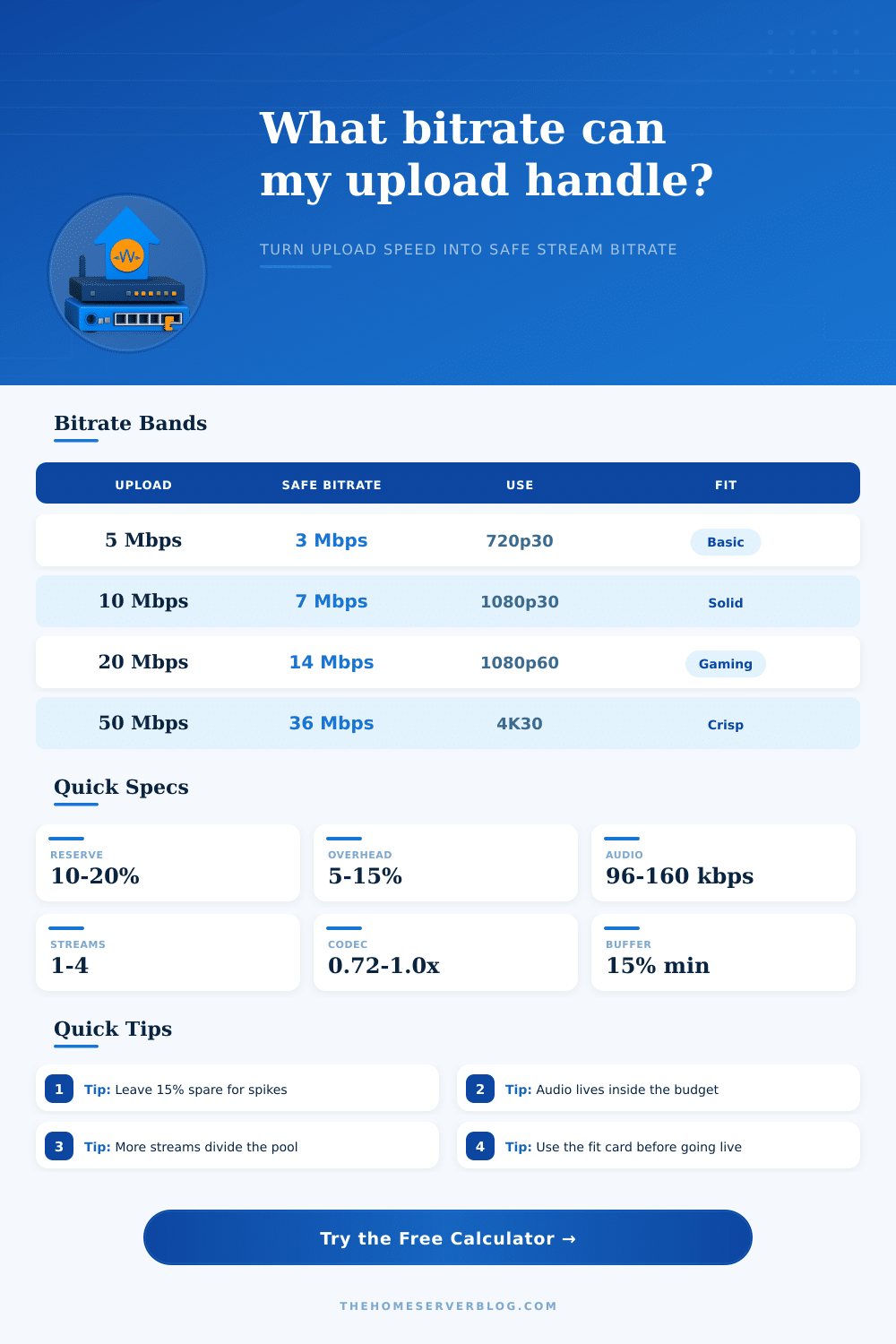
Bitrate Bands
| Upload | Safe Bitrate | Use | Fit |
|---|---|---|---|
| 5 Mbps | 3 Mbps | 720p30 | Basic |
| 10 Mbps | 7 Mbps | 1080p30 | Solid |
| 20 Mbps | 14 Mbps | 1080p60 | Gaming |
| 50 Mbps | 36 Mbps | 4K30 | Crisp |
Codec Multipliers
| Codec | Factor | Lean Use | Note |
|---|---|---|---|
| H.264 | 1.00x | Wide | Best support |
| H.265 | 0.82x | Faster | Smaller file |
| VP9 | 0.86x | Web | Good quality |
| AV1 | 0.72x | Latest | Heavier encode |
Platform Overheads
| Path | Overhead | Cap | Note |
|---|---|---|---|
| Twitch | 12% | 6 Mbps | CBR friendly |
| YouTube | 10% | 9 Mbps | Flexible cap |
| RTMP | 8% | 20 Mbps | Self-hosted |
| Backup | 4% | None | File transfer |
Quality Ladder
| Profile | Base | Peak | Best for |
|---|---|---|---|
| 720p30 | 2.5 Mbps | 3.5 Mbps | Light streams |
| 1080p30 | 5.0 Mbps | 7.0 Mbps | Stable video |
| 1080p60 | 8.5 Mbps | 12 Mbps | Fast motion |
| 4K30 | 14 Mbps | 22 Mbps | High detail |
When streaming videos using OBS, viewers might encounter blurry videos or laggy streaming connection. While internet upload speeds are high, that doesnt necessarily mean that the bitrate for streaming should be high. For example, even if a user have a high upload speed of 20 Mbps, other processes active on the computer system might consume the internet bandwidth.
Processes like background downloads, protocol handshakes, and the video container will consume some of the available upload speed. Both video and audio data packet require additional bandwidth to travel through the internet. This data requirement takes up between 10% and 20% of the total available upload speed.
How to Choose the Right Video Bitrate for Smooth Streaming
Additionally, audio data require its own bandwidth for transmission. Audio data can require between 96 kbps and 160 kbps of bandwidth for high-quality streaming. If a user is simultaneously streaming to platforms like Twitch and YouTube, the audio and video data will have to be transmitted twice, which will consume twice as much the available bandwidth.
Therefore, to determine how much bandwidth will remain for the streamed video after accounting for audio and data packet overhead, that portion of bandwidth has to be subtracted from the total available upload speed. The bitrate for the video can be calculated using the remaining upload speed after subtracting bandwidth used by audio and video data packets. Most advertised upload speeds are the maximum upload speed, not the sustained upload speed.
Additionally, some spare bandwidth should be provided for potential spike in the systems data demands. For example, if a user is actively using programs like Discord or if the system is performing an automatic data backup, that data will take up some of the available bandwidth. Additionally, streaming platforms receives the data through RTMP paths.
Data received through these paths is less efficiently than when files are directly uploaded to the streaming platforms. The data rate must remain constant along the RTMP paths to maintain the streamed video. Therefore, some headroom has to be provided in the available bandwidth.
If the user sets the bitrate for the video to be less than the available upload speed, then some spare bandwidth will remain for the system. However, if the user sets the bitrate of the video more greater than the available upload speed, the available bandwidth will be insufficient to stream the video at that high bitrate. The type of content that will be streamed will affect the bitrate of that content.
For example, a high frame rate will require a higher bitrate than low frame rates. Fast-motion content like video games require more data bits than static content such as someone speaking on camera. Additionally, certain video codecs will impact the way that the computer system process the video.
Newer video codecs can compress the video files more efficient. More efficient video compression allow fewer bits to be used for the same video frames. However, this requires more processing power from the computers CPU.
It is important to provide some spare bandwidth for the system to accommodate for unexpected data demands. For example, if the available bandwidth is 10 Mbps, it is better to provide to the system a bitrate of 9.5 Mbps instead of 10 Mbps. By providing spare bandwidth for the system, any dropped frames or reduced available resolution for the viewers will be avoided.
For example, if the available upload speed is 10 Mbps, a 1080p30 video stream can be delivered to the viewers. If the available upload speed is 50 Mbps, then a 4K30 stream can be delivered to the viewers. However, if the type of content does not require 4K30 settings, it is not recommended to use those settings, as the available bandwidth will be wasted.
Finally, the bitrate and other streaming settings should be tested while actively streaming live content. Streaming live allow for the upload speed to be tested while under load. If the upload speed is unstable, the streaming software might only reveal that instability when actively streaming.
By actively streaming live content with the calculated bitrate and with the available upload speed (after subtracting bandwidth for audio data, video data, and overhead), the streaming software will remain stable. As a result, the viewers will experience a smooth streaming connection to the live video being streamed.