HomeServerBlog storage and network unit tool
Data Size Unit Converter
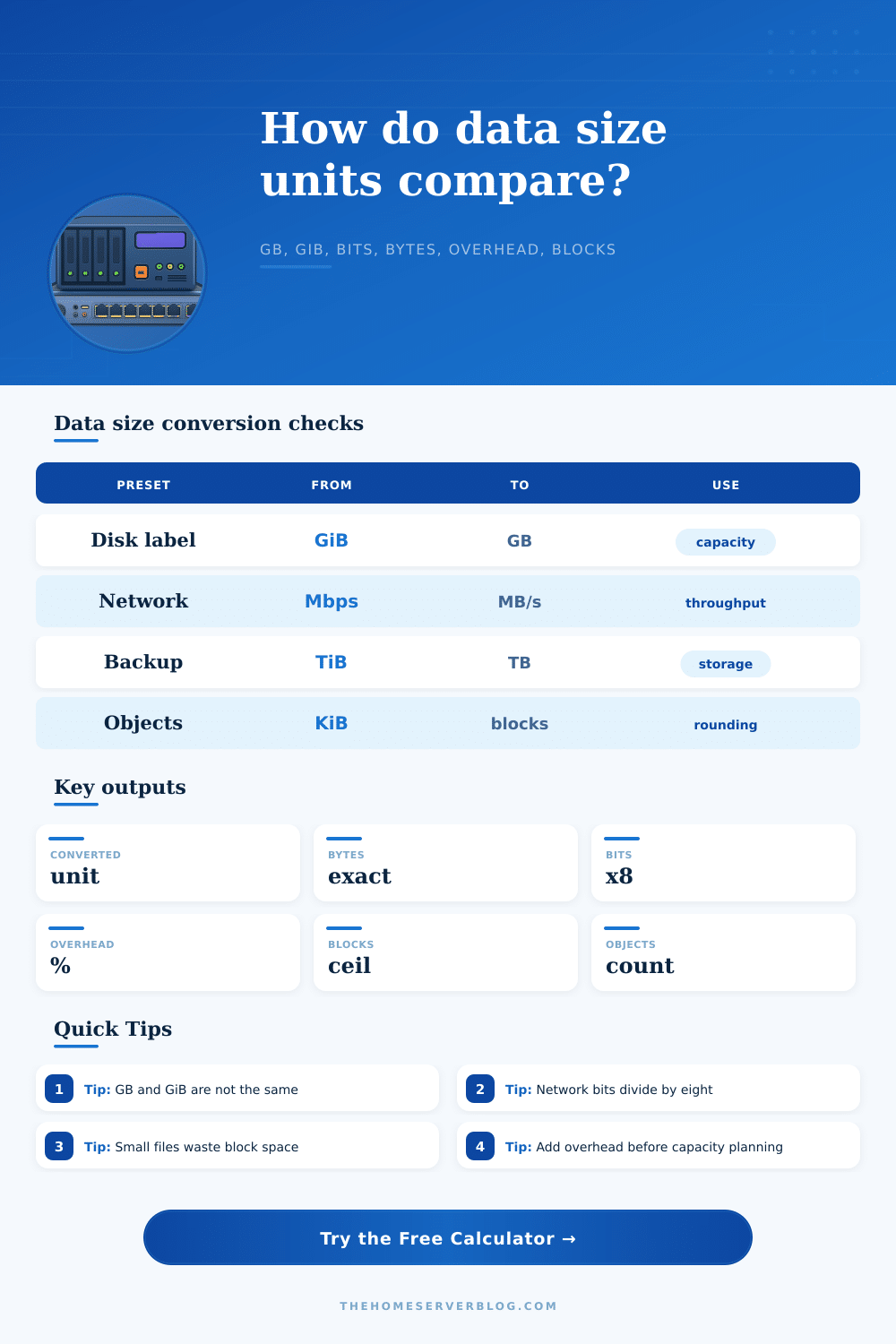
Convert values across bits, bytes, KB, KiB, GB, GiB, Mbps-style network labels, backup sizes, object counts, overhead, and block rounding without mixing decimal disk math with binary memory math.
Conversion breakdown
1 KB
1,000 BDecimal SI unit used by disk labels and network math.
1 KiB
1,024 BBinary IEC unit used for memory and filesystem blocks.
1 Mbps
0.125 MB/sEight bits make one byte before protocol overhead.
4 KiB block
4096 BSmall files round up to this allocation size.
1 GB
0.931 GiBDecimal gigabytes look smaller in binary OS displays.
1 GiB
1.074 GBBinary gibibytes look larger on decimal capacity labels.
1 TB
0.909 TiBUseful when checking drive labels against usable capacity.
1 TiB
1.100 TBCommon backup and snapshot planning conversion.
| Decimal unit | Bytes | Bits | Common label |
|---|---|---|---|
| KB | 1,000 | 8,000 | disk, cloud, network |
| MB | 1,000,000 | 8,000,000 | network transfer and file size labels |
| GB | 1,000,000,000 | 8,000,000,000 | drive labels and cloud storage invoices |
| TB | 1,000,000,000,000 | 8,000,000,000,000 | backup appliances and object storage |
| Binary unit | Bytes | Decimal equivalent | Common label |
|---|---|---|---|
| KiB | 1,024 | 1.024 KB | memory pages and small blocks |
| MiB | 1,048,576 | 1.049 MB | RAM, buffers, firmware, VM sizing |
| GiB | 1,073,741,824 | 1.074 GB | operating system capacity displays |
| TiB | 1,099,511,627,776 | 1.100 TB | backup tools and filesystem reports |
| Network label | Byte rate | Ten second payload | Note |
|---|---|---|---|
| 100 Mbps | 12.5 MB/s | 125 MB | before Ethernet, TCP, TLS, and app overhead |
| 1 Gbps | 125 MB/s | 1.25 GB | common home lab LAN baseline |
| 2.5 Gbps | 312.5 MB/s | 3.125 GB | popular NAS and workstation link speed |
| 10 Gbps | 1250 MB/s | 12.5 GB | storage throughput starts to matter |
| Block scenario | Logical size | 4 KiB allocation | Why it matters |
|---|---|---|---|
| Tiny config file | 512 B | 4096 B | One block minimum allocation |
| Thumbnail object | 6 KB | 8192 B | Two blocks even before metadata |
| Log event batch | 65 KB | 69,632 B | Ceil to the next block boundary |
| Chunk upload | 8 MiB | 8 MiB | Aligned chunks waste little space |
This calculator is a planning tool. Real storage systems may also add compression, dedupe, parity layout, erasure coding stripe width, object metadata, and minimum billable object sizes.
You purchase a two terabyte hard drive and plug it into your computer and your operating system tells you that you only have about one point eight terabytes available to you. It feels like theft, but it is actualy just math.
But no, it’s math talking in two languages simultaneously. On the one hand, it’s using binary numbers; on the other hand, it’s using decimal numbers. Neither say anything bad about this until you attempt to copy something onto a disk. The origin of the confusion lie in powers of two versus counting zeros. This has bothered enterprise architect and home lab enthusiasts for decades.
Why Your Hard Drive Has Less Space
Base ten serves interests of disk manufacturers because it allows them to make numbers appear larger when they market them. One billion bytes = a gigabyte. It is clean and simple.
But computers operate on binary logic (base two), so operating systems is built to function in that environment. Because a gigabyte is 1,024 cubed, which is about seven percent more then the decimal version, we call this a gibibyte. As unit sizes increase, that gap increases too. At the TB level, it’s not rounding any more; it’s a substantial amount of missing capacity.
If you have a raw drive speed or even its label, you can just paste it in this calculator above. It will do all the work for you in both binary and decimal bases. This way, you know exactly what gets eaten up when you format that fresh drive.
That’s the point at which most folks take their first wrong turn: they figure because their drive says one trillion bytes it has a terabyte of available space on it and fail to account for the partition table and other filesystem metadata and the fact that their OS turns those labels into gibibytes behind their backs. Confusion also come from how we measure things: network speed uses bits, while storage use bytes. Bits are smaller (actualy eight times smaller). A gigabit internet connection is actually only giving you one hundred twenty-five megabytes per second, best case. There is also protocol overhead that consumes some of that. Before you can calculate transfer time for a big file, you need to know the throughput in bytes from the bit rate. Otherwise you end up watching a progress bar crawl when you thought it would fly.
The fact is: Data isn’t stored byte-by-byte on a filesystem. It’s stored in blocks allocated by the filesystem. When your filesystem allocate a block for a file, it allocates a chunk. A chunk might be four kilobytes big. That means a five-hundred byte file take up a full four kilobyte block. Three thousand five hundred ninety-six of those bytes are wasted space. You never see them, but they’re there, very real on the NAND flash or the platter. When you multiply this by thousands of small email headers or tiny config files, you suddenly lose half your drive capacity to slack space and metadata.
It handles the conversion for you, with overhead for snapshotting and RAID parity included. It lets you set the number of objects so it can run through millions of tiny file or a handful of giant archives. And it’ll tell you both the converted size and the rounded-off allocated size. This is important when dealing with cloud storage, which bills for allocated blocks instead of how much actualy stuff they’re holding.
But knowing those things makes all the difference in terms of planning for storage. Instead of purchasing drives by sticker price, you factor in parity, formatting, filesystem overhead and begin to calculate actual usable capacity. You appreciate that while a 10 gigabit network may be available to you, the disk array don’t support the throughput required. You also begin to understand where your file structure is choking on small blocks.
It’s not so much learning formulas for conversions as it is understanding the architecture underneath of how data exist on hardware. Next time you notice that what’s on disk doesn’t match what was advertised, don’t freak out. First check the base. Half the mystery is decimal vs binary. The other half is typically overhead, either the extra filesystem block size, or a protocol used over the network. Subtract the hidden cost and the math starts to make sense.
You regain your lost gigabytes, not in physical space, but in clarity. Clarity should of been worth far more than an additional terabyte you might be able to purchase.