Disk Space Calculator
Estimate how much usable and raw storage a home server needs after app data, VM images, log retention, snapshots, backups, growth, filesystem reserve, and RAID or parity overhead.
Decimal matches drive labels. Binary matches many operating system storage views.
Existing media, shares, databases, app data, and uploads.
Allocated virtual disks, container volumes, templates, and ISO storage.
Disk space breakdown
| Workload profile | Typical disk space drivers | Growth pattern | Planning note |
|---|---|---|---|
| Containers and services | Volumes, images, databases, update cache | Small but constant writes | Logs can grow faster than app data. |
| Virtual machines | Thin disks, snapshots, ISO files, templates | Step changes as VMs are added | Staging room matters during migrations. |
| Media library | Video, audio, poster cache, transcoding scratch | Large batch imports | Compression savings are usually low. |
| Photo archive | RAW files, exports, catalog previews, sync cache | Seasonal uploads | Plan duplicate imports before cleanup. |
| Surveillance events | Camera clips, thumbnails, metadata, database files | Retention-window based | Motion events spike during storms and travel. |
| Backup repository | Fulls, incrementals, indexes, verification scratch | Retention-policy based | Deduped data still needs metadata space. |
| Layout | Usable rule of thumb | Minimum drives | Best planning use |
|---|---|---|---|
| Single disk or stripe | Drive count x drive size | 1 | Scratch, cache, or replicated data only. |
| Two-way mirror | Half of raw capacity | 2 | Boot pools, important app data, small NAS pools. |
| RAID5 or RAIDZ1 | One drive reserved for parity | 3 | Small arrays where rebuild risk is acceptable. |
| RAID6 or RAIDZ2 | Two drives reserved for parity | 4 | Larger home NAS pools and media servers. |
| RAID10 | Half of raw capacity | 4 | VM workloads needing better random I/O. |
| Single or dual parity array | One or two largest disks reserved | 2 or 3 | Mixed drive media arrays with easy expansion. |
| Planning item | Common value | Why it matters | Calculator treatment |
|---|---|---|---|
| Decimal TB | 1 TB = 1000 GB | Drive labels use decimal units. | Used for raw drive capacity entries. |
| Binary TiB | 1 TiB = 1024 GiB | Many operating systems display binary units. | Shown when binary unit mode is selected. |
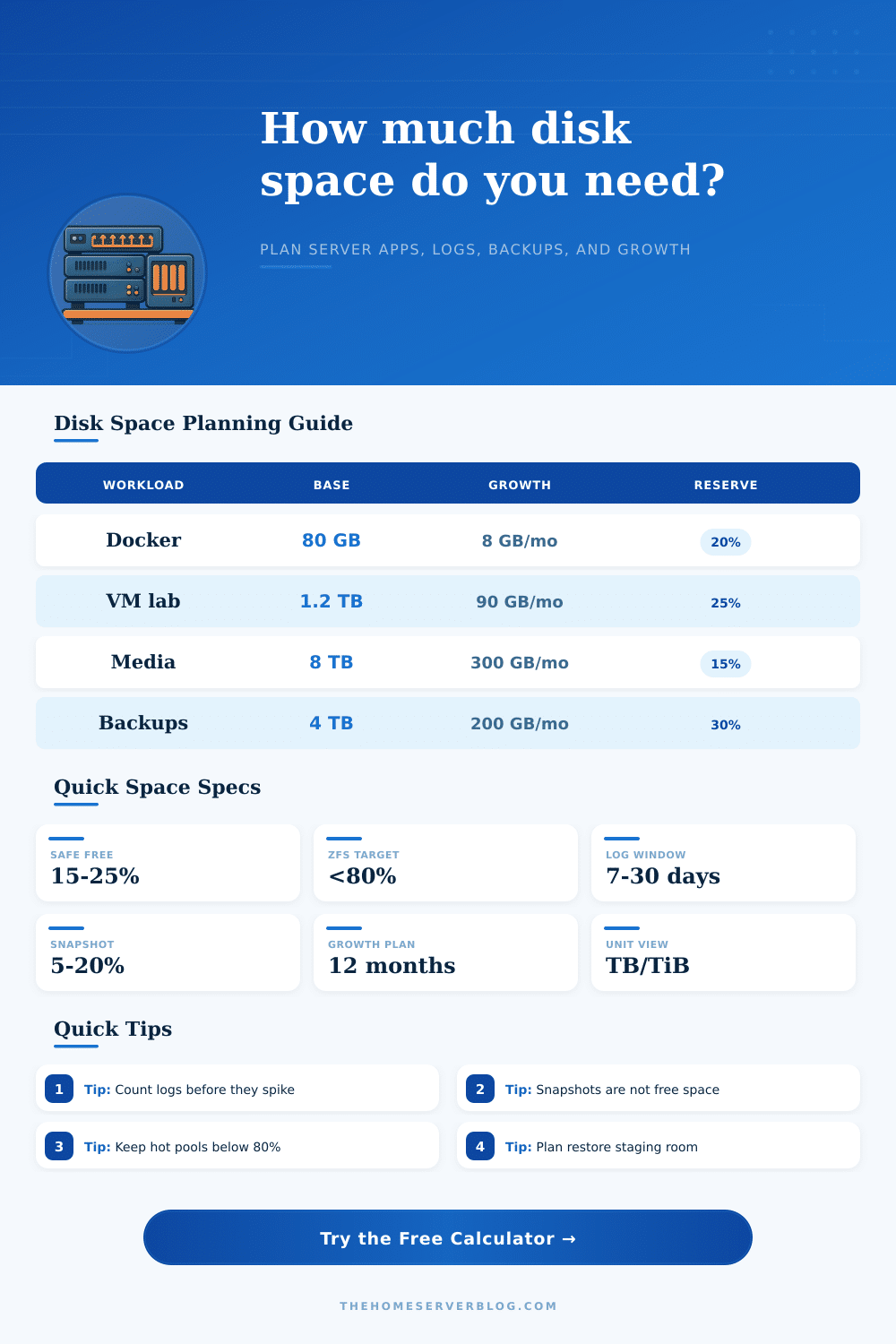
| ZFS free space | Keep below 80% | Performance and fragmentation worsen when pools are too full. | Reserve dropdown defaults to 20%. |
| Snapshots | 5% to 20% | Changed blocks stay referenced until snapshots expire. | Applied to active data before reserve. |
| Restore staging | 10% to 35% | Restores often need temporary landing space. | Added before filesystem free reserve. |
| Log retention | 7 to 30 days | Metrics and debug logs can outgrow app binaries. | Calculated from daily log rate and days. |
| Project size | Equipment count | Primary result | Secondary result |
|---|---|---|---|
| Small Docker host | 1 mini PC, 1 SSD | 500 GB to 1 TB usable | Fast backups matter more than parity. |
| Starter Proxmox lab | 2 to 5 VMs | 1 TB to 3 TB usable | Reserve 20% to 25% for VM churn. |
| Family file NAS | 4 bay appliance | 4 TB to 12 TB usable | Plan cloud sync cache and deleted files. |
| Media server | 4 to 8 drive array | 12 TB to 60 TB usable | Growth is usually import-batch driven. |
| NVR event storage | 4 to 8 cameras | 2 TB to 16 TB usable | Retention window sets the active space. |
| Backup vault | NAS plus USB or remote | 2x to 4x source data | Dedup ratio controls the final footprint. |
When planning for your home server, you must account for the different types of data that your home server will store and the way in which that data will grow in size over time. Your home server will start with a relatively small amount of data. However, over time, you will have added more data to those servers, such as adding virtual machines, files, and perform backups.
Therefore, you must calculate for the amount of storage that your home server will require into the future. Many people will calculate the amount of data that they has now, but do not account for data such as logs, snapshots, and backup copies of that data. If you do not account for this type of data, you will find that your home server eventually fills with data and you run out of storage space.
Plan Your Home Server Storage
To calculate the amount of storage that is required for your home server, you will need to provide a few different inputs into the calculator tool. For instance, you will need to provide the current data size in your home server, the daily write rate for that data, for how long you would like to keep that hot data, and what percentage of empty space you would like to leave in your drive as a reserve. These different pieces of information will help to calculate if your storage array is large enough to store your data for twelve months.
Additionally, you must become familiar with the difference between decimal and binary units. Drive manufacturers will use decimal units to label their drives, but operating systems use binary units. Therefore, the drives may appear to be smaller than the number that is provided on the drive manufacturers label.
However, the calculator tool allows you to switch between decimal and binary units, which will allow you to ensure that the calculator tool accurately reflect the information that is visible on your screen. The type of protection that you choose for your home server will have an impact upon how much data can be stored within that server. For instance, if you choose a two-way mirror protection layout, you will have data safety for your drives, but you will use half of your drives for that protection.
If you choose a RAIDZ2 or RAID6 layout, you will lose some of your drive’s total capacity to protect your data with that layout. Therefore, you must decide if you are willing to lose drives to protecting your data. Many people will choose a RAIDZ2 or RAID6 layout after experiencing a drive failure within their home server.
However, you can also choose this safer layout for your drives prior to experiencing a drive failure by purchasing additional drives for your server. Snapshots and local backup copies will take up some of the drives in your server just like your data does. If you create a snapshot of your drives, those snapshot drives will use some of the drives’ total capacity to preserve the data within those drives.
The same is true of local backup copies. If you choose to create two local backup copies of your drives, you will be using three times the amount of data as you would for your primary data. Thus, you must account for this additional data within your server prior to deploying it online.
Because your home server’s data may not increase at a constant rate each day, you must allow for the data to increase suddenly. Your growth rate may be based off the current amount of data that is being create by your home server today. However, tomorrow you may have purchased new hardware or media devices.
The calculator allows you to set a growth rate for the data that you currently have within your home server, as well as to set a time horizon to view into the future how much data space will be occupied by future data. If you determine that twelve months of space will fill your current drives to seventy percent of their capacity, you will have to purchase more drives to support your home server. When setting up your drives, you should always leave some empty space within your drives for the filesystem.
While twenty percent of space may seem like wasted space, twenty percent of space leaves enough empty space for data to be written to your drives without create fragmentation. If you reduce the filesystem reserve space to ten percent, you may save money on your drives. However, you may also experience a loss in the performance of your drives.
Thus, twenty percent of a filesystem reserve is recommended because this percentage will help to retain the performance of your drives. Use the reference tables included within the article to help you decide which profile your home server will have. For instance, if your home server will be a media server, it will grow in size in large batches, but will require little space for snapshots of that data.
If your home server will be a backup server, it will require more space for metadata and scratch space. By choosing a profile for your home server, you can enter the correct numbers into the calculator. Finally, run the calculator tool one last time to ensure that your plan for your home server is realistic.
Run the calculator with your current numbers for your home server’s data, but also calculate again with your growth rate increased by thirty percent. If your increased growth rate requires purchasing additional drives for your home server, you may have not purchased enough drives when you initially created your home server plan. Thus, your plan must account for either buying fewer drives for your home server, or buying more drives than you have now to ensure that your filesystem has a reserve of empty space to support the growing data of your home server.