IP Address in Subnet Checker
Check an IPv4 address against a subnet, confirm the usable range, and size the VLAN for real home lab devices.
Full Subnet Breakdown
| Network profile | Typical gear | Port or client scale | Subnet habit |
|---|---|---|---|
| Home LAN | Router, switch, laptops, phones | 20 to 80 clients | /24 keeps DHCP simple |
| Server lab | NAS, hypervisors, IPMI, containers | 30 to 120 addresses | /25 or /24 leaves room for nodes |
| IoT VLAN | Hubs, bulbs, plugs, sensors | 40 to 150 devices | /24 or /23 for device churn |
| Camera VLAN | NVR, PoE cameras, controller | 8 to 64 cameras | /26 for small, /24 for large installs |
| VPN pool | WireGuard, OpenVPN, remote admin | 2 to 14 peers | /28 is common for remote users |
| Point-to-point | Router uplink, routed firewall hop | 2 endpoints | /31 avoids wasted addresses |
| Block | CIDR | Address range | Home lab use |
|---|---|---|---|
| RFC 1918 Class A | 10.0.0.0/8 | 10.0.0.0 to 10.255.255.255 | Large multi-site labs and route summaries |
| RFC 1918 Class B | 172.16.0.0/12 | 172.16.0.0 to 172.31.255.255 | Container, VPN, and isolated lab networks |
| RFC 1918 Class C | 192.168.0.0/16 | 192.168.0.0 to 192.168.255.255 | Default home routers and small VLAN plans |
| Link-local | 169.254.0.0/16 | 169.254.0.0 to 169.254.255.255 | Auto-assigned fallback, not a routed subnet plan |
| Loopback | 127.0.0.0/8 | 127.0.0.0 to 127.255.255.255 | Localhost testing only |
| CIDR | Subnet mask | Total addresses | Usable hosts |
|---|---|---|---|
| /22 | 255.255.252.0 | 1,024 | 1,022 |
| /23 | 255.255.254.0 | 512 | 510 |
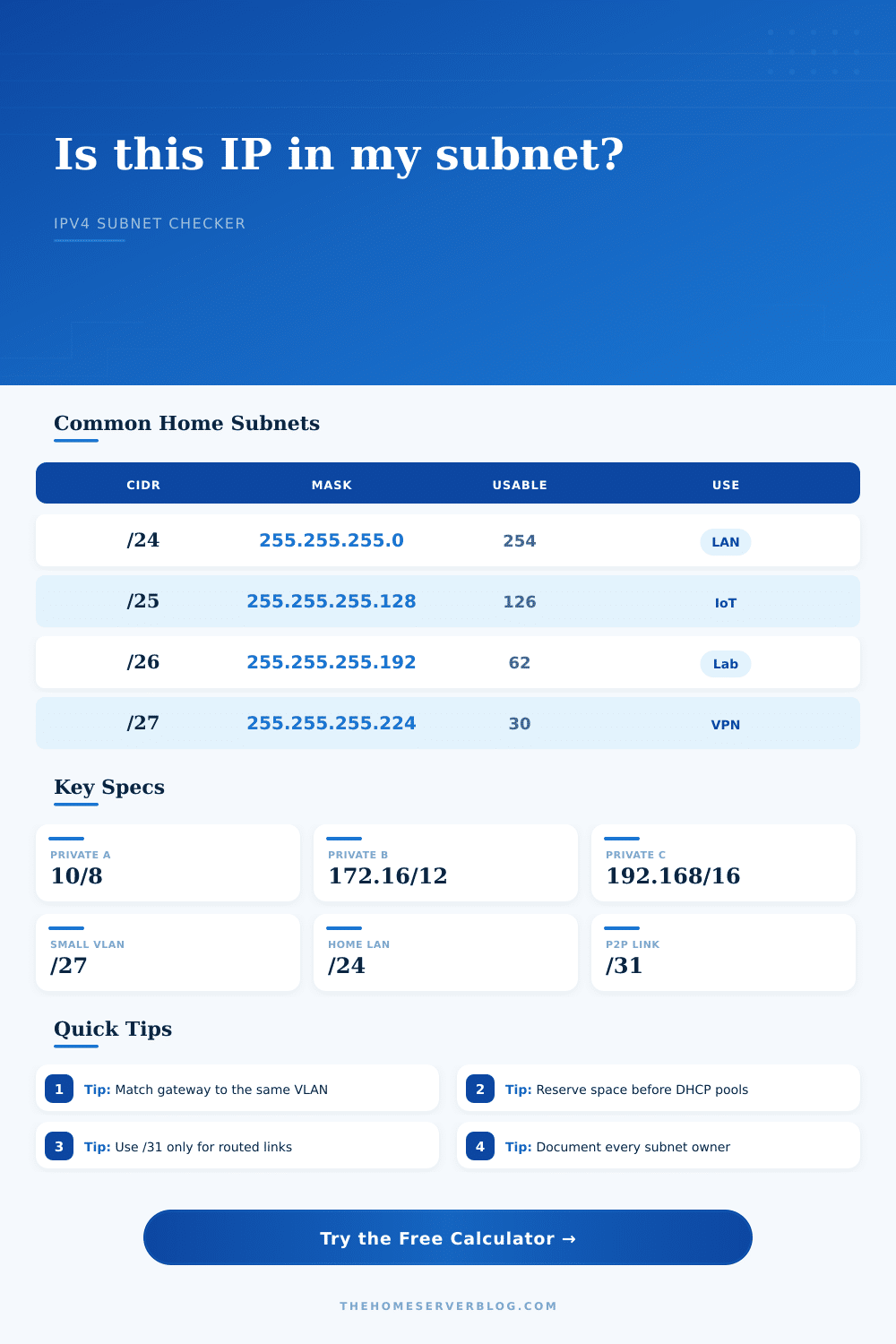
| /24 | 255.255.255.0 | 256 | 254 |
| /25 | 255.255.255.128 | 128 | 126 |
| /26 | 255.255.255.192 | 64 | 62 |
| /27 | 255.255.255.224 | 32 | 30 |
| /28 | 255.255.255.240 | 16 | 14 |
| /29 | 255.255.255.248 | 8 | 6 |
| /30 | 255.255.255.252 | 4 | 2 |
| /31 | 255.255.255.254 | 2 | 2 routed endpoints |
| /32 | 255.255.255.255 | 1 | 1 host route |
| Project | Likely device count | Practical subnet | Planning note |
|---|---|---|---|
| Small home office | 10 to 30 clients | /27 or /26 | Use /24 if the router UI is basic |
| Proxmox cluster | 20 to 80 addresses | /25 or /24 | Separate storage, migration, and management if possible |
| Ubiquiti AP network | 20 to 200 clients | /24 or /23 | Guest WiFi often deserves its own VLAN |
| PoE camera network | 8 to 64 cameras | /26 or /24 | Reserve NVR, controller, and spare camera IPs |
| WireGuard admin pool | 2 to 14 peers | /29 or /28 | Keep remote admin routes narrow |
The problem arises when you add a new security camera and it doesn’t play nicely with your home network, which seems to be working just dandy. Typically that’s because the IP address isn’t where you assumed it should reside, i.e., it is usually a subnet issue. And that’s why checking membership are important here. It is not just about plugging in a cable, but understanding exactly where your digital boundaries are so you can assign an address that won’t conflict with another.
That’s what the calculator above does, checks membership instantaneously so you know for sure that a given IP reside within the network range you want it to live in. No more guesswork.
How to Plan Your Network Subnets
Most folks begin by getting a plain old slash twenty-four network, which means they have two hundred fifty-four usable hosts. Sounds like enough for a router in your house plus a laptop here and there and perhaps a smart TV. Then throw in a server rack full of backup computers. Or create a VLAN for all those dumb Internet of Things devices so they don’t mess up your main computer. Create another for guest Wi-Fi.
Before you know it, you’re dividing up that initial chunk into smaller chunks. Slash twenty-six and suddenly you’re down to sixty-two usable addresses. Slash twenty-eight? Fourteen. The list of numbers dwindles quickly. Get out the calculator first, and decide what kind of capacity you want before you lock yourself in to any design.
Next, you specify how many hosts you currently have. Be sure to account for a bit of growth! You’ll be surprised how common it is to see people sizing their subnet according to number of devices they currently have. Bad idea. In six months, you’re going to run out of IP addresses again. Just a 10% buffer is all it takes.
Next up, the calculator deducts your DHCP pool size and reserved static IPs from your total. This gives you an idea whether or not you have breathing room. If you get negative space back here, you has too small of a prefix. If you get a huge amount of extra space back, you may have allocated more than needed. This wastes precious address space that could go towards yet another VLAN.
Then there’s the issue of private address ranges. For lab homes, we typicaly use a class C range such as 192.168.x.x. It’s what we’re used to and it’s simple to configure. However, when you start growing to a larger environment you may consider using class A or B spaces which support far more subnets without fragmenting them. The page has some reference tables that outline all of the ranges so you know where each block begins and ends. That lets you plan out your route summaries. Keep your routing table clean. Clean = fast.
Theory meets practice in the world of VLAN planning. No, you can’t randomly pick numbers for your VLANs. Every VLAN must have its own unique network ID. If you don’t use a different number for each VLAN, even if it’s only one address off, your firewall rules won’t work. Your DHCP server will spit out conflicting IPs.
That’s what the checker does. It checks to make sure the IP you entered is actualy within the network you created. It ensures the CIDR prefix and the subnet mask are the same. If they’re not, the tool will flag it. It is a simple way to prevent hours of troubleshooting down the road.
A router-to-router cable doesn’t require a whole subnet. That’s why you can get away with a slash thirty-one: it has no broadcast overhead, and it only takes two addresses. Efficient! Not so good if you’re doing a LAN. That’ll mess up. If you toggle views between a LAN network and a peer-to-peer link then it shows what number of hosts are available. It shows the efficiency-flexibility tradeoff.
But even more so, document your subnets. Write down the who-owns-what-for-whom. Note the start and end of the DHCP pool. The start and end point of the subnet ranges. The gateway IP. The static server IPs. If you don’t have a map, you’re flying blind. This tool will output a breakdown of this information. It is a snapshot that you can print, save, or use as a reference in your network diagram.
There are two sides to subnetting: strategy and math. The math is simple if you use the proper tool. The strategy is about planning ahead. Think about how you want your network to grow. How do you isolate traffic? Do you need to reserve some space for management?
Once you get the boundaries correct, the network starts behaving. It no longer feels chaotic. Instead, it becomes a structured environment. Every device has its place. That’s what makes a home lab so useful. It transforms a tangle of cables into a reliable system.