SQL Server Capacity Planning Calculator
Estimate database storage, log retention, tempdb allocation, IOPS target, memory buffer pool, CPU cores, HA replica copies, backup compression, and practical headroom.
| Planning Area | Rule of Thumb | Calculator Input | Why It Matters |
|---|---|---|---|
| Database data files | Compound annual growth across the planning horizon | Current DB size and annual growth | Prevents under-sized data volumes and repeated emergency expansion |
| Transaction logs | Daily log generation multiplied by local retention | GB/day and retained days | Full recovery systems can fail when log backup storage fills |
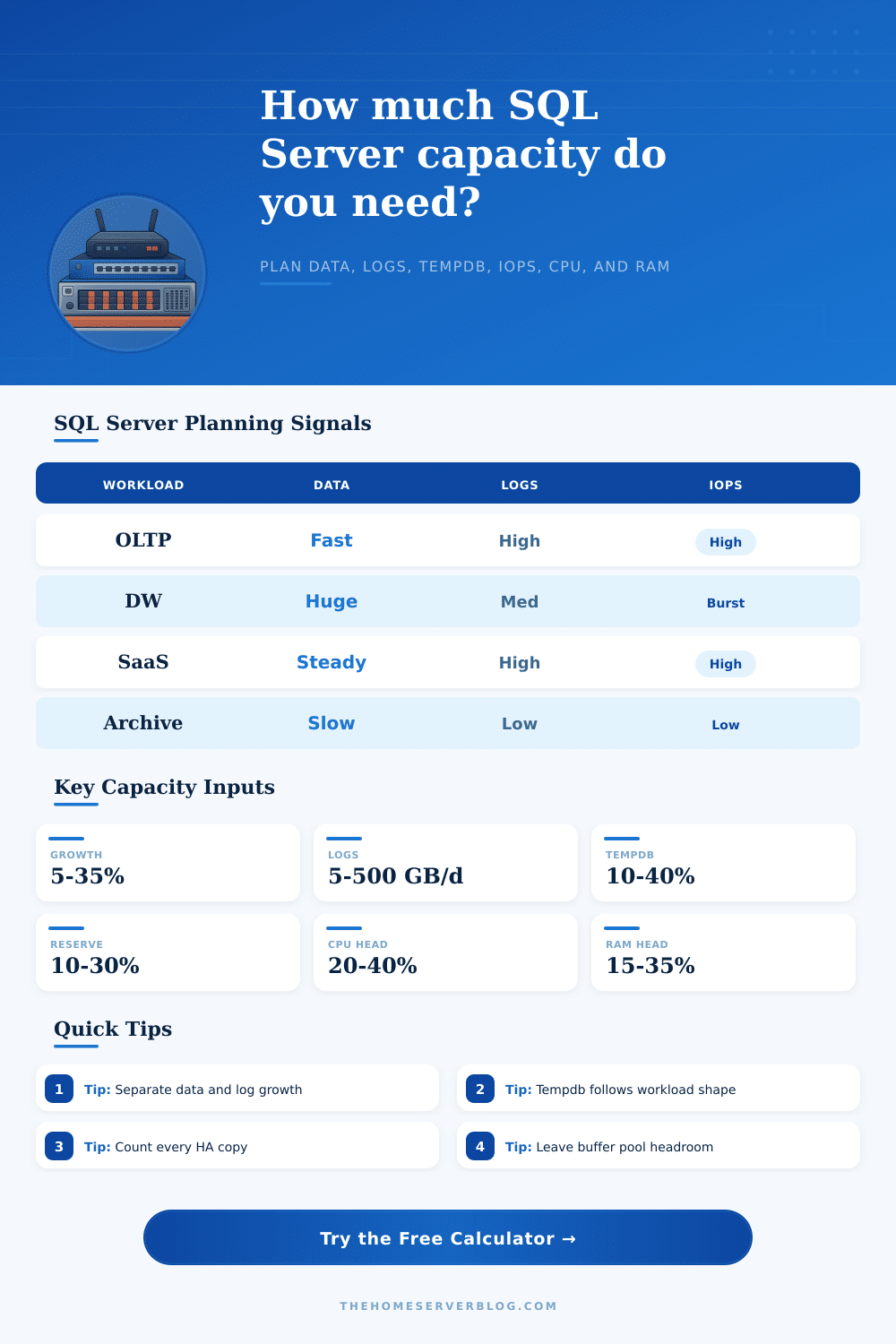
| Tempdb | 10% to 40% of active database size for many mixed workloads | Tempdb target percent | Sorts, version store, index rebuilds, and ETL can spike tempdb quickly |
| IOPS | Separate reads from writes and leave burst room | IOPS target and read percent | Write latency often becomes visible before CPU is saturated |
| Memory | Keep OS reserve plus SQL headroom outside buffer pool | Installed RAM and buffer pool target | Prevents paging, grant pressure, and unstable cache behavior |
| CPU | Compare peak transactions to measured transactions per core | Peak TPS, cores, TPS/core | Shows when more cores or query tuning are likely needed |
| Workload | Tempdb Band | Log Shape | Capacity Note |
|---|---|---|---|
| OLTP transaction app | 10% to 25% | High and steady | Protect log latency and keep enough buffer pool for hot pages |
| Mixed app plus reporting | 20% to 40% | Steady with batch spikes | Readable replicas may shift CPU and IOPS away from the primary |
| Warehouse or analytics | 25% to 60% | Batch loaded | Plan for scan throughput, memory grants, and large maintenance windows |
| Telemetry or ingest | 15% to 35% | Very high | Log volume and partition management usually dominate capacity planning |
| Archive read mostly | 5% to 15% | Low | Storage growth matters more than CPU, but backups still need room |
This calculator is a planning estimate. Confirm final sizing with wait stats, Query Store, perf counters, backup history, and storage latency measurements from the real environment.
I’m sure this sounds familiar: it’s Friday afternoon and your disk space warning emails is popping up again, along with some slow database queries. Your log retention policy may have been too strict, your capacity planning was too hopeful, or perhaps your database isn’t broken, but it is still causing problems. To avoid panicking when things grow unexpectedly, capacity planning doesn’t need to be precise math for what lies ahead; rather, it is simply adding slack to the system so that things don’t get out of control.
Plug your actual size numbers and your expected growth rate into the calculator and it’ll do the math for you, without you having to guess at any coefficients as you strategize. People’s minds jump to the data files themselves. A half terabyte database doesn’t sound so bad…until you realize it will grow over time. And if your business grows twenty-five percent a year (compounding for three years), then you’re not looking for double what you have, but quite a bit more. This compound growth is estimated out over whatever time horizon you choose.
How to Plan for Database Growth
The takeaway is the reserve margin. No one ever wants to wake up at 2am and call storage team to increase the size of a volume with users complaining about latency. Individual file autogrowth are a safety net, not a capacity strategy. If you do lots of index maintenance or heavy ETL jobs, then your transaction logs will often increase in size more rapidly than your actual data does.
That’s because transaction logs track each and every change; even a small update can result in huge amounts of log volume when compared to the actual table it touches. Over time, these logs accumulate if you keep them on hand for recovery reasons. The calculator splits out this calculation so that you know precisely how much of your disk space is going toward actively storing your data vs protecting it from loss. Why care? Usually log backups are less expensive to store offline, e.g. On tape or cloud storage, compared with your hot data files.
Another resource-hungry consumer that everyone finds out about when they don’t want to know is tempdb. This does all sorts of things with versioning for read committed snapshots, sorting, and temporary work tables. You should allocate somewhere between ten and forty percent of your active database space to tempdb. This depends on how complex your queries are and how much reporting is done on the server.
That’s enough to handle that additional burst when a big sort kicks off. It also covers when you’re doing some serious analytics in addition to your transactional workload. You can tweak this percentage here to match your blend of activity so you won’t be starving the process at exactly the wrong moment.
Memory and CPU headroom is also very important. Sure, maybe you’ve got a ton of disk space, but what good does that do you if you’re maxed out on memory and SQL Server needs to start paging? That will kill performance quicker then anything else. The tool takes into account your total memory target, how many cores you want to use, and your peak transactions per second. It compares those values and calculates the amount of headroom left for you. Now you can look at one single number and know roughly how close to the edge you are running. Low value here mean it’s time to get some better query tuning or more hardware before adding additional load.
Complicating things further are high availability replicas, each replica contains a full copy of the data. This means that when setting up capacity, you need to take into account all servers in your group and multiply to match. This multiplication factor is included automatically by the calculator (to avoid the error of just calculating for the primary node).
Another variable that can significantly cut down on your storage needs is backup compression (assuming you have compressible data). In the end, that’s what planning is for: it’s about reducing risk. It’s impossible to plan for every spike. It’s impossible to know which business decisions will cause massive growth. But by taking an estimate at those numbers and padding them with reasonable reserves, you’re insuring yourself some breathing room to respond if something changes.
Your job isn’t to have a bunch of empty disk space twiddling its thumbs. Your job is to make sure you never need to stop everything because you didn’t have enough room for it in the first place. Monitor your logs, maintain healthy buffers, and always leave a bit of breathing room. Because when the growth comes, you won’t be caught off-guard. You’ll simply press enter and carry on with your day.