UniFi NVR Storage Calculator
Estimate UniFi Protect retention from recorder model, camera count, resolution mix, codec, recording duty cycle, HDD count, drive size, protection overhead, and free-space reserve.
Calculation breakdown
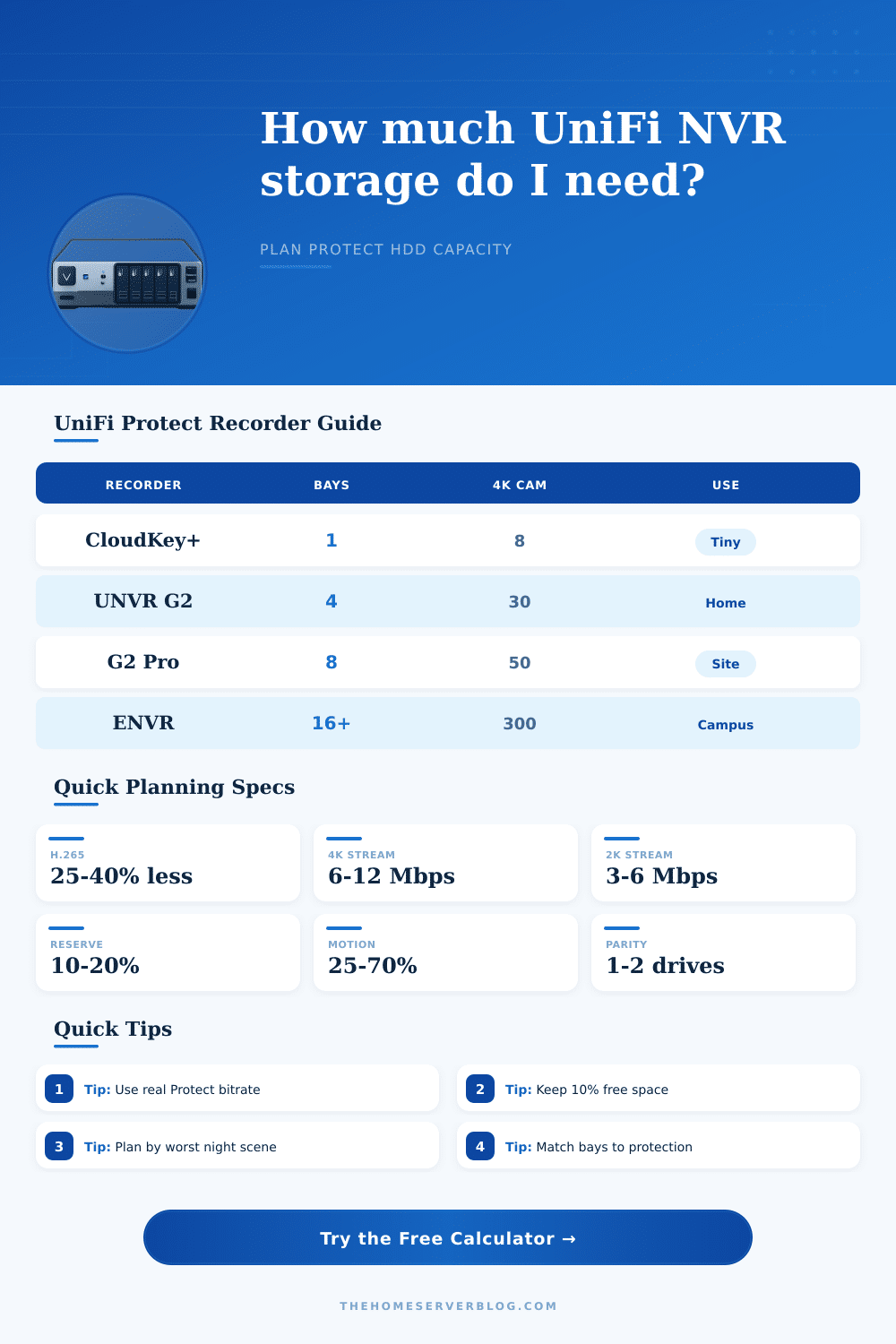
| Recorder Class | Drive Bays | Camera Planning Limit | Storage Planning Note |
|---|---|---|---|
| CloudKey+ | 1 x 2.5 inch bay | 24 HD, 14 2K, 8 4K | Best for a few cameras or short retention; one-drive failure protection is not available. |
| Dream Machine Pro / SE | 1 x 3.5 inch NVR bay | 24 HD, 14 2K, 8 4K | Convenient all-in-one gateway, but storage is limited by the single drive bay. |
| UNVR and UNVR G2 | 4 x 2.5/3.5 inch bays | Up to 30 4K on G2 class | Good home lab and small site class; single-parity layouts usually cost one drive of capacity. |
| UNVR Pro | 7 x 2.5/3.5 inch bays | 24 4K planning class | More raw space than 4-bay units and better fit for long retention with redundancy. |
| UNVR G2 Pro | 8 x 2.5/3.5 inch bays | 100 HD, 70 2K, 50 4K | Higher camera ceiling and drive budget for larger business Protect deployments. |
| Enterprise NVR Core | 16 internal, up to 48 total | 500 HD, 400 2K, 300 4K | Campus class sizing; dual-parity and expansion planning become more important. |
| Camera Class | Typical Mbps | Storage Character | When To Override |
|---|---|---|---|
| HD or doorbell archive | 1.5 to 3 Mbps | Low daily storage, often fine on CloudKey+ for light motion zones. | Override when doorbell scenes include street traffic or package alerts all day. |
| 2K G4/G5 camera | 3 to 6 Mbps | Balanced detail for home perimeter cameras and small office corridors. | Override if Protect shows high bitrate from rain, foliage, or night noise. |
| 4K G4 Pro / AI Pro | 6 to 12 Mbps | High detail and high retention pressure, especially at continuous recording. | Override for license plates, wide yards, or maximum quality settings. |
| AI detection camera | 7 to 14 Mbps | Similar storage to strong 4K profiles with extra event metadata overhead. | Override if detections, snapshots, and clip exports are unusually busy. |
| PTZ or high motion 4K | 10 to 18 Mbps | Pan, tilt, zoom, and busy scenes compress less efficiently. | Override whenever the camera often tracks vehicles, crowds, or moving lights. |
| Multi-sensor panoramic | 12 to 24 Mbps | Several views can behave like multiple cameras for storage purposes. | Override from actual Protect stream stats if available. |
| Protection Mode | Capacity Rule | Best Fit | Storage Caveat |
|---|---|---|---|
| No protection | All drives usable before reserve | Lab testing, noncritical clips, single-bay recorders | A drive failure can remove recorded history. |
| Mirrored pair | About half of equal-sized drives | Two-drive setups or cautious small sites | Retention is lower, but recovery from one drive failure is simple. |
| Single parity | One drive reserved for parity | 4-bay UNVR and 7/8-bay UNVR Pro classes | Usable space depends on equal drive sizes and final Protect formatting. |
| Dual parity | Two drives reserved for parity | Large arrays, Enterprise NVR, long retention | Costs more capacity but reduces risk during rebuilds. |
| Custom usable percent | User-selected percent | Mixed drive sizes or external planning | Use this when your actual Protect dashboard already reports usable capacity. |
| Common Project | Camera Mix | 30-Day Need | Likely Recorder Fit |
|---|---|---|---|
| Small UniFi home | 4 cameras at 4 Mbps | About 5.2 TB before reserve | UDM Pro or CloudKey+ can fit only with larger drive and modest retention. |
| 4K perimeter home | 8 cameras at 8 Mbps | About 20.7 TB before reserve | UNVR G2 class is a more comfortable starting point. |
| Retail site | 24 cameras at 5 Mbps | About 38.9 TB before reserve | UNVR Pro or G2 Pro with large drives and protection planning. |
| AI campus entrance | 40 AI cameras at 10 Mbps | About 129.6 TB before reserve | Enterprise NVR class when long continuous retention is required. |
| Long-retention home | 10 cameras at 5 Mbps for 90 days | About 48.6 TB before reserve | Needs large multi-bay NVR or lower bitrate and motion duty cycle. |
| Quiet warehouse | 32 cameras motion at 6 Mbps | About 43.5 TB before reserve | Motion duty cycle can make a Pro recorder practical. |
When planning storage for a UniFi Protect system, it is important to understand the various variables that impact the amount of data that will be consumed by the camera in the system. The bitrate of each camera will change based off the lighting of the area in which the camera is installed, the amount of motion that occurs within the cameras view, and even the amount of foliage within the field of view of that camera. Additionally, the bitrate will change based upon the codec that the camera use.
Thus, while a camera may appear to use a small amount of storage for planning purposes, that same camera will use more storage once it is installed and begins to record into areas that are present at night. Because of these varying variables, it is necessary to account for these differences in order to ensure that the archive of recorded footage from the cameras will last at least thirty day; otherwise, the system may begin to overwrite some of the older footage from the cameras. The calculator that is provided above will help to mathematically calculate the amount of storage that will be consumed by the cameras based upon the following inputs from the system administrator: the model of the protect recorder that will be used, the number of cameras in the network, the resolution of the cameras, the codec that the cameras will use, and the duty cycle for the cameras.
Plan Storage for UniFi Protect Cameras
Each of these inputs will have an impact upon the data consumption of the surveillance cameras; for instance, a camera with higher resolution will consume more data than a camera with lower resolution settings, or a camera that records at a higher frame rate will consume more data than a camera that records at a lower frame rate. Additionally, a camera that focus upon an area that is experiencing high traffic will consume more data than a camera that is focused upon a quieter area, and those settings is accounted for within the calculator. In addition to the bitrate settings of each camera, the recorder itself must be considered in the planning of the surveillance system.
Although each of the recorders have a certain number of camera ports at which cameras can be connected to the recorder, the capacity of that model of recorder is also limited by the number of storage drive that the recorder can hold. Additionally, various options for the recorder include whether or not the drives will use data parity for the drives that store the recorded footage of the cameras. For instance, single-parity mode indicates that one of the drives in the recorder will be used to protect the data that is stored in the other drives in the recorder; dual-parity mode uses two drives to provide this data protection.
This mode is beneficial for systems that use large array of drives to store the recorded footage; the parity rules for these drives are also factored into the calculator. Another important consideration is the retention of the recorded footage by the surveillance system. The retention target is the length of time that the surveillance system will retain the recorded footage.
For instance, a home surveillance system may use a retention target of two weeks, while a retail location may require that the recorded footage is retained on a continual basis for insurance and other reasons. Additionally, a retention target of thirty days will not require three times as much storage as a target of ninety days to retain the recorded footage; the same factors that impact the data consumption of the cameras will also impact the storage requirement for retention of those recordings. Thus, utilizing realistic bitrates in the planning process will ensure that the calculated storage need for the system is accurate.
Due to the complexity of these calculations, many people may make mistake in calculating the necessary storage for the system. For instance, individuals may set the bitrate for each camera to an excessively high value. Additionally, the formatted capacity of the drives may be less than the total capacity of the drives, and that reserved space within each drive may not be utilized by the surveillance system.
Finally, many individuals may not account for the storage of event thumbnails within the system. Each of these parameters is accounted for within the calculator; however, the storage system will require adjustments to the variables within the calculator based upon the actual statistics from the surveillance system after it has been running for one or two weeks. In addition to the factors described above, another factor to consider in the creation of the surveillance system is the types of drive that will be used in that system.
For instance, if the surveillance system utilizes drives of a larger capacity, the total number of drives that will be required will be reduced. Fewer drives also reduces the need for cooling and power for those drives. However, larger drives also mean that the surveillance system is at greater risk of losing all of the recorded footage in the case that one drive fails.
These drives should all be the same size within each drive array. Thus, the calculator also allows for testing of different numbers of drives of a certain capacity, and different numbers of drive of a certain capacity can be tested to determine how many drives are required. Another factor that must be considered is the headroom that will be provided to the cameras in the network.
The aggregate data from all of the cameras will pass through network switches until it reaches the protect recorder. Thus, the switches should have headroom to handle the data from all of the cameras and any simultaneous video exports by those cameras. Thus, the inclusion of a headroom parameter in the calculator allows for the data consumption to reflect the headroom that the network will provide to the cameras.
The calculator will provide four different outputs to the system administrator after all of the variables have been entered. These outputs will be the amount of storage that is required to support the surveillance cameras, the retention of the recorded footage on the drives, the amount of that storage that will be usable after the implementation of parity protection and reserved space within each drive, and the total ingest load for the protect system. These four parameters will help to the system administrator to understand whether or not the storage that will be purchased for the protect system is sufficient for the requirements of the cameras.
If the calculated storage is more higher than the storage that will be purchased for the system, the system has flexibility in adjusting the quality of the video that the cameras will record or the number of cameras that will be installed. If, however, the calculated storage is less than the storage that will be purchased for the system, then adjustments will have to be made to the surveillance system; for instance, motion-only recording could be implemented for cameras, cameras could be set to use a lower bitrate, or the number of storage drives can be increased. Each of the calculations that are made in the calculator can be considered an estimate.
Thus, the calculation that is made with the initial setup of the system is merely a starting point for the storage requirement for the cameras. After the UniFi Protect system is installed and running for one week, the bitrates for each camera can be examined in the Protect software; these actual bitrates can be entered into the manual bitrate field in the calculator. Thus, adjusting the bitrate for the cameras will usually result in a more accurate projection of the length of time that the system will retain the recorded footage than changing the model of the protect recorder that is to be used.
Therefore, the calculator provides a way to test these adjustment.