WireGuard Keepalive Calculator
Estimate a PersistentKeepalive value that stays below the NAT timeout while showing daily metered usage, uplink load, packet counts, and safety margin for real home lab tunnels.
Detailed breakdown
| Scenario | Typical UDP NAT timeout | Starting keepalive | Why it fits |
|---|---|---|---|
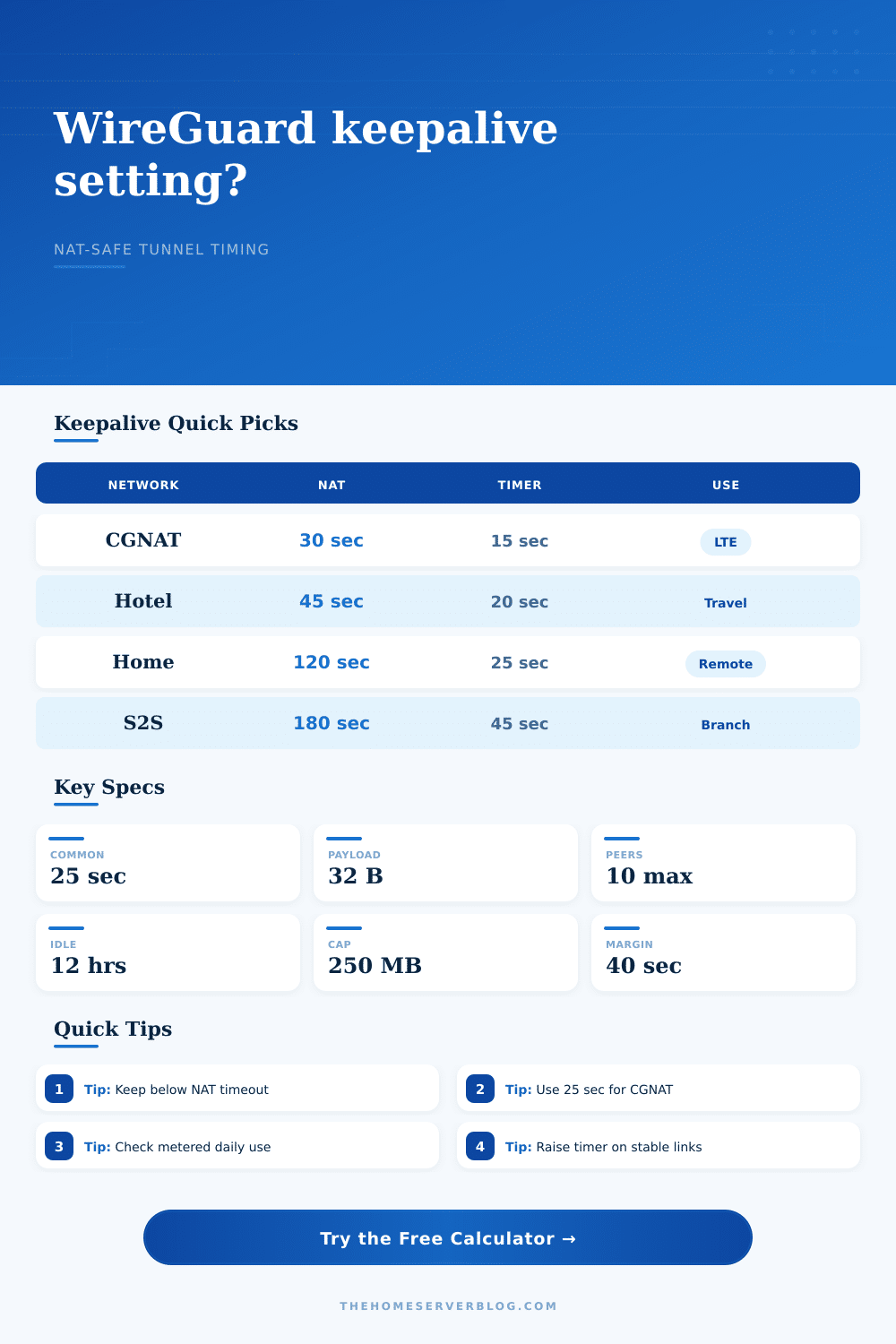
| CGNAT home fiber | 30 to 60 seconds | 15 to 25 seconds | Shared carrier state can expire aggressively when idle. |
| LTE router backup | 25 to 90 seconds | 15 to 30 seconds | Mobile gateways often rebalance sessions and change endpoint paths. |
| Hotel or captive Wi-Fi | 20 to 60 seconds | 15 to 25 seconds | Low idle tolerance and roaming are common on guest WLANs. |
| Site-to-site routers | 120 to 300 seconds | 30 to 60 seconds | Routers are stable, but a shorter timer speeds recovery. |
| Public VPS hub | No NAT on listener | 0 seconds on hub | The public listener does not need to punch out through NAT. |
| Packet model | Bytes to enter | Best for | Calculation note |
|---|---|---|---|
| Minimal tunnel estimate | 60 to 80 bytes | IPv4 Ethernet lab math | Counts outer IP and UDP plus WireGuard message overhead. |
| Conservative carrier billing | 96 to 128 bytes | LTE, 5G, satellite, metered WAN | Adds link-layer framing and accounting overhead. |
| IPv6 outer path | 80 to 120 bytes | IPv6 mobile or VPS paths | IPv6 headers are larger than IPv4 headers. |
| Very cautious budget | 150 to 220 bytes | Strict data caps | Useful when the carrier rounds small packets upward. |
| NAT behavior | Mapping stability | Safe factor used | Practical keepalive posture |
|---|---|---|---|
| Public IP endpoint | Very stable | 0.90 | Disable on public listener unless the peer is NATed. |
| Full-cone home NAT | Stable | 0.75 | Use a relaxed interval if data caps matter. |
| Port-restricted NAT | Moderate | 0.65 | Keep a clear buffer under the observed timeout. |
| Symmetric NAT | Low to moderate | 0.45 | Prefer 15 to 25 seconds for idle remote peers. |
| Carrier-grade NAT | Low | 0.50 | Use the common 25 second value or shorter if tested. |
| Hotel Wi-Fi | Variable | 0.40 | Short timers help survive captive portal and AP roaming. |
| Operating target | Recommended check | Warning sign | Adjustment |
|---|---|---|---|
| Lowest data use | Daily MB below cap | Cap used above 50 percent | Raise keepalive only if NAT margin remains positive. |
| Fast remote access | Margin above 10 seconds | First packet after idle stalls | Lower the timer by 5 seconds and retest. |
| Many spoke peers | Aggregate kbps | Idle load is visible on slow uplink | Use keepalive only on peers that sit behind NAT. |
| Roaming laptop | Roam windows per day | Endpoint changes while tunnel appears idle | Favor 15 to 25 seconds during travel. |
| Stable site link | Observed NAT timeout | Router logs show UDP session drops | Use 30 to 60 seconds after confirming timeout. |
The calculator estimates idle maintenance traffic. Real application traffic also refreshes the WireGuard path, so busy tunnels may need less PersistentKeepalive than fully idle tunnels.
The issue isn’t that the internet is broken. You’re at a coffee shop in another city, trying to connect to your home server. You’ve refreshed the page and waited. Nothing happen. It’s the classic NAT timeout problem.
If you run any kind of WireGuard tunnel behind a hotel firewall or a carrier-grade NAT, this problem happen all the time. The fix is called the PersistentKeepalive setting, except it feels like a guess-and-check process to get the right number. Set it too low and you’ll be wasting bandwidth on useless ping packets. Set it too high, and your tunnel will expire before the next real request.
How to Fix WireGuard NAT Timeouts
Enter this tool: it eliminates all that guesswork (above). And no, it doesn’t spew out some arbitary number. Instead, it makes you consider your own networks constraints, like its data cap. How aggressive is your ISP’s firewall?
First, you determine your NAT behavior. Is it strict, like CGNAT at home over a residential fiber connection, or a mobile LTE? That means the state table on the carrier side have short timeouts; maybe they’ll drop your UDP session after 30 seconds of silence. Or are you connected to stable hotel Wi-Fi? Maybe their timeout will be longer, but your connection could still get killed when you roam from one access point to another.
Those observed timeouts goes into the calculator, along with a safety factor to make sure your keepalive packets makes it through before the connection shuts down. It’s a cushion against the unpredictable nature of current-day internet routing.
That’s the point at which most folks stop their thought process: it costs something to keep the tunnel alive, and each keepalive packet is tiny, but sent out every fifteen seconds. Especially when you’ve got four peer behind NAT; that adds up over time.
The calculator lets you enter how many idle peers you want to keep and your metered link cap. It will then calculate your daily usage for you. That’s hugely important for anyone with a limited data plan (for example, a satellite internet user) or who use a mobile hotspot as a back-up link.
A few megs per day may go unnoticed, but if you’re operating several servers or you’re under a strict cap, all those idle packets can gobble up your buffer space for doing real work. The math really helps show that trade-off so you know what you’re committing to before you do so.
Another fallacy: many people mistakenly believe they must configure keepalives on both sides of the tunnel. No! It goes only on the NAT-hidden side, which is the peer. Because the public-facing (i.e. The public-facing (static IP) server doesn’t have to knock on its own door. It simply waits.
That’s why the calculator asks what your tunnel role is, if it’s a VPS hub, then you probably want to leave that end at zero. It’s the clients who’re doing the legwork here. This results in less noise on the central server, less bandwidth used, and a small optimization that makes a difference when you scale up.
The last step can’t be automated: test it. Based off averages and theory, the tool will recommend an interval. But your network may be odd in ways that aren’t typical. Perhaps your ISP has a longer timeout than the norm? Or maybe there’s a lot of packet loss on this route?
Take what it recommends, set up the tunnel, and let ‘er ride. Wait awhile. Leave it idle. Now attempt a connection. Did the initial ping hang? Too close to the edge. Tweak the timer down a few seconds and re-try. It’s an iterative process. The calculator puts you in the ballpark but it takes some patience and observance for the final tune-up.
Finally, a good tunnel should be a quiet tunnel. The tunnel stays open but gives the firewall only enough nudges to make him happy, not too many to draw any attention or waste any resources. It is a fine line between being persistent and being discreet. Get it right, and your remote access will work reliably and seamlessly. Get it wrong and you’re left on a loading screen trying to figure out what happened to the connection. And it’s never very complicated code. It is just the right amount of time between heartbeats.