Backup Capacity Planning Calculator
Estimate backup repository capacity from protected data, daily change rate, full and incremental schedules, GFS retention, dedupe, compression, immutability reserve, growth, and safety headroom.
⚙️Named backup scenarios
📝Backup capacity inputs
Backup capacity results
📊Live capacity metrics
🗂️Scenario capacity guide
Family NAS
VM Home Lab
Media Vault
Office Files
📅Retention comparison grid
| Retention Plan | Restore Points | GFS Copies | Estimated Repository |
|---|---|---|---|
| Calculating | 0 | 0 | 0 TB |
🔗Schedule and GFS behavior
| Schedule | Capacity Pattern | Restore Point Impact | Planning Note |
|---|---|---|---|
| Forever incremental | One full plus changed blocks | Many daily points, longer chain | Efficient, but health checks matter. |
| Weekly synthetic full | Full anchors reuse repository blocks | Shorter chains every 7 days | Good default for NAS targets. |
| Monthly synthetic full | Fewer anchors, more daily deltas | Longer chain between anchors | Useful when capacity is tight. |
| GFS full-equivalent | Weekly, monthly, yearly copies count heavily | More independent restore points | Best for compliance-style retention. |
| Immutable reserve | Locked recent points sit outside cleanup | Protects rollback during attacks | Reserve enough for failed jobs too. |
💾Data reduction reference
| Protected Workload | Compression | Dedupe | Typical Change Rate |
|---|---|---|---|
| VM images and OS disks | 1.3:1 to 2:1 | 3:1 to 8:1 | 5% to 15% per day |
| User file shares | 1.2:1 to 1.8:1 | 1.5:1 to 4:1 | 2% to 7% per day |
| Photos and video | 1:1 to 1.1:1 | 1:1 to 1.3:1 | 0.5% to 3% per day |
| Database dumps and logs | 1.8:1 to 3:1 | 1.2:1 to 3:1 | 8% to 25% per day |
| Encrypted or compressed data | 1:1 to 1.05:1 | 1:1 to 1.2:1 | Depends on source churn |
📈Repository sizing checkpoints
| Checkpoint | Watch For | Capacity Reserve | Action |
|---|---|---|---|
| Initial seed | Full backup larger than expected | 10% to 15% | Measure real reduction after first full. |
| First month | Daily change rate drift | 15% to 20% | Replace estimates with job history. |
| GFS rollover | Monthly or yearly copy creation | 20% to 25% | Confirm archive copies expire correctly. |
| Immutable window | Locked points preventing cleanup | 20% to 30% | Keep separate reserve for lock days. |
| Source growth | New VMs, cameras, or media imports | 25%+ | Trend monthly repository growth. |
💡Backup planning tips
People don’t think about the future. They gets a big hard drive and fill it up fast. Why? Because they buys it for today’s use, not tomorrow’s.
Here is how it works: The site has a calculator that will do the number crunching for you. Plug in your settings and convert percentages to terabytes. Then make an educated guess instead of winging it.
How to Choose the Right Storage Size
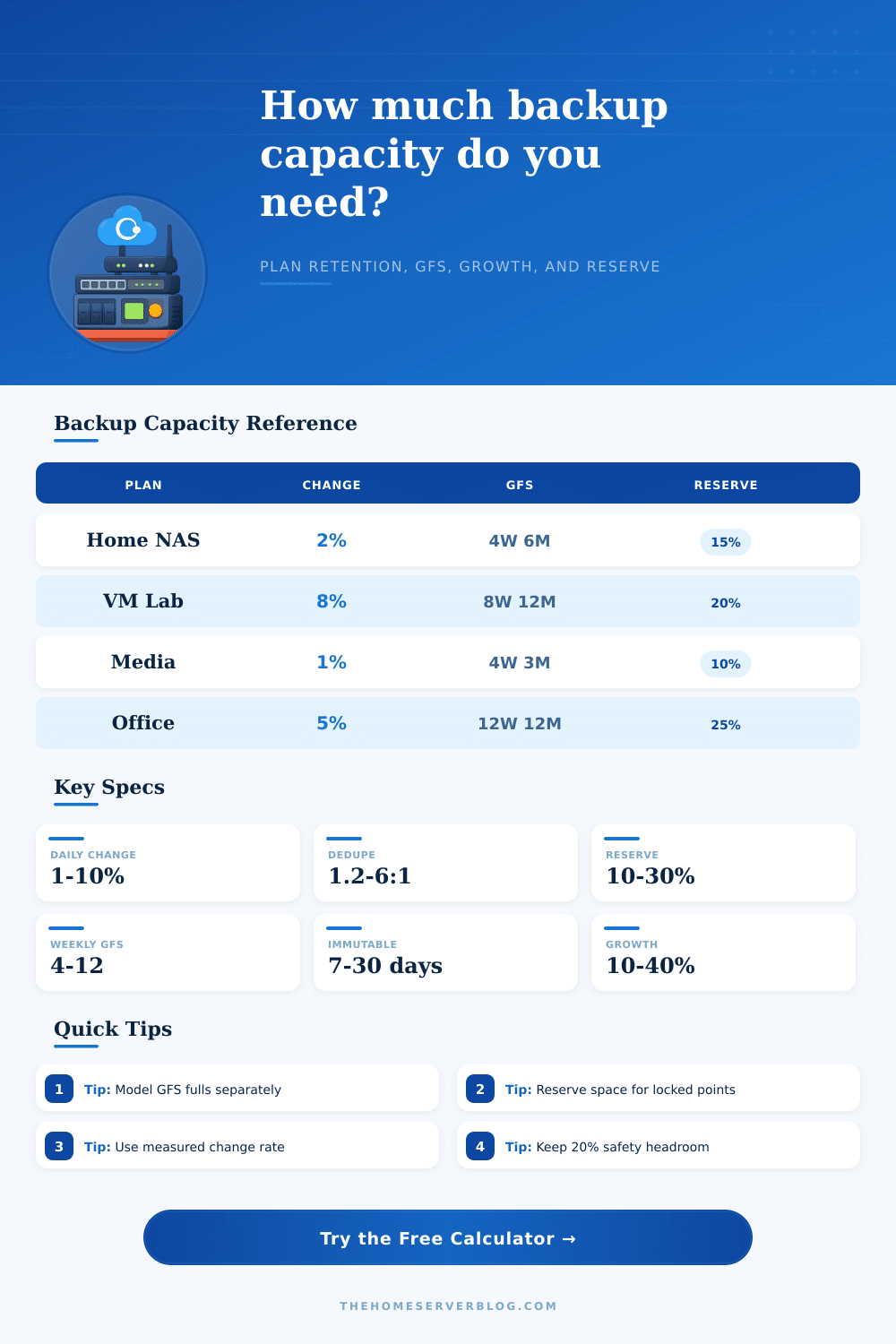
The data never sits still. Even without adding any new files, it will take up more space as your system update, files change, or a snapshot is created for a virtual machine. That means that everyday you have more to store than just what was backed up originally. The daily change rate input should reflects how much of that daily data changes. For example, at home, perhaps five percent of your data changes every day. On a media server full of static movies, maybe only one percent changes. Get this input right and you won’t run out of room and have your retention policy force out old backups before they expire.
Retain strategy: Grandfather-Father-Son, which retains daily copies temporarily; weekly copies for months; and monthly copies for years. This is where many backup tool keep their long-term copies as complete backups rather than just the changes made since last backup. You can specify whether your monthly and weekly copies are full copies or a merge-down to the smallest possible amount (e.g., only changed blocks since last copy). By modeling them as full copies, you will need much more storage space.
A common error is to count “restore points” instead of actual storage space in blocks. Don’t take at face value any marketing figures for deduplication and compression ratios. For instance, deduplication is great on virtual machines since they shares blocks of an operating system. It does not work as well with a folder full of high resolution photos. Configure deduplication and compression separately in the tool. Your workload determines this. The compression ratio is roughly one to one if you are storing encrypted data or compressed videos. If you assumes aggressive deduplication on such workloads, you will soon find yourself running out of space.
The calculation becomes more complex because of immutability. Backup files that are locked from modification prevent ransomware attacks. But once locked in place, you can’t delete them unless your retention policy expire them. Even though they have expired, those locked points occupy space until they also expires due to their unchangeable time period. Separate from normal growth headroom, you must account for capacity used while in the locked state. Otherwise, when a full repository and lock period overlap, backups will fail.
Long term plans don’t work as well when you have growing source data. When twenty percent of your source data increases per year, your backup will grow more then that as well. For each new gigabyte, you need history; then you need compression overhead; then you need safety margin. Without planning for future growth, you’ll be upgrading hardware constantly. Plan for at least six to twelve months ahead, accounting for both baseline retention and adding new data.
A sane check on some of the more common cases is in the reference table on the page. That should help you tell the difference between your high-change virtual machine labs and low-churn media vault. Models are not always representative of real world performance. Run backups for a month and see what the software reports as the actual rate of change. Use what you observe to replace the initial estimate. Having the math grounded in reality makes it more accurate.
Space: Backup capacity means buying extra room for peace of mind. Aim to have enough headroom that you never break the backup chain due to unexpected import or job failure. Storage arrays work well when they are not almost full; twenty percent of free space is a good baseline. Think of it like using spare tires for backup; don’t leave it sitting in the trunk as unused inventory, but treat it as an active piece of your strategy. Size your repository correctly and you’ll buy reliability for the future.
Wait, I forgot to mention that many people should of planned better. It is actualy quite easy if you use a moddern method for your storages. If you use a luxurius setup, it might feel more comfortabley to manage.