PHP Memory Limit Calculator
Size PHP memory_limit, PHP-FPM children, OPcache shared memory, WordPress overhead, upload bursts, OS reserve, and safety headroom before the server starts swapping.
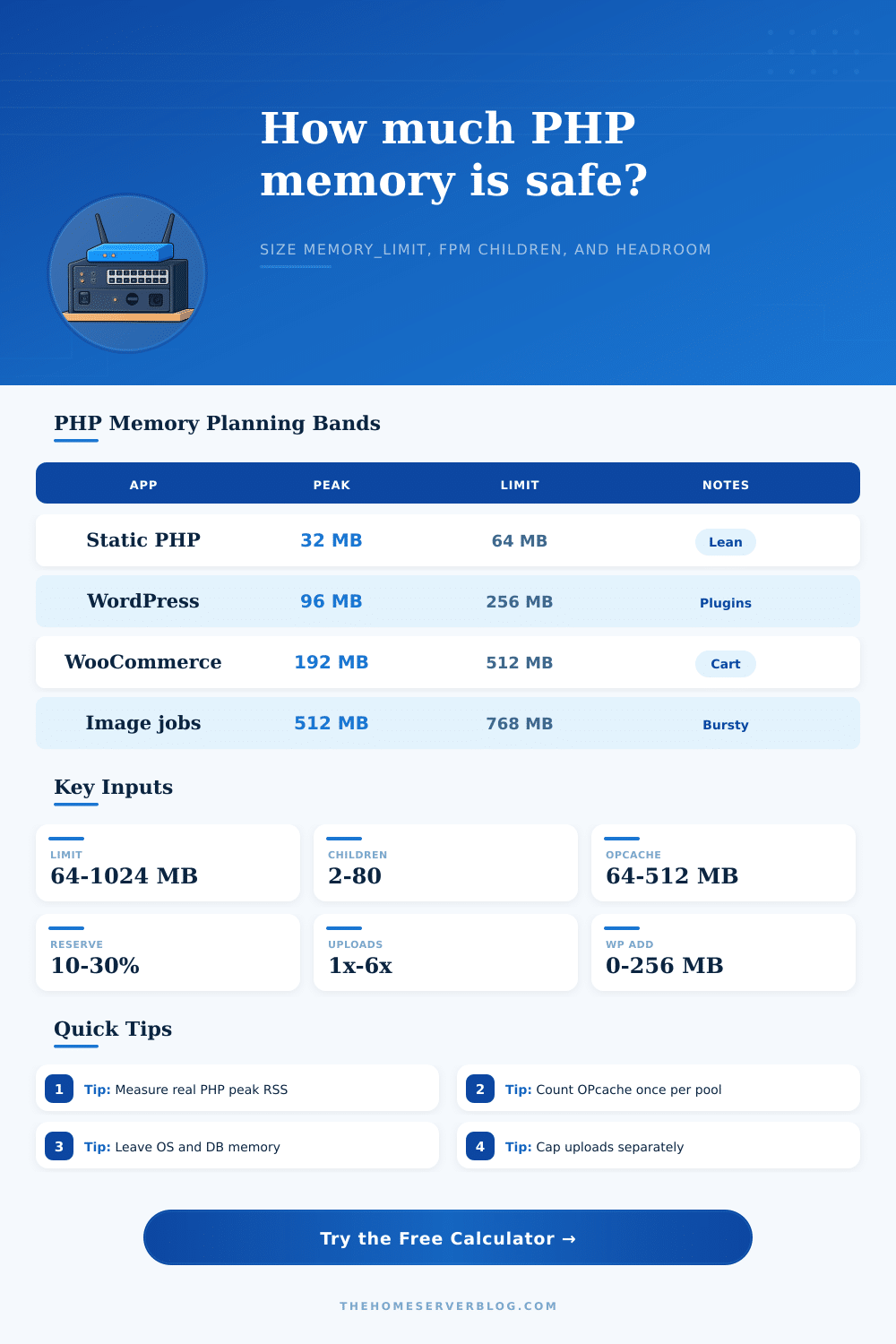
| Application profile | Typical peak request | Common memory_limit | Watch point |
|---|---|---|---|
| Static PHP pages | 16 to 48 MB | 64 MB | Usually CPU or IO before memory. |
| Small Laravel or Slim API | 48 to 96 MB | 128 MB | Queue workers need separate sizing. |
| Typical WordPress blog | 64 to 128 MB | 128 to 256 MB | Admin screens use more than cached public pages. |
| WordPress page builder | 128 to 220 MB | 256 to 384 MB | Builder edit screens can exceed front-end use. |
| WooCommerce checkout | 160 to 320 MB | 256 to 512 MB | Cart fragments, gateways, and reports add bursts. |
| Nextcloud or file app | 128 to 384 MB | 256 to 512 MB | Preview generation should be controlled. |
| Image upload workflow | 256 to 768 MB | 512 to 1024 MB | Cap concurrent transforms, not just memory_limit. |
| Pool mode or app | Memory behavior | Best use | Sizing rule |
|---|---|---|---|
| PHP-FPM static | All children stay allocated | Predictable traffic | RAM must fit full max_children all day. |
| PHP-FPM dynamic | Children grow with load | Most WordPress and framework sites | Size max_children for worst case, tune spares lower. |
| PHP-FPM ondemand | Children exit when idle | Small VPS and low traffic pools | Good idle RAM, but cold starts can hurt latency. |
| Apache mod_php | PHP memory tied to web workers | Legacy simple hosting | Memory grows with Apache concurrency, often wasteful. |
| Nginx plus FPM | PHP isolated from static traffic | Modern VPS stacks | Keep Nginx memory small, size FPM by PHP peaks. |
| Separate CLI workers | Long tasks persist in memory | Queues, cron, imports | Budget workers outside web FPM children. |
| Server RAM | Reserve kept outside PHP | Peak child memory | Approx safe children |
|---|---|---|---|
| 1 GB VPS | 384 MB | 96 MB | 4 to 5 children |
| 2 GB VPS | 768 MB | 128 MB | 7 to 8 children |
| 4 GB VPS | 1024 MB | 160 MB | 14 to 16 children |
| 8 GB server | 2048 MB | 192 MB | 24 to 28 children |
| 16 GB server | 4096 MB | 256 MB | 36 to 42 children |
Your website goes white after installing a new WordPress plugin. You configured PHP to have more than enough space and looked at the error log: it ran out of memory. It feels like you did all the things right. You bumped up the maximum number of children for PHP-FPM so that it can handle traffic spikes, and you raised the limit in php.ini higher too. But the server grind to a halt and starts swapping to disk.
That’s because most admins mistake a ceiling on a single process as a ceiling on the entire server. They worry about how much a single request will consume, rather then how many requests is running at any given moment (and what other stuff are competing for the same physical RAM).
How to Calculate Your Server Memory Needs
After plugging in your estimated concurrency target and peak usage targets, the calculator do all the math for you. You will no longer have to guess whether four gigs of RAM is enough for twenty concurrent user on a VPS. The takeaway is simple. If you don’t know what the worst case scenario look like, then you can’t budget for it.
Your blog post may require only a single request with a memory footprint of a few dozen megabytes to render. However, your image upload workflow could easy triple its memory footprint while generating thumbnails. There are twelve active children, and three of them happen to be performing heavy uploads at the exact same time. Those handful of processes use more RAM than the remaining nine combined. That’s the type of imbalance that kill servers.
OPcache is another thing that most folks forget when doing their head-count. It’s like they imagine it doesn’t exist, or simply include it in each request as though it were part of the process. But no: the opcode cache are a block of code shared by all requests. It exists outside any single worker process, yet takes up space inside your physical memory pool. It only need loading once and stays there after that. This makes it cheap on CPU time, but not-so-cheap when it comes to figuring out how much memory you’ve got left.
Take that chunk away from your total RAM allotment, then give what’s left to workers. Leave none behind for the kernel, the database, or the very web server hosting your PHP, and it will soon starve them all to death until the entire system grind to a halt.
Another trap is concurrent requests. Too many web hosts says that their servers will handle X number of visitors but don’t tell you what those visitors do. Visiting a cached front page takes very little data, but processing a payment gateway callback or running an admin export are much more demanding. The disparity is huge. Estimate the number of concurrent requests based off your heaviest user actions (not passive browsing). Don’t skimp on a safety buffer. Even if you have your concurrency estimates perfectly dialed in, a traffic burst or background cron job could still spike things unexpectedly. Twenty percent headroom is not negotiable.
If you run out of memory, the operating system panic and starts swapping memory to disk. This kills performance much quicker than a lack of memory. Of special interest is image processing which doesn’t scale well without caps. If you aren’t mindful of buffer size, that ten megabyte photo file can end up taking up fifty megabytes of actualy RAM during decoding and resizing. If you don’t separate those jobs, the multiplier effect make it impossible to predict sizing models accurately. Lots of high end setups has heavy uploads routed into a dedicated PHP pool with its own child count/limit so resource hogs can run in their own lane keeping the rest of the app responsive. Raising the global memory limit tends to only delay the crash since it allows fewer processes to live longer before they hit the wall.
Speculation never wins against measured usage. Measuring active worker’s resident set size over a period of time will tell you exactly how much memory they uses. Testing just the homepage falsely increases confidence because admin screens are heavier with tools than public facing ones. After knowing how much memory each process take at its peak, you can increase the number of child processes safely without worrying about instability. You don’t want to max out throughput at any cost; you would of wanted to provide consistent performance under load.
It requires some humility and patience to get this right. There’s not really such a thing as perfectly optimized servers in production. Rather, find the balance between giving PHP sufficient breathing room without sacrificing resources for other parts of your stack. It is messy until it isn’t. It hums along nicely once you discover that it’s more stable when you respect its limitations than by simply disregarding them.
Because what you did was plan for reality, not hope.