Webinar Bandwidth Calculator
Estimate presenter upload, viewer download, total CDN or relay throughput, and replay storage for self-hosted webinars and home lab streaming stacks.
Full Bandwidth Breakdown
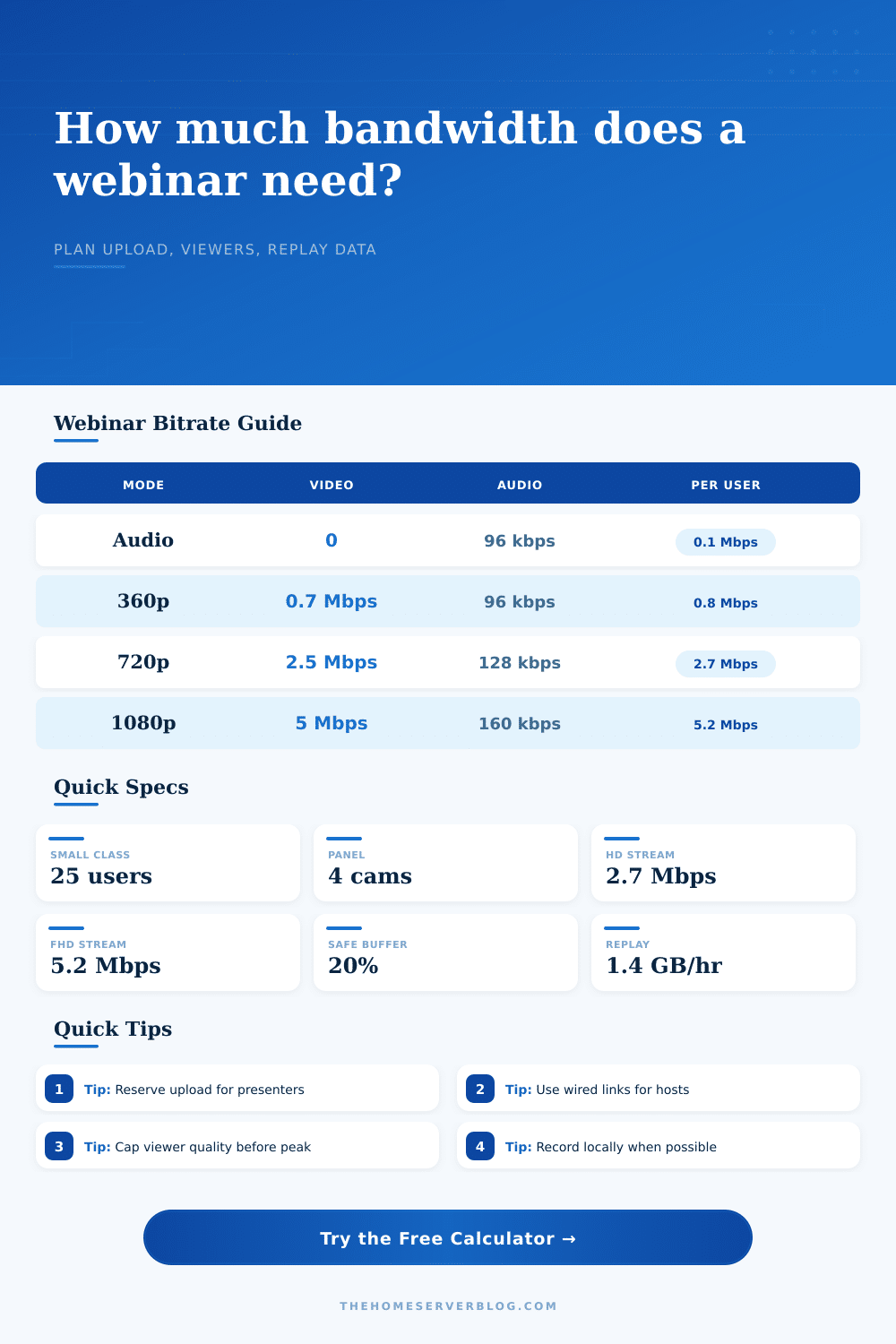
| Quality | Video Bitrate | Audio Bitrate | Recommended Use |
|---|---|---|---|
| Audio Only | 0 Mbps | 0.096 Mbps | Dial-in style briefings, low data events |
| 360p SD | 0.70 Mbps | 0.096 Mbps | Slides, classroom screens, limited upload |
| 480p SD Plus | 1.20 Mbps | 0.128 Mbps | General webinars with occasional motion |
| 720p HD | 2.50 Mbps | 0.128 Mbps | Training, demos, and readable desktop sharing |
| 1080p Full HD | 5.00 Mbps | 0.160 Mbps | Product launches and sharp camera detail |
| 1440p Demo | 9.00 Mbps | 0.192 Mbps | High-detail CAD, coding, or lab screen capture |
| Delivery Mode | Outbound Load | Best Fit | Planning Note |
|---|---|---|---|
| External CDN | Presenter stream only | Most home internet webinars | CDN handles attendee fanout |
| Self-Hosted SFU | Attendees multiplied by stream rate | Small private groups | Needs strong upload or colocated VPS |
| LAN Classroom | LAN switch throughput | On-site training rooms | Check AP airtime and switch uplinks |
| Origin to Edges | One stream per edge node | Home lab CDN tests | Model each edge as a viewer |
| Item | Typical Value | Practical Limit | Why It Matters |
|---|---|---|---|
| TCP/IP Overhead | 5% to 10% | Higher on lossy Wi-Fi | Raises real throughput above media bitrate |
| WebRTC Control | 8% to 18% | Depends on packet loss | Includes STUN, DTLS, RTP, and retransmits |
| H.264 720p | 2.5 Mbps video | 3.5 Mbps for motion | Common webinar planning baseline |
| AAC or Opus Audio | 96 to 160 kbps | 192 kbps for music | Small but always present per stream |
| Gigabit Ethernet | 940 Mbps usable | Line-rate minus overhead | Enough for many local viewer sessions |
| Wi-Fi Webinar Host | Variable | Avoid when possible | Retransmits cause visible quality drops |
| Scenario | Attendees | Quality | Primary Bandwidth Target |
|---|---|---|---|
| Home Office Briefing | 15 to 30 | 480p | 2 to 6 Mbps upload with CDN |
| Online Class | 25 to 60 | 720p | 4 to 10 Mbps presenter upload |
| Maker Workshop | 50 to 100 | 720p | 8 to 20 Mbps for panel hosts |
| Self-Hosted Meetup | 10 to 40 | 720p | 30 to 120 Mbps SFU fanout |
| Large Launch | 250 to 1000 | 1080p | CDN strongly recommended |
Imagine this: The moment the CEO hits send on that company-wide webinar invite, the network admin starts watching their upload meter. He or she doesn’t freak out, just professionally panics over bandwidth. Most home internet service are asymmetric, meaning you can easily download video but have trouble uploading. This creates a bottleneck when you try to push a live feed, which poses a barrier. Why? It all comes down to understanding your upload link.
That’s what separates a smooth presentation from a buffering one and while it might seem like a minor detail, it matters. Bandwidth isn’t just one thing. There’s an uplink for the host, and there’s traffic coming in for audience. The amount of uplink required doesn’t change; whether 10 people tune in or 10,000.
Understanding Bandwidth for Webinars
If you’re hosting your own streams (without using a Content Delivery Network), then there’s another variable: the server push video to each viewer. It gets complicated fast. The calculator multiplies the number of viewers times the quality of the video. That’s where outbound load matters.
You are trading off video quality. Most of your videos will be 720p streams; they’re sharp enough so that you can read the slides and don’t require five megabits per second per camera. Moving to 1080p doubles required bandwidth; this is okay if you have a CDN and fiber, but it is risky on shared cable modem. According to the reference table, audio bitrate is quite small relative to video. If you want to save bandwidth then you can lower video resolution, not audio, or you’ll lose clarity.
The overhead comes from how that is encoded. WebRTC is interactive and fast but has added control traffic. The simplicity of RTMP make it more efficient for one-way broadcasts. For pushing with OBS to your own server, there’s also the overhead of the protocol (usually about fifteen percent). That isn’t some padding you can afford to ignore, it absorbs friction in the network, like packet loss. Without that buffer, your stream will choke when the network gets congested.
Storage is another consideration, but it’s about other kind of storage (recording). An hour-long 720p webinar captures around a gigabyte of material. Multiply that by individual camera feed, and before long you’re getting into territory beyond most home servers’ disk capacities. If you want to avoid filling your server, planning ahead on recording mode will save the day. The tool calculates its storage footprint so you can figure out where to park recordings.
Using the Internet as a source stream via Wi-Fi is the most common mistake made by home hosts. Shared airtime and interference makes wireless unreliable, even with Wi-Fi 6; it simply cannot compete with a Cat6 cable for consistent upload. If you’re using Wi-Fi for your encoder, you’re risking whatever network conditions happen to be present. Plug it in.
If it’s looking like it will be a close race, don’t drop your own video resolution for the sake of viewer. Distribute via the server/CDN, and leave your uplink nice and tidy. Stuttering on a high-res stream isn’t better then a solid low-res stream. Never let red zone reach the meters; always assume the worst case. When the math add up, all is well.