HomeServerBlog storage pool planner
ZFS RAIDZ2 Calculator
Estimate RAIDZ2 pool capacity for home NAS builds, media servers, Proxmox storage, TrueNAS boxes, backup targets, and archival shelves using TB-to-TiB conversion, parity, spares, compression, and safe-fill planning.
Full RAIDZ2 capacity breakdown
CMR NAS SATA HDD
5-7 WCommon 5400/7200 RPM home NAS disk. Good fit for RAIDZ2 media, backups, and general shares when drives are CMR.
7200 RPM NAS Pro HDD
7-9 WHigher spindle speed, stronger vibration rating, and better sustained throughput for larger multi-vdev shelves.
Enterprise SAS HDD
8-12 WDual-port capable in SAS shelves, usually louder and warmer, but designed for heavier duty cycles.
Surveillance CMR HDD
5-8 WUseful for sequential camera retention pools; check workload rating and avoid SMR models for RAIDZ rebuilds.
SATA SSD
2-4 WQuiet small-pool option for app data, jails, containers, and VM boot disks where endurance is acceptable.
U.2 NVMe SSD
8-18 WFast VM or database pool media. Needs airflow, PCIe lanes, and endurance planning more than capacity planning.
Desktop SMR HDD
4-6 WNot a good RAIDZ choice. Long random-write stalls can make resilver and scrub behavior painful.
USB Backup Disk
4-9 WFine for offline copies and replication targets, but less ideal as a permanent member of a RAIDZ pool.
| RAIDZ2 vdev width | Parity disks per vdev | Data-width disks | Raw efficiency | Common home-server use |
|---|---|---|---|---|
| 4-wide RAIDZ2 | 2 | 2 | 50.0% | Small SSD pool or compact NAS where redundancy matters more than capacity. |
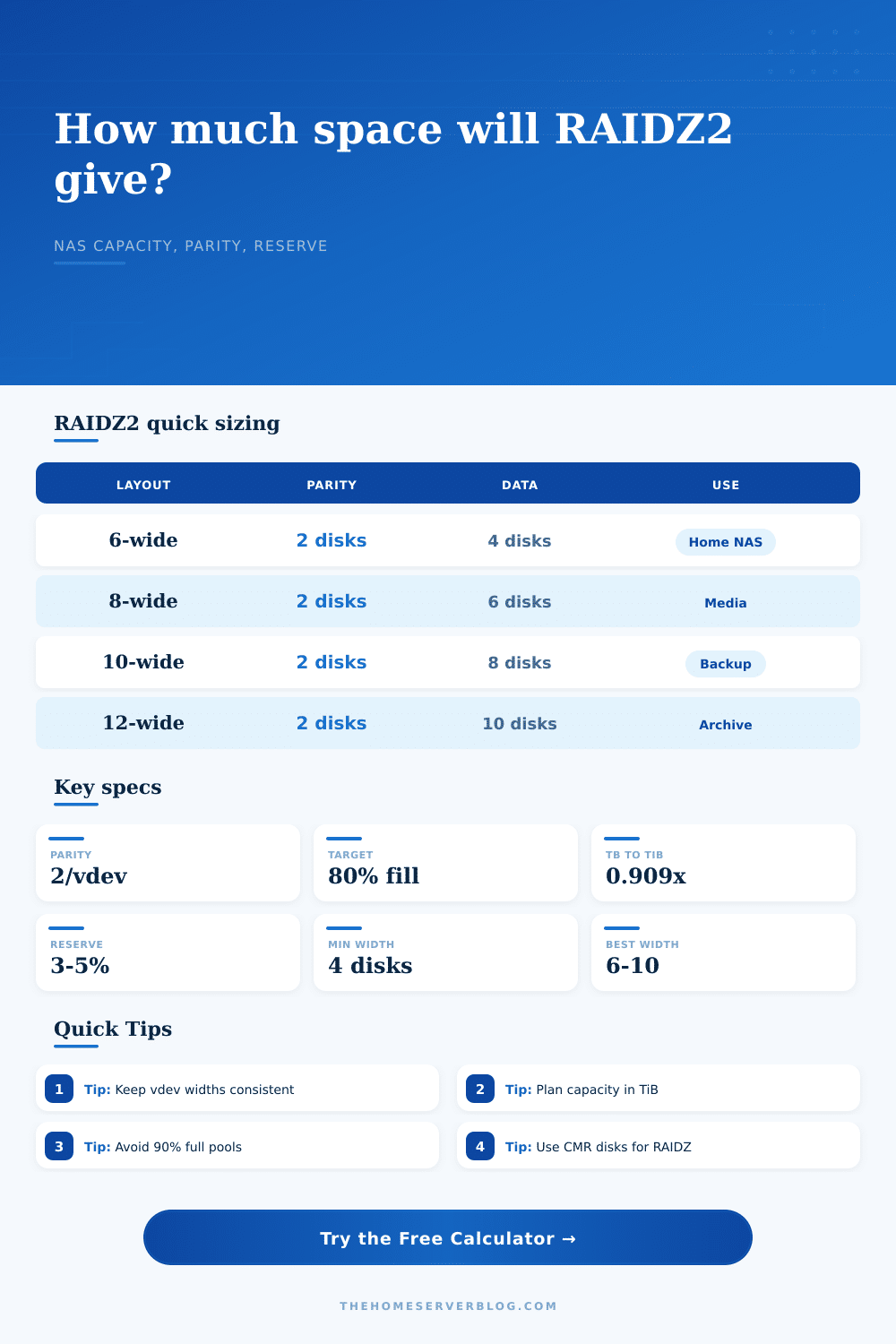
| 6-wide RAIDZ2 | 2 | 4 | 66.7% | Balanced 6-bay TrueNAS or home media server layout. |
| 8-wide RAIDZ2 | 2 | 6 | 75.0% | Popular media, backup, and family file-share pool shape. |
| 10-wide RAIDZ2 | 2 | 8 | 80.0% | Large backup target or archive vdev with longer resilver exposure. |
| 12-wide RAIDZ2 | 2 | 10 | 83.3% | Dense archive shelf; watch scrub time, airflow, and replacement logistics. |
| Drive label | Approx binary size | 6-wide RAIDZ2 before reserve | 8-wide RAIDZ2 before reserve | 10-wide RAIDZ2 before reserve |
|---|---|---|---|---|
| 8 TB | 7.28 TiB | 29.1 TiB | 43.7 TiB | 58.2 TiB |
| 12 TB | 10.91 TiB | 43.7 TiB | 65.5 TiB | 87.3 TiB |
| 16 TB | 14.55 TiB | 58.2 TiB | 87.3 TiB | 116.4 TiB |
| 18 TB | 16.37 TiB | 65.5 TiB | 98.2 TiB | 130.9 TiB |
| 22 TB | 20.01 TiB | 80.0 TiB | 120.1 TiB | 160.1 TiB |
| Workload | Suggested fill target | Typical recordsize idea | Compression expectation | Capacity caution |
|---|---|---|---|---|
| Large media library | 80-85% | 1M often works well | Low, often 1.00-1.05x | Files are large and sequential; keep enough space for imports and snapshots. |
| Backup target | 75-85% | 128K to 1M depends on tool | Mixed, 1.05-1.30x | Retention windows can expand quickly when clients change many blocks. |
| VM and container storage | 65-75% | 16K to 128K by workload | Moderate, 1.10-1.60x | Fragmentation, sync writes, and snapshots punish very full pools. |
| Camera retention | 80-85% | 1M for streams | Very low, near 1.00x | Camera footage is usually already compressed before it reaches ZFS. |
| Cold archive | 80-90% | 1M for large files | Low to mixed | Higher fill is workable if writes are rare and restore time is acceptable. |
| Drive size | Single-drive full read at 180 MB/s | 6-wide surviving read set | 10-wide surviving read set | Practical note |
|---|---|---|---|---|
| 8 TB | About 12.3 hours | 36.4 TiB | 65.5 TiB | Real resilver time depends on used data, load, fragmentation, and errors. |
| 12 TB | About 18.5 hours | 54.6 TiB | 98.2 TiB | Large disks make notification, spare strategy, and tested backups more important. |
| 18 TB | About 27.8 hours | 81.9 TiB | 147.4 TiB | Scrubs and resilvers can run much longer on busy or aging pools. |
| 22 TB | About 33.9 hours | 100.1 TiB | 180.1 TiB | Dense vdevs maximize capacity but extend maintenance windows. |
These are planning estimates, not guarantees. ZFS resilver behavior varies with OpenZFS version, allocation patterns, errors, workload, controller behavior, and whether sequential resilver can help.
The hardware is exciting, the home server project begins, and then you see the math, and that’s when things get interesting. Eight twenty-two-terabyte drives sound like a hundred seventy-six terabytes of storage when you buy them. However, capacity shrinks when you make the pool. Parity consumes two drive, metadata claims another, and converting from decimal terabytes to binary tebibits removes even more. It is not a scam; it is simply price of reliability.
The confidence provided by RAIDZ2 allows you to yank two drives without skipping a beat and continue on your merry way, because sometimes a drive fails while you’re running a scrub, and sometimes a power surge drops a second disk in the same vdev. That peace of mind come at a cost, expressed in terms of capacity and planning.
How to Calculate Your Real Storage Space
No need to do any mental calculations; the calculator (above) runs it for you. But it’s still good to know how it works under the hood.
First, remember that manufacturers sells their drives in decimal, meaning a “twelve terabyte” drive is actualy around ten point nine tebibytes. You immediately lose almost nine percent on that conversion alone. Next, remember that you need two extra parity drives for RAIDZ2, reducing your pool by those two drives. With a six-drive pool, that leaves four data drive’s worth of capacity. And if you have a hot spare, that is another drive used only for extra space when it is not needed. The tool factors all this in and provides a reserve for ZFS metadata, which is necessary since snapshots and small files fragment space more rapidy than you’d think.
The biggest single design decision is selecting the correct vdev width. For most home labs, six to ten drives per vdev is the sweet spot. Wider vdevs is less efficient. They also take longer to resilver if a drive fails. This is risky because the pool stays down until the rebuild finishes. Twelve-wide is more efficient but requires more work from your remaining drive during rebuild. Wide vdevs are fine if you’ve got a media server that just sits there. But if you’re running active backups or virtual machines, keep the vdevs narrow to lessen the stress on the rebuild process. The calculator shows you how this tradeoff works out: how much slower rebuild time vs it shows how much extra space you’ll gain.
The other thing: Don’t skip the fill target value. In fact, that breathing room is what helps ZFS perform best. Twenty percent free is not simply good advice from operating system folks. It’s good practice for a healthy file system. Too little breathing room will cause write amplification to spike. Snapshots will take up additional space. Performance will suffer from fragmentation. The calculator takes into account your fill target and adjusts your usable capacity to match. This gives you an idea of what really fits and helps you not hit the ceiling.
You also should consider turning on compression, especially if you’re going to be storing encrypted media. And if you have databases or log files, you’ll see higher ratios like one point five, meaning, you get more capacity with less hardware.
What about drive choice? It’s important. Shingled Magnetic Recording drives (which excel at sequential writes) should not be used in a RAIDZ array as they will choke when asked to perform the random writes that a resilver requires. You’ll be without any protection of your data while waiting days for the rebuild to complete. Standard consumer grade CMR drives remain standard for good reasons, they’re cheap, reliable, and fast enough for home usage. Depending on your configuration, the calculator shows power estimates by drive type. This helps you verify your power supply headroom if you’re looking to build something larger, such as a rack unit.
A lot of folks will throw one more disk at an already-existing vdev and then call it a day. Don’t be like those folks. You can only add complete vdevs when growing ZFS; you can’t just add a disk here and there. So if you begin with a 6-disk vdev, the next time you want to expand you’ll have to make another 6-disk vdev. This way you don’t end up with weird things down the road (the table on the page makes it clear).
Remember, every disk you purchase needs to do some work for the team. Don’t optimize storage to fill each and every byte. Storage optimization is an exercise in finding balance between performance, safety and cost. A solid starting point is RAIDZ2, provided that you understand the overhead it imposes on you. Know what to expect from compression. Plan your vdevs with care. Provide breathing room for growth. Once you get the picture, the math is easy. You would of seen better results from your data if you are disciplined.