Data Transfer Rate Calculator
Estimate real payload speed, copy time, bottleneck source, and link headroom for NAS migrations, backup seeds, cloud restores, VM moves, and remote sync jobs.
Rates are planning estimates. Real jobs also depend on CPU, encryption, filesystem metadata, cache, snapshots, and competing traffic.
Enter a transfer profile to estimate rate and time.
Calculation breakdown
| Link or media | Nominal rate | Planning payload | 1 TB best case |
|---|---|---|---|
| Fast Ethernet | 100 Mbps | 90 Mbps | 24.7 hours |
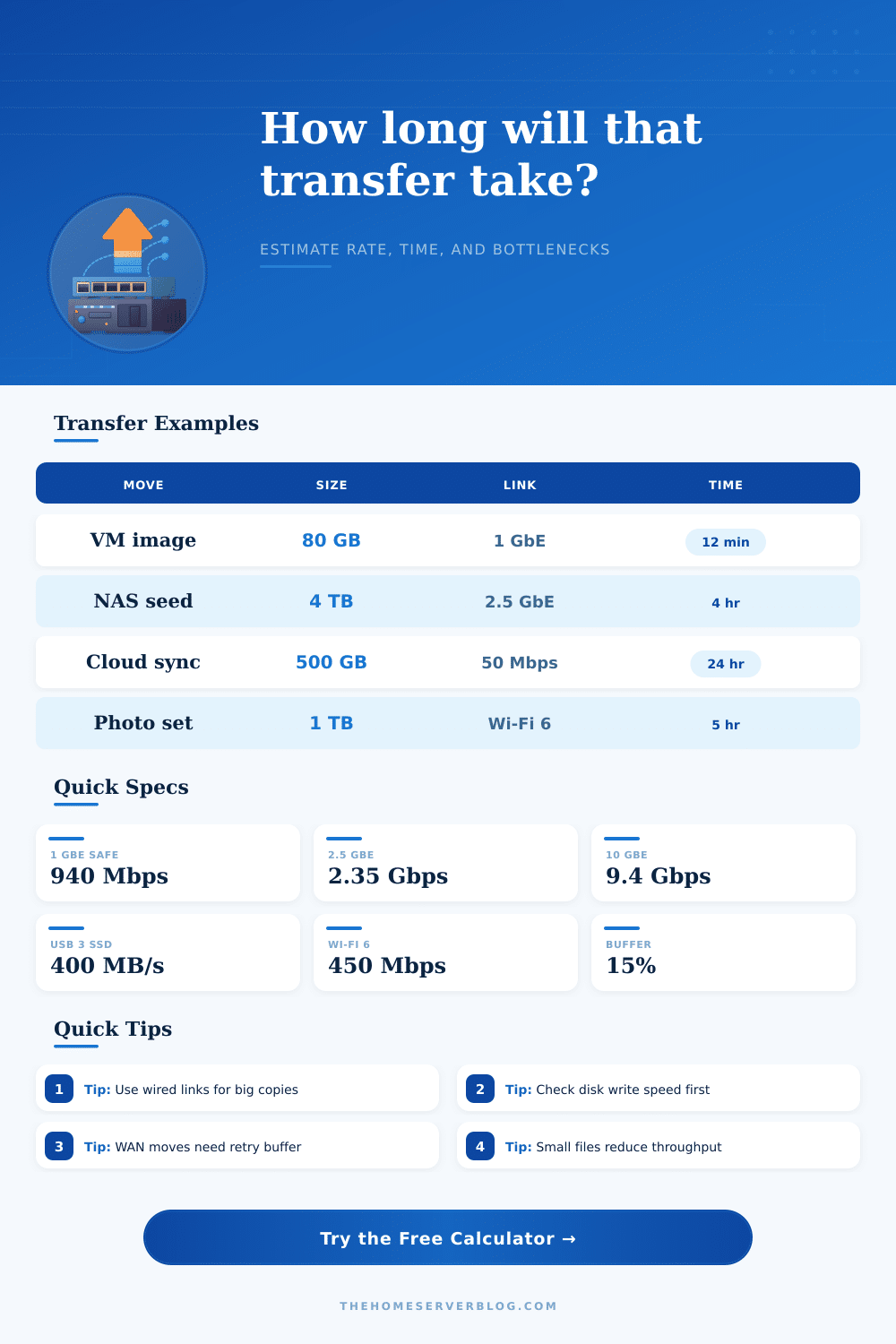
| 1 GbE | 1000 Mbps | 940 Mbps | 2.36 hours |
| 2.5 GbE | 2500 Mbps | 2350 Mbps | 56.7 minutes |
| 10 GbE | 10000 Mbps | 9400 Mbps | 14.2 minutes |
| Wi-Fi 5 practical | 867 Mbps PHY | 250 Mbps | 8.9 hours |
| Wi-Fi 6 practical | 1200 Mbps PHY | 450 Mbps | 4.9 hours |
| USB 3 HDD | 5 Gbps bus | 160 MB/s | 1.74 hours |
| USB 3 SATA SSD | 5 Gbps bus | 420 MB/s | 39.7 minutes |
| Protocol profile | Typical efficiency | Main limiter | Best use |
|---|---|---|---|
| SMB large files | 88% to 95% | Disk and signing | VM images, media, ISO files |
| SMB many small files | 35% to 70% | Metadata calls | Photos, source trees, documents |
| NFS large files | 90% to 96% | Mount options | Linux servers and hypervisors |
| Rsync delta copy | 45% to 90% | Checksum CPU | Incremental backups |
| ZFS send receive | 70% to 95% | Compression and disk | Snapshot replication |
| SFTP encrypted stream | 55% to 85% | CPU and cipher | Remote admin copies |
| HTTPS cloud sync | 50% to 85% | WAN and throttles | Object storage and SaaS backup |
| USB copy | 70% to 95% | Disk media | Local ingest or shuttle drive |
| Project | Typical data | Primary constraint | Planning note |
|---|---|---|---|
| Initial NAS migration | 2 TB to 12 TB | Destination writes | Run wired and avoid parity scrubs during the seed. |
| Nightly VM backup | 50 GB to 500 GB | Backup window | Deduped incrementals may send far less than the VM size. |
| Cloud disaster recovery seed | 500 GB to 8 TB | WAN upload | At 50 Mbps, every TB needs almost two full days before buffer. |
| Plex library move | 4 TB to 30 TB | Network or array | Large sequential media files usually run near the link ceiling. |
| Photo archive copy | 200 GB to 3 TB | File count | Small RAW and sidecar files can halve practical throughput. |
| ZFS replication | 100 GB to 10 TB | Snapshots and CPU | Compression helps if data is not already media or encrypted. |
| Item | Formula | Decimal mode | Binary mode |
|---|---|---|---|
| Bits to bytes | Divide bits by 8 | 800 Mbps = 100 MB/s | Same bit rule |
| GB to megabits | GB x base x 8 | 1 GB = 8000 Mb | 1 GiB = 8192 Mib |
| Transfer time | Megabits / Mbps | Seconds before buffer | Uses 1024 base |
| Bandwidth-delay product | Mbps x RTT / 8 | MB window estimate | MiB if binary |
| Headroom | 1 - effective / nominal | Shown as percent | Same ratio |
Moving large amounts of data from one location to another across a home network require an understanding of a variety of different technical factors. These factors will determine the rate at which the data will move from one location to another. The movement of data can take a short amount of time to complete or it can take a long amount of time to complete, depending upon the speed and reliablity of the network hardware.
Although many individuals will attempt to move data between drives without planning, a bit of planning can help an individual understands the limitations of the network and the limitations of the data drives. The calculator included with this article will help an individual to perform the math necessary to determine the time that it will take for data to move based off the size of the move, the link to the network, and the workload of the network. Despite the fact that the link to the network may be very fast, the storage drives may be slow.
How long will large file moves take on your home network
The drives must be able to keep up with the link to the network. Additionally, you should take protocol overhead into consideration in relation to the data transfers. Latency, the file count, and the compression of the data all must be entered into the calculator to determine the variable impact that each of these factors can have upon the data moving across the network.
Data with large files can move quick across the network because the files require fewer “round trips” to transfer the data. Many small files, however, will require many “round trips” to transfer all of the data from one location to another. The speed at which the data can be stored into the storage drives is a critical variable in relation to the data movement.
The data will move at the rate at which the drives can read or write the data. The source drive has a maximum read speed. The data destination drive has a maximum write speed.
If the source drive is slow at reading the data, that source drive will become the limiting factor in the data transfer speed. The same is true for the destination drive; if the destination drive is slow at writing the data, it will become the limiting factor in the data transfer. You can enter the read and write speeds for each drive into the calculator to determine the slowest stage in the data transfer process.
Protocol overhead will reduce the actual speed at which the data can travel on the network. Overhead is created by protocols like Ethernet, TCP, SMB, and NFS. Each protocol creates metadata for the data transfers that reduces the amount of actual data that can move on the network wire.
The efficiency field in the calculator accounts for the protocol overhead for the data transfers. Additionally, the protocol selection will impact the protocol overhead for small files versus large files on the network. Data moves slower on the network if it includes more files than data that includes large files because there is more metadata created for the files that must travel on the network.
If the data will travel a long distance from source to destination, latency will impact the data transfer. The longer the round trip for the data to reach its destination, the higher the latency. High latency rates can create packet loss for the data.
Data packets that is lost the data system must re-transmit, leading to the data taking longer to travel from source to destination. The window size for data transfers can be adjusted in the calculator to account for latency and packet loss. Additionally, while using data transfer streams in parallel may increase the speed at which data is transferred, this only will work effectively if the destination drive for the data can absorb the data from the number of data transfer streams initiated in parallel.
The actual speed at which data moves from one location to another on the network will never match the theoretical speeds for the data transfers that are listed for the storage drives. Background network traffic and the thermal throttling of the drives can impact the data transfer speed. Similarly, the filesystem can utilize the cache to impact the data transfer speeds.
As a result of these potential problems, it is suggested that a data transfer buffer be used in the calculations of the time required for a data transfer. Fifteen or twenty percent should of be added to the calculations to allow for these potential issues to the data transfer. Prior to beginning a data transfer of large amounts of data from one location to another, it is suggested that a single large file is moved.
If the large file moves at the same rate as calculated, then the network and storage drives is functioning correctly. If large files move quickly but small files take longer to move, then the issue is related to the metadata for the files and the number of files moving rather than the bandwidth available for the data to travel. This calculator will allow an individual to determine if the speeds of the drives are normal prior to beginning a data transfer of large amounts of data.
Many network migrations will find that the speed of the destination data array limits the data. Many cloud data uploads will find that the upload speed of the internet connection limits the data transfer. Additionally, data transfers over Wi-Fi networks will often be limited by the distance between the data devices and the Wi-Fi signal source.
Using this calculator will allow an individual to gain an understanding of these limitations and to make informed decisions regarding when to begin a data transfer and what settings to use for data transfer speed. Its important to remember that the more files you have, the slower the process becomes. Youll want to be careful with how many files you move at once.
The furnitures in the room dont affect the network, but the number of devices does. You should also check the cables, because bad cables can cause alot of problems. Make sure you dont forget to account for the extra time.
It’s better to be safe than sorry when moving important files.