Disk Storage Space Calculator
Estimate raw capacity, RAID/ZFS usable space, filesystem overhead, snapshot reserve, and growth headroom for a NAS or home server.
💾NAS and Server Presets
⚙Storage Inputs
Storage Capacity Results
🖥Drive and RAID Spec Grid
📊RAID, ZFS, and Parity Reference
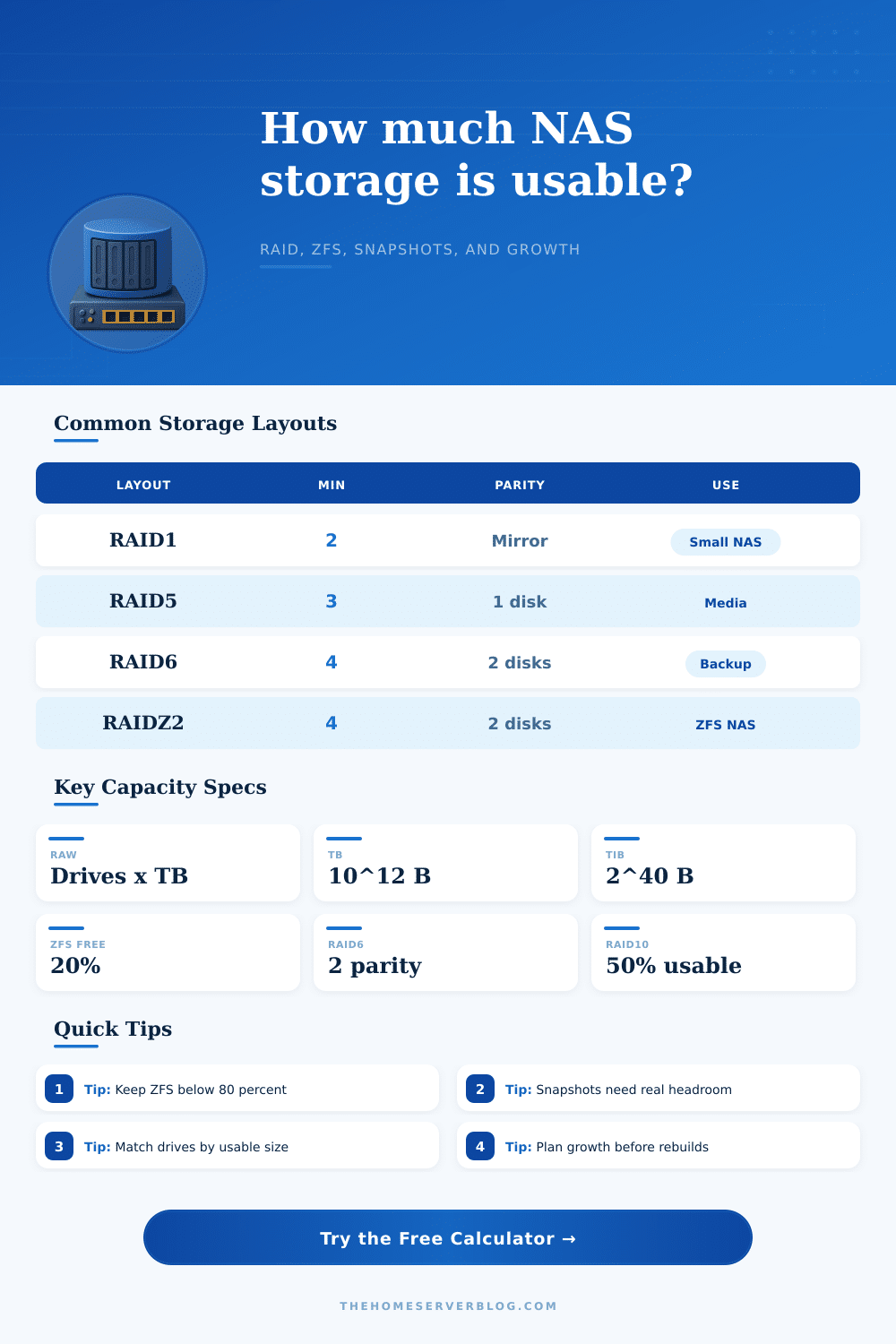
| Layout | Minimum Drives | Usable Formula | Fault Tolerance |
|---|---|---|---|
| Single or pooled disks | 1 | N drives before filesystem overhead | No parity protection unless duplicated elsewhere |
| RAID1 mirror | 2 | 1 drive worth of usable capacity | Usually one drive per mirror set |
| RAID5 / RAIDZ1 | 3 | N - 1 drives usable | One drive failure |
| RAID6 / RAIDZ2 | 4 | N - 2 drives usable | Two drive failures |
| RAIDZ3 | 5 | N - 3 drives usable | Three drive failures |
| RAID10 | 4 | Half of drives usable | One drive per mirror pair in the best case |
📐Decimal and Binary Capacity Conversions
| Label | Bytes | Shown By | Planning Note |
|---|---|---|---|
| 1 TB | 1,000,000,000,000 | Drive makers and many NAS dashboards | Equals about 0.91 TiB in binary tools |
| 1 TiB | 1,099,511,627,776 | Linux, ZFS, and many server utilities | Equals about 1.10 TB decimal |
| 1 GB | 1,000,000,000 | Network appliances and drive labels | Useful for small SSD cache sizing |
| 1 GiB | 1,073,741,824 | Operating systems and hypervisors | Use for VM datastore estimates |
📈Common NAS and Server Project Sizes
| Project | Typical Drives | Common Layout | Capacity Planning Focus |
|---|---|---|---|
| Family photo mirror | 2 x 8 TB | RAID1 or ZFS mirror | Simple restore path and offsite backup copy |
| Media library NAS | 4 x 12 TB | RAID5 or Unraid parity | Large files, light snapshots, steady growth |
| TrueNAS backup target | 6 x 16 TB | RAIDZ2 | Snapshot reserve and 20% ZFS free space |
| VM datastore | 8 x SSD | RAID10 or mirror vdevs | IOPS, rebuild speed, and rollback snapshots |
| Archive shelf | 12 x 18 TB | RAID6 or RAIDZ3 | Dual parity, scrub time, and spare bay planning |
🔧Filesystem Overhead and Reserve Guide
| Stack | Modeled Overhead | Best Fit | Capacity Caution |
|---|---|---|---|
| ext4 | 1.5% | Simple Linux storage | Reserved blocks may vary by volume setup |
| XFS | 1.0% | Large media and backup volumes | Keep free space for metadata and snapshots elsewhere |
| Btrfs | 3.0% | Checksums and snapshots | Metadata chunks can grow with many small files |
| ZFS | 5.0% | TrueNAS, Proxmox backup, homelab pools | Performance drops as pools fill past about 80% |
| ReFS / APFS targets | 2.5% to 4.0% | Windows or Mac backup stores | Sparse images and block cloning change real usage |
Planning storage for a NAS or an server requires that you accounts for several factors. The factors to consider include parity, the filesystem that you use, snapshot reserves, and the fact that your data will grow over time. In many case, the actual usable storage capacity of your drives will be less than the storage capacity that is listed for those drives from the manufacturer.
This loss of storage capacity is due to the fact that the drives must account for the space needed to protect the data with parity, account for the space needed for the filesystem, account for space needed for snapshots, and leave some headroom for performance reasons. In some cases, planning for data growth can also lead to a situation where you find that you will run out of storage space within your server or NAS device sooner than you may have otherwise expected. As such, the calculator can project how your data will grow so that you can ensure that your safe working space will be sufficient after your data growth.
How to Plan Storage for Your NAS or Server
The layout in which your drives are laid out will impact the amount of usable data that can exist within your NAS and server. For instance, a mirror layout will store one copy of each piece of data, but will use half of the total storage capacity of the drives to provide protection for the data. An alternative to mirror layouts are layouts that use parity, such as single or dual parity layouts.
Single and dual parity layouts distributes the data across the drives in a manner that provides protection in the case of the failure of one or two drives, but require that the drives account for the capacity of those drives before data can be stored on the NAS or server. These two different types of drives layout can have a major impact upon your choice of whether or not you want to lose a drive to store data. Additionally, the filesystem will impact the amount of data that can be stored on the NAS or server.
All filesystems require a certain amount of data to store the metadata for the files system itself. Furthermore, if the filesystem employs the use of checksumming for the data, then it will also use additional storage within the drives to store the data for each data block. Though this data is relatively small, it can become significant when considering that additional space is needed for snapshots and headroom.
Finally, it is important to ensure that there is some headroom within the storage pool for the NAS or server. Storage pools tend to slow down if they contain too much data. For instance, ZFS requires that a pool have some headroom for performance, and performs best if it is not used past four fifths of the usable drives.
In addition to data growth, there are also other factors that can impact the usable drives within your NAS and server. For instance, the workloads that your NAS or server is to perform will impact which layout choices in relation to parity you may make. For instance, if you are implementing a NAS to store archive data, then you can use layouts based on triple parity to allow for the slow rebuild of drives should any of those drives fail.
However, you may want to implement a media server to store media files on the server, in which case you want to ensure that the drives can be rapidly rebuilt if any of the drives should fail. Snapshots will also take up some of the drives within your NAS and server. Though the data for snapshots is not immediately copied to those snapshots, there is still data taken up by the snapshots each time any of the data within the drives change.
Thus, if you are implementing daily snapshots for several weeks, it is important to ensure that you have set aside a sufficient percentage of your drives for these snapshots. The same is true of your backup targets for your data. It is also important to account for the difference between decimal terabytes and binary tebibytes.
The drive manufacturers use decimal units (terabytes) to label their drives, but the operating system utilize binary units (tebibytes). Thus, if they use decimal math to label their drives, the operating system will use binary math to calculate the drives’ true capacity. As a result, the drives may be labeled as having a 12 TB capacity, yet display as a smaller number within the operating system.
Thus, it is important to plan for storage using the units that the operating system displays so that you are not surprised at the true capacity of the drives. Most people will make at least one mistake when planning for their drives. For instance, many people will plan for their drive layout to contain enough room for their current data, but they will forget to account for the space needed for their snapshots.
Additionally, individuals may choose layouts with maximum parity to ensure the safety of their data, but then discover that there is no space for their growing data. Thus, it is recommended that you run the same set of inputs through two different layout options to compare the safe working space for those different options. By comparing these layouts, you can determine the costs of implementing additional protection for your drives.
Overall, your planning efforts should ensure that you have enough protected space and enough space for data growth so that you do not have to make emergency purchases of drives.