Hard Disk Partition Size Calculator
Plan the real usable space behind advertised TB/GB labels, EFI and recovery partitions, OS allocation, data partitions, filesystem overhead, reserved free space, snapshots, and alignment slack.
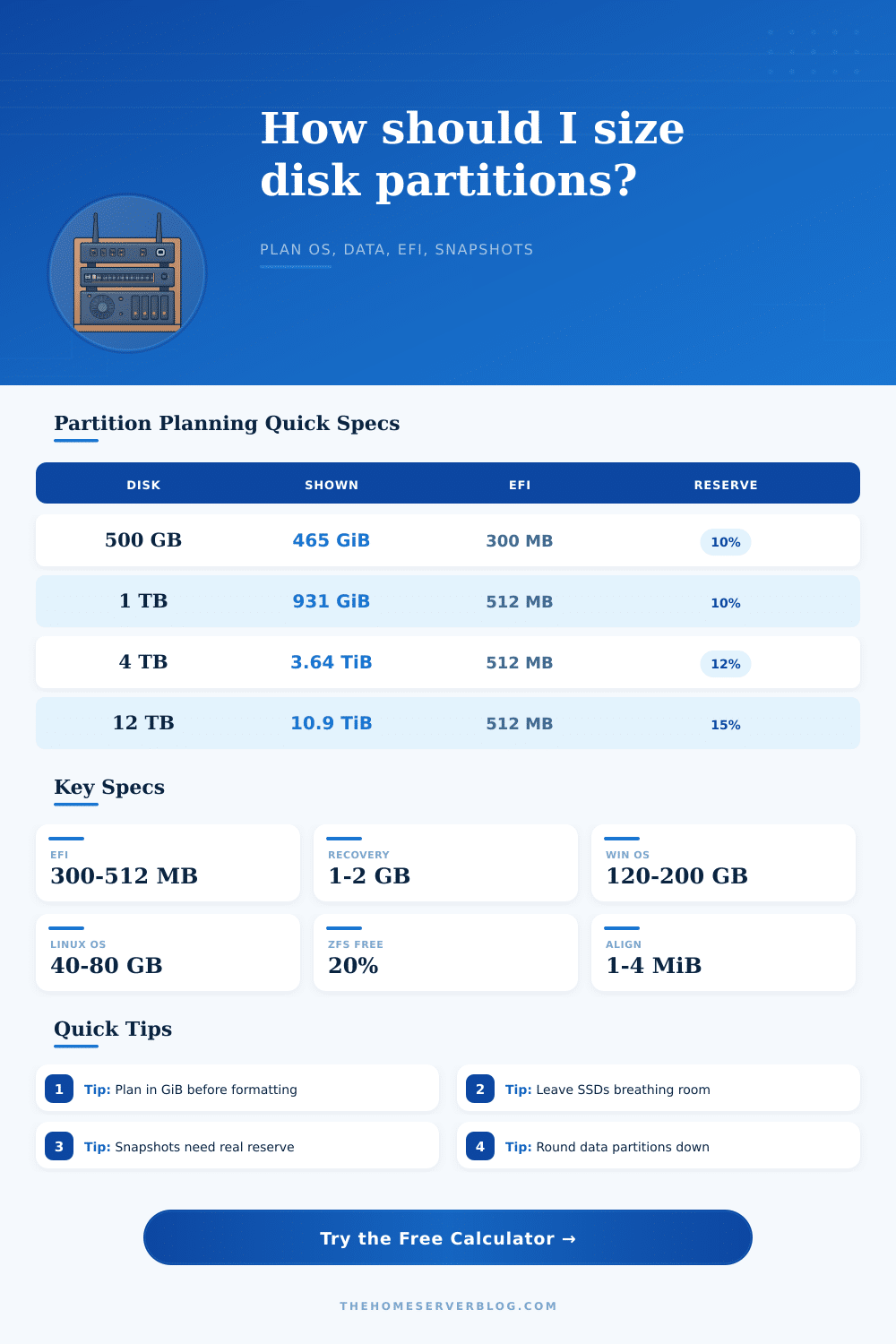
| Advertised Disk | Decimal Bytes | OS Display Approx. | Typical Planning Note |
|---|---|---|---|
| 250 GB SSD | 250,000,000,000 | 232.8 GiB | Good for boot and light apps |
| 500 GB SSD | 500,000,000,000 | 465.7 GiB | Common mini server boot disk |
| 1 TB NVMe | 1,000,000,000,000 | 931.3 GiB | Enough for OS plus VM storage |
| 2 TB SSD | 2,000,000,000,000 | 1.82 TiB | Strong single-node lab disk |
| 4 TB HDD | 4,000,000,000,000 | 3.64 TiB | Media or backup partition set |
| 8 TB HDD | 8,000,000,000,000 | 7.28 TiB | Plan snapshot reserve carefully |
| 12 TB HDD | 12,000,000,000,000 | 10.91 TiB | Large archive or NAS data disk |
| Partition Role | Common Size | Filesystem | Planning Guidance |
|---|---|---|---|
| EFI System Partition | 300-512 MB | FAT32 | Use 512 MB for multi-boot comfort |
| Microsoft Reserved | 16 MB | None | Used by Windows on GPT disks |
| Windows Recovery | 750 MB-2 GB | NTFS | Leave room for feature updates |
| Linux /boot | 1-2 GiB | ext4 | Useful with encrypted root setups |
| Server OS Root | 40-120 GiB | ext4 or XFS | Separate application data when possible |
| VM Datastore | Remaining disk | ZFS, XFS, Btrfs | Keep free space for snapshots and growth |
| Filesystem | Typical Overhead | Free Space Target | Best Fit |
|---|---|---|---|
| NTFS | 1-3% | 10-15% | Windows OS and general data |
| ext4 | 2-5% | 5-15% | Linux servers and containers |
| XFS | 1-4% | 10-15% | Large files, media, VM images |
| Btrfs | 4-8% | 15-20% | Snapshots and checksummed volumes |
| ZFS | 5-10% | 20% or more | Copy-on-write pools and NAS data |
| exFAT | 1-2% | 5-10% | Portable disks across platforms |
| Scenario | Disk Label | System Partitions | Data Strategy |
|---|---|---|---|
| Windows 11 NVMe Boot | 1 TB | EFI, MSR, recovery, OS | One apps/data partition |
| Ubuntu Server SSD | 2 TB | EFI and root | Separate docker and media data |
| Proxmox VE Node | 4 TB | EFI and root | VM store with snapshot reserve |
| TrueNAS Data Disk | 8 TB | Data-only pool member | ZFS free space kept high |
| Backup Archive Disk | 12 TB | Small service partition | Large archive plus restore staging |
Single Data Partition
Simplest layout for desktop or mini server disks. It is easy to resize later, but backup and snapshot policies apply to everything together.
OS Plus Data Split
Best everyday server layout. The OS can be reinstalled or imaged while media, containers, VM images, and backups stay isolated.
Many Data Partitions
Useful when workloads need hard boundaries. Round each partition down and keep unallocated slack for future layout changes.
So you get a one-terabyte hard drive, connect it to your PC, and suddeny the OS reports seeing something closer to nine hundred thirty gigabytes instead. What’s up with that? Welcome to the world of storage marketing being sold in decimal units but consumed by computers in binary powers-of-two. Before long, if you’re partition-planning on your own workstation or home servers, you will run into even more confusing math.
That mathematical gap is just the beginning of the confusion. System requirements, filesystem metadata, and all those safety margins that prevent your data from getting corrupted if power unexpectedly goes out don’t help either. This means you are realy giving away portions of your drive too.
Why You Don’t Get Full Storage Space
Plugging in your usage profile and disk size into the calculator above spares you the guesswork on conversions and coefficients. It’ll account for operating system, recovery images, and EFI system partition without even considering your own files. If you want a bootable drive, most people forget that those system partitions is required. Windows expects reserved spaces for things like recovery tools and updates. Follow the Linux server way, and it will need space for swap and root filesystem. The installer will simply grab whatever is available unless you plan ahead to give it some space. This often leaves your actual data partition oddly shaped or too small than what you store on it.
Filesystem overhead is another silent space eater. Moddern filesystems such as Btrfs and ZFS have excellent features such as copy-on-write protection and snapshots, but these require additional blocks for change-tracking metadata. So a “five percent” overhead isn’t some arbitrary filler, it’s the price of being able to verify and recover your data. You can skimp on this if you’re running a media server which rarely changes files. But if you’re hosting databases or virtual machines which constantly update, you’ll want that breathing room so you don’t suffer from performance drops and fragmentation. The tool lets you see what’s left over after subtracting these unseen costs.
Most hobbyists make this mistake: they don’t leave enough reserved unallocated space or buffers. Storage is cheap, and it’s hard to resist filling all those remaining gigabytes. But it’s not a bug that solid state drives slows down significantly once they’re almost full. They can’t do wear leveling well. It’s not a bug that copy-on-write filesystems fail to commit snapshots when they run out of metadata space. When we keep some room open, it’s like a buffer; it’s like an insurance policy against the day our drives unexpectedly fill up faster then expected. Logs grow. System updates consumes space. Temporary files linger. A reserve serves as a buffer for all of these.
We don’t have the alignment slack problem we had a few years back on modern hardware (or even half as bad), but it’s still there. To get best read performance off a disk, its partitions needs to begin on boundaries matching the underlying physical sector size (of the platter or the flash array). As such, the calculator rounds down your partition sizes to nice boundaries, adding a tiny bit of slack so that things align properly. You won’t notice five megabytes missing, but you might notice difference when streaming a large file from a misaligned drive!
But it makes your drives last longer, run faster, and saves you from having to do any math. For those not familiar with how this works, it’s laid out in the reference table on the page which provides a starting point that can be adjusted based off your needs. For example, a basic office laptop might just have an OS partition with another partition for data. If you run a home lab on something like TrueNAS or Proxmox, you may want to split the hypervisor into its own partition from the VM storage partition. This way, you can wipe the hypervisor partition and still keep your years of backup/media/etc on the other side untouched. It keeps permanent stuff separate from volatile system stuff.
All that said, at its core, partitioning is as much about reducing risk as data management. You’re getting trade-offs: recoverability, speed, and stability versus raw capacity. Maximums on the box? Those are theoretical. The space available to you is where software needs meet hardware limits; it’s the compromise of what’s possible. Keep that in mind when planning, make a little room for error, and you’ll have a drive that serves you reliably for years. It’s not about getting the most storage from the device. It should of be about creating a design that fits how you use it while surviving under pressure.