Storage Overhead Calculator
Estimate how much raw drive capacity becomes usable space after RAID, ZFS parity, hot spares, metadata, reserved free space, and snapshots.
Capacity Results
| Layout | Minimum Drives | Capacity Formula | Fault Tolerance |
|---|---|---|---|
| Single disks / JBOD | 1 | All non-spare drives | No redundancy |
| RAID 1 full mirror | 2 | One drive capacity | One or more drives if one copy survives |
| RAID 10 striped mirrors | 4 | Half of paired drives | One drive per mirror pair |
| RAID 5 / RAIDZ1 | 3 | N - 1 drives | One drive |
| RAID 6 / RAIDZ2 | 4 | N - 2 drives | Two drives |
| RAIDZ3 | 5 | N - 3 drives | Three drives |
| Erasure coding 4+2 | 6 | Four data of each six drives | Two drives per set |
| Stack | Calculator Overhead | Typical Use | Planning Note |
|---|---|---|---|
| ext4 / mdadm | 1.5% | Simple Linux NAS | Low metadata overhead, external snapshots needed |
| XFS / mdadm | 1.0% | Large media volumes | Efficient for big files and sequential writes |
| Btrfs NAS pool | 4.0% | Checksummed shares | Snapshots and metadata can grow with churn |
| ZFS pool | 3.0% | TrueNAS, Proxmox, homelab NAS | Keep 10% to 20% free for healthy performance |
| Ceph small cluster | 6.0% | Distributed home lab | More metadata and placement overhead at small scale |
| MinIO object set | 2.5% | S3-style backup target | Pair with erasure coding for realistic capacity |
| Item | Value | Why It Matters | Calculator Use |
|---|---|---|---|
| Decimal TB | 1 TB = 1,000,000,000,000 bytes | Drive labels use decimal units | Raw input when TB is selected |
| Binary TiB | 1 TiB = 1,099,511,627,776 bytes | Many operating systems display binary units | Final usable result display |
| ZFS free space target | Keep roughly 10% to 20% free | Full pools fragment and slow down | Reserve dropdown |
| Large HDD parity | Prefer dual parity for big drives | Rebuild windows can be long | RAID6 or RAIDZ2 presets |
| Hot spare | Consumes one full drive bay | It improves recovery time, not usable space | Subtracted before layout math |
| Project | Example Drives | Layout | Planning Result |
|---|---|---|---|
| Family file NAS | 2 x 8 TB | Mirror | About 6.5 TiB after reserve |
| Media server | 4 x 12 TB | RAID5 | About 29 to 31 TiB usable |
| TrueNAS archive | 8 x 16 TB | RAIDZ2 | About 75 to 80 TiB usable |
| Proxmox VM pool | 12 x 4 TB SSD | RAID10 | About 18 to 20 TiB usable |
| Object backup target | 12 x 18 TB | 4+2 sets | About 115 to 125 TiB usable |
The math tells you that six twelve terabyte drives add up to seventy-two terabytes of space. Plug ’em all in, format the array, and you’ll find that you have less than half of that, more like forty. And it is disappointing!
But physics are even worse. No, this isn’t just bad luck. This is the price we pay for using digital storage, and it always will be. Usable capacity are an engineering compromise; raw capacity is a marketing number. That’s where a lot of home server projects fall down, right there between those two numbers.
Why You Lose Some Hard Drive Space
There’s parity overhead that you need to subtract. It use up your drive space to protect your data if one drive fails. There’s filesystem metadata that keeps all of your file neatly organized, but it’s invisible, and that means you’ve got to subtract space for it. There is also snapshots, those point-in-time backups that can save you from yourself when an accidental deletion turns into a tragedy. Oh yeah, and don’t forget the decimal-to-binary conversion: A terabyte on the box gets rounded down to about ninety-one percent of itself in your operating system. Seems like a lot of subtraction, doesn’t it?
After plugging in your layout and drive count into the calculator (above) it does all of the math for you, saving you from guessing at conversions and coefficients.
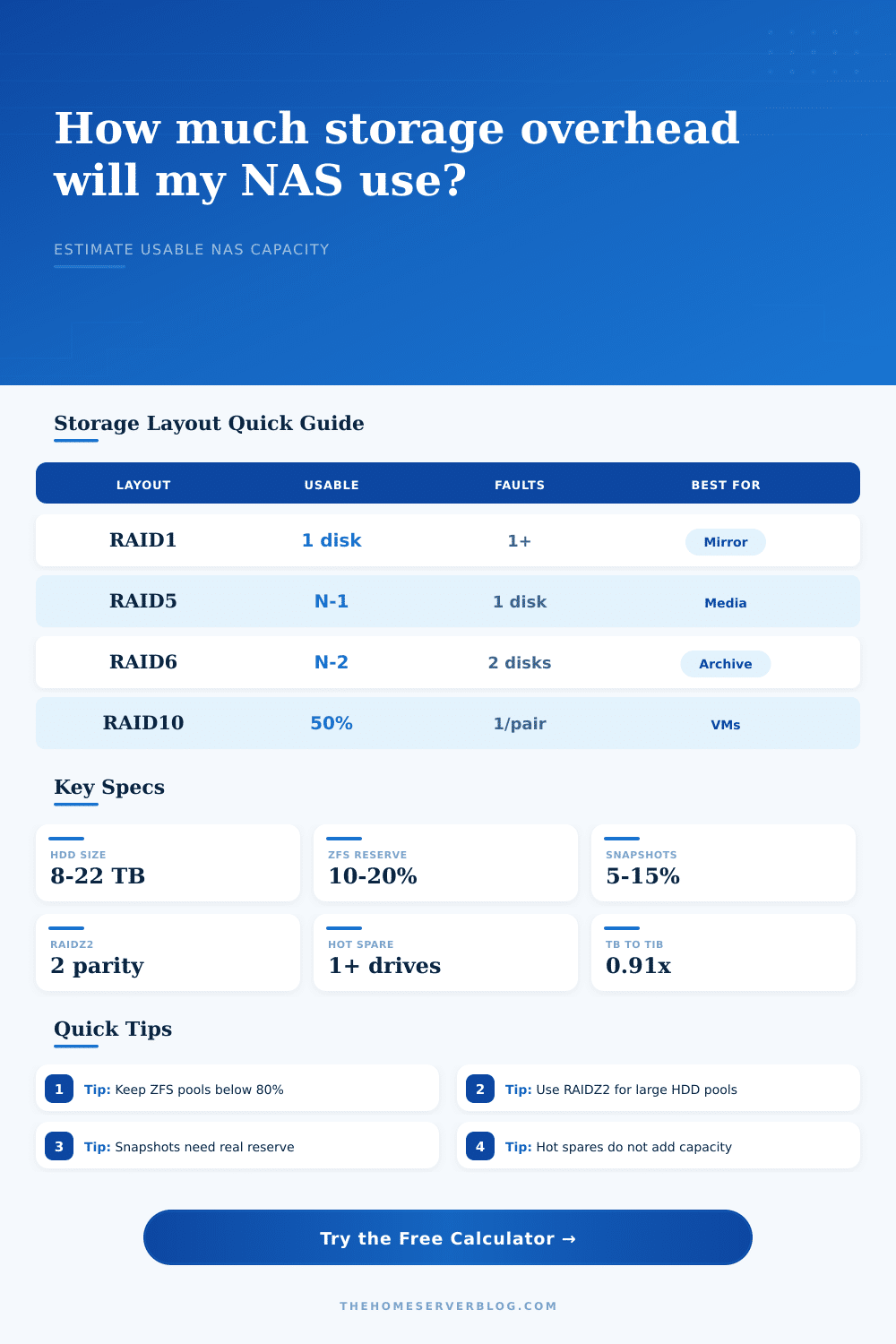
Of the factors you can control, redundancy layout are the most important. For example, mirroring your data as with RAID 1 gives you immediate redundancy but wastes half of your raw space. That’s an expensive form of insurance. Using RAID 5 or RAIDZ1 give you a better balance of space, since it uses one drive as parity; however, when a second drive fails during a rebuild, you’re toast. Two-parity drives like RAID 6 or RAIDZ2 offer a sweet spot for most homelabs today: they’ll tolerate up to two simultaneous drive failure without losing any data, which is necessary given that large drives now take days to rebuild.
That leads us into another big one: reserved free space. Full Btrfs and ZFS filesystems suck. You need to leave some percentage of your pool empty. This gives the filesystem room to breathe, helps it avoid fragmentation, and lets it handle all its metadata. Make sure to leave 10-20% of your pool free for maintenance. That’s not wasting space. That’s maintenance. Fill up your ZFS pool to the rim, and your system might become unresponsive and write speeds will go down the drain.
That is where people make a mistake. They look at that wasted empty space on a disk and think “oh man I’m wasting money”. Nah dude, that’s your shock absorber for your data integrity.
Real Space: Snapshots aren’t magic either. When you change a file, the older version is retained as part of the snapshot until it expires. So if you’ve got a month’s worth of snapshots taking every day, then you’re retaining a month’s worth of changes. That’s why the calculator takes into account an overhead based on how long you want to retain snapshots, expressed as a percentage. Hosting active databases or virtual machines will require more snapshot reserve. You can store movie files that rarely change. You can get away with less.
Hot spares are another matter entirely. Hot spare is an idling drive which will instantly take over for a failing drive. This speeds up replacement time and gives you peace of mind. But it also costs you nothing in terms of additional space. It only costs you in terms of convenience, power costs and drive cost. But it does not use any added storage space. Convenience vs. Capacity.
This is all spelled out in the reference table on the page, which also demonstrates what happens to available storage and fault tolerance with various layouts. Pick a layout based off your risk tolerance. If you can’t afford to lose any data, get either RAID 1 or RAID 6. If you’re storing replaceable media files, maybe RAID 5 is OK. But don’t underestimate the rebuild risk. Rebuilding large drives takes a while and the more open that window is the greater the risk of another drive failing.
When it comes to storage planning, expectation management is key. It’s more than acquiring hard drives. It’s acquiring a system which hides the complexity but also provides protection for your data. That protection has an overhead. Know how the space is spent, and you’ll no longer see the missing terabytes as a bug but rather as a feature. Safety, not just volume, was what you should of paid for.