Data Compression Ratio Calculator
Estimate storage reduction, transfer savings, backup payload, and real-world throughput for home server compression jobs.
⚙Real Home Server Presets
💾Compression Inputs
Leave blank to estimate from method and data type.
Compression Plan Results
Full Breakdown
🖥Equipment and Networking Spec Grid
Low Power NAS
1 GbE, ARM or Celeron CPU, good for gzip logs, documents, and scheduled backup compression.
Mini PC Node
2.5 GbE, modern x86 CPU, strong zstd choice for VM exports and deduped backup jobs.
Rack Server
10 GbE, multi-core CPU, handles high zstd levels, XZ archives, and parallel backup streams.
WAN Backup Target
20 to 100 Mbps uplink, benefits most from pre-transfer compression and dedupe pruning.
📊Compression Method Reference
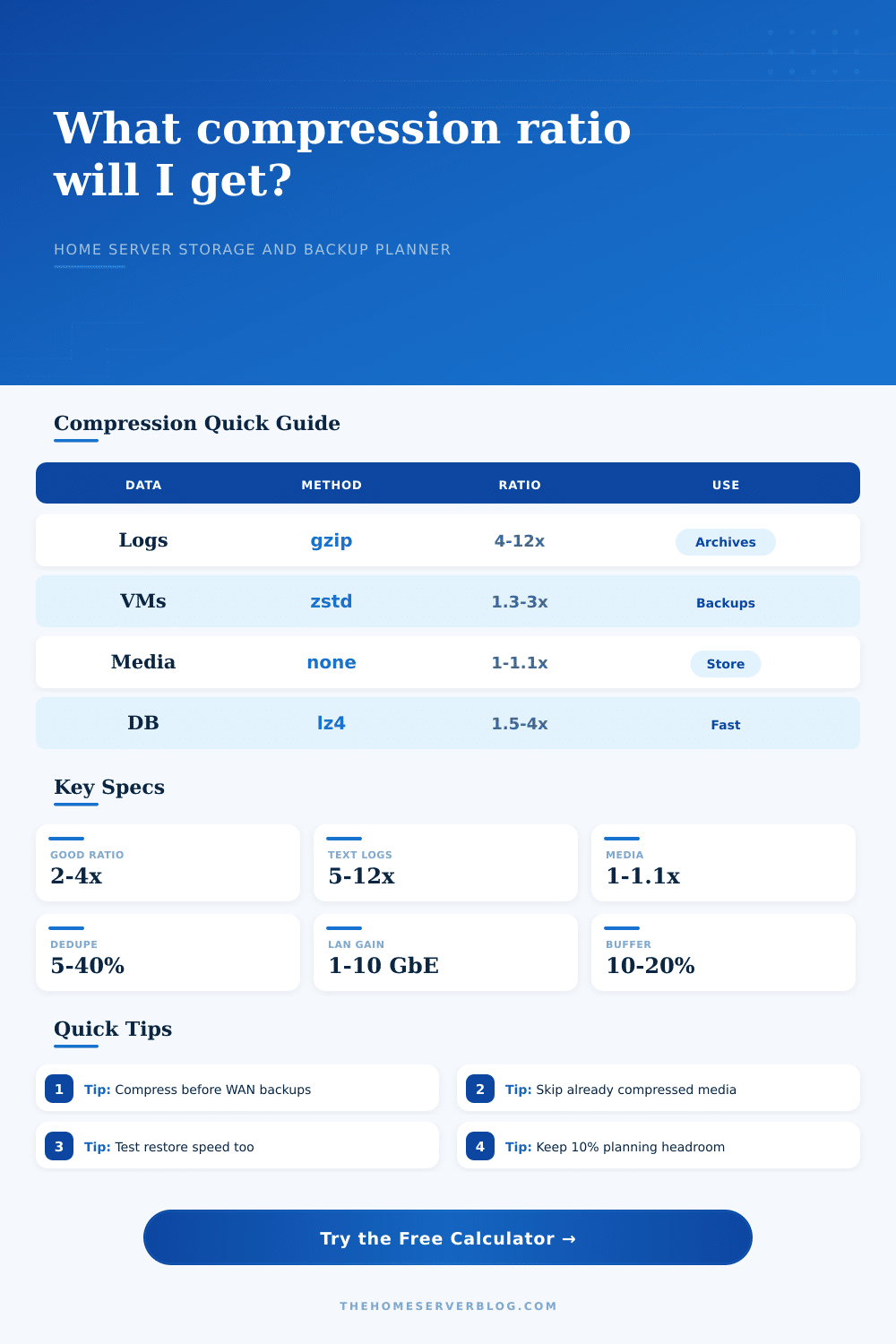
| Method | Typical Ratio | CPU Demand | Best Home Server Use |
|---|---|---|---|
| No compression | 1.00:1 | None | Already compressed media, encrypted archives, camera footage |
| LZ4 fast | 1.2 to 2.2:1 | Low | Inline filesystem compression where latency matters |
| Gzip balanced | 1.8 to 4.5:1 | Moderate | Logs, config archives, package mirrors, portable backups |
| Zstandard balanced | 2.0 to 5.0:1 | Moderate | Proxmox, Borg, Restic, PBS, and mixed NAS backups |
| Zstandard high | 2.4 to 6.0:1 | High | Cold archives where backup windows are flexible |
| XZ maximum | 2.5 to 7.0:1 | Very high | Small cold archives and release bundles, not frequent VM backups |
| Dedupe plus compression | 2.5 to 12:1 | Moderate to high | Repeated VM snapshots, similar containers, recurring backup chains |
🖧Network Transfer Planning Table
| Link | Practical Throughput | 1 TB Raw Transfer | With 3:1 Compression |
|---|---|---|---|
| 100 Mbps Ethernet | 80 to 94 Mbps | About 24 to 28 hours | About 8 to 9 hours |
| 1 GbE LAN | 800 to 940 Mbps | About 2.4 to 2.8 hours | About 48 to 56 minutes |
| 2.5 GbE LAN | 2.0 to 2.35 Gbps | About 58 to 69 minutes | About 19 to 23 minutes |
| 10 GbE LAN | 8 to 9.4 Gbps | About 14 to 17 minutes | About 5 to 6 minutes |
| 50 Mbps WAN | 35 to 48 Mbps | About 48 to 64 hours | About 16 to 21 hours |
📐Storage and Filesystem Reference
| Planning Item | Common Value | Why It Matters | Calculator Input |
|---|---|---|---|
| Binary vs decimal units | 1 TiB = 1024 GiB | Operating systems and drive labels may report different sizes | Unit system |
| Backup index overhead | 2% to 8% | Chunk indexes, manifests, and metadata need storage too | Overhead |
| Snapshot churn | 5% to 20% | Changed blocks reduce dedupe efficiency over time | Dedupe match |
| Encryption order | Compress first | Encrypted data appears random and rarely compresses well | Encryption stage |
| Block size | 64 KB to 1 MB | Smaller chunks can dedupe better; larger chunks reduce metadata | Block size |
📁Common Home Lab Project Sizes
| Project | Raw Data | Expected Ratio | Planning Note |
|---|---|---|---|
| Home Assistant logs and configs | 20 to 80 GB | 4:1 to 10:1 | Excellent text-heavy compression target |
| Small Proxmox node backups | 500 GB to 2 TB | 1.5:1 to 3:1 | Deduped zstd usually beats plain gzip |
| Photo library mirror | 1 to 8 TB | 1.05:1 to 1.3:1 | Focus on dedupe, not compression level |
| Database dump archive | 50 to 800 GB | 3:1 to 8:1 | Strong gains from zstd or gzip |
| Security camera footage | 2 to 20 TB | 1:1 to 1.1:1 | Video codecs already did most compression |
💡Compression Planning Tips
If you’re like me, you’ve freaked out when you suddenly realized that your NAS was out of space, late at night (2 AM), when you recieve an alert on your phone that a backup job failed. Did you immediately try to remove all your photos, move them somewhere else, or get rid of some old logs? How do you know if there’s enough space left? Did you just look up and see “four terabytes” written on the drive? Then you thought you were fine. But then you looked in the operating system and saw you’re already past capacity. What gives? Why don’t you have the right amount of space left?
That’s because the number you’re seeing is in raw storage terms. It does not shows how much you can actualy fit on the disk after taking into account metadata and snapshots. This helps you understand and plan for your storage needs more easy.
Simple Guide to Storage and Compression
Speed vs. Space vs. CPU: That’s what compression is all about. Don’t waste bandwidth sending un-compressed VM images across a slow network. Don’t max out a busy file server with maximum compression at the expense of disk space and user latency. Your data type and time-to-move matters. To help you choose the best approach, the page has a calculator that does the math for you, turning unclear tradeoffs into real savings before you change any settings.
Data like text also tends to be easy to compress. Database dumps and system logs is full of repetitions. Algorithms spot them: a hundred gigabytes of logs might shrink down to ten after being compressed with gzip or, even better, zstd. Ten to one sounds pretty good!
Except it costs you CPU cycles. XZ and other high-compression formats takes a bunch of your CPU time. They squeeze out each last drop of redundancy, but only slowly. If your backup window is tight, you’re probably not going to spend 20 hours on saving a few hundred gigs for a home server running on a modest CPU. Time and electricity matter. In a short backup window, speed > density.
Media is a different story. Binary media is already compressed. Run it through another round of compression, and you don’t get much benefit. You’ll have a ratio close to one-to-one. More importantly, you’ll be burning up your CPU. Your photo library might have a low ratio. That doesn’t imply that you’re doing anything wrong. It simply implies that the data doesn’t compress well.
Duplicate file removal will help in these instances. Duplicate file removal will save you even more space compared to what an algorithm can remove from a single image.
The order of encryption is important: if you encrypt your data before compressing it, the resulting ciphertext looks random to any compressor. Since random data doesn’t compress, this means your compression will be a one-to-one ratio and you’ll gain no benefit from having compressed it in the first place. So always compress first then encrypt. That way you keep all the patterns which help compression work.”,
How to Compress Encrypted Data? Different compression methods performs differently with different types of data. This prevents you from using intensive compression on encrypted streams. The choice also depends on network speed. If you are on a slow WAN link, you may want to get your backup done before it times out so every little bit of saved data helps. But if you have a fast 10 Gigabit LAN, then a 3x vs 4x compression might save just thirty seconds. That’s hardly worthwhile when it costs more CPU.
The question is: how much do I value my time compared to the value of disk space? Is it faster to use a fast LZ4 pass that saves 20 percent or a slow XZ pass that saves 50 percent but takes hours? Often the answer is that a fast pass is better suited for backups you run at night. A denser archive is better suited to those rare occasions when you need something from cold storage.
Storage planning eliminates surprises. You should of bought the appropriate drive today by figuring out how big a file will be on disk (including overhead) at the end of its life. It moves you from reacting to a full disk to designing your storage plan. And that makes a difference. It gives you clarity, so you can sleep well at night again.