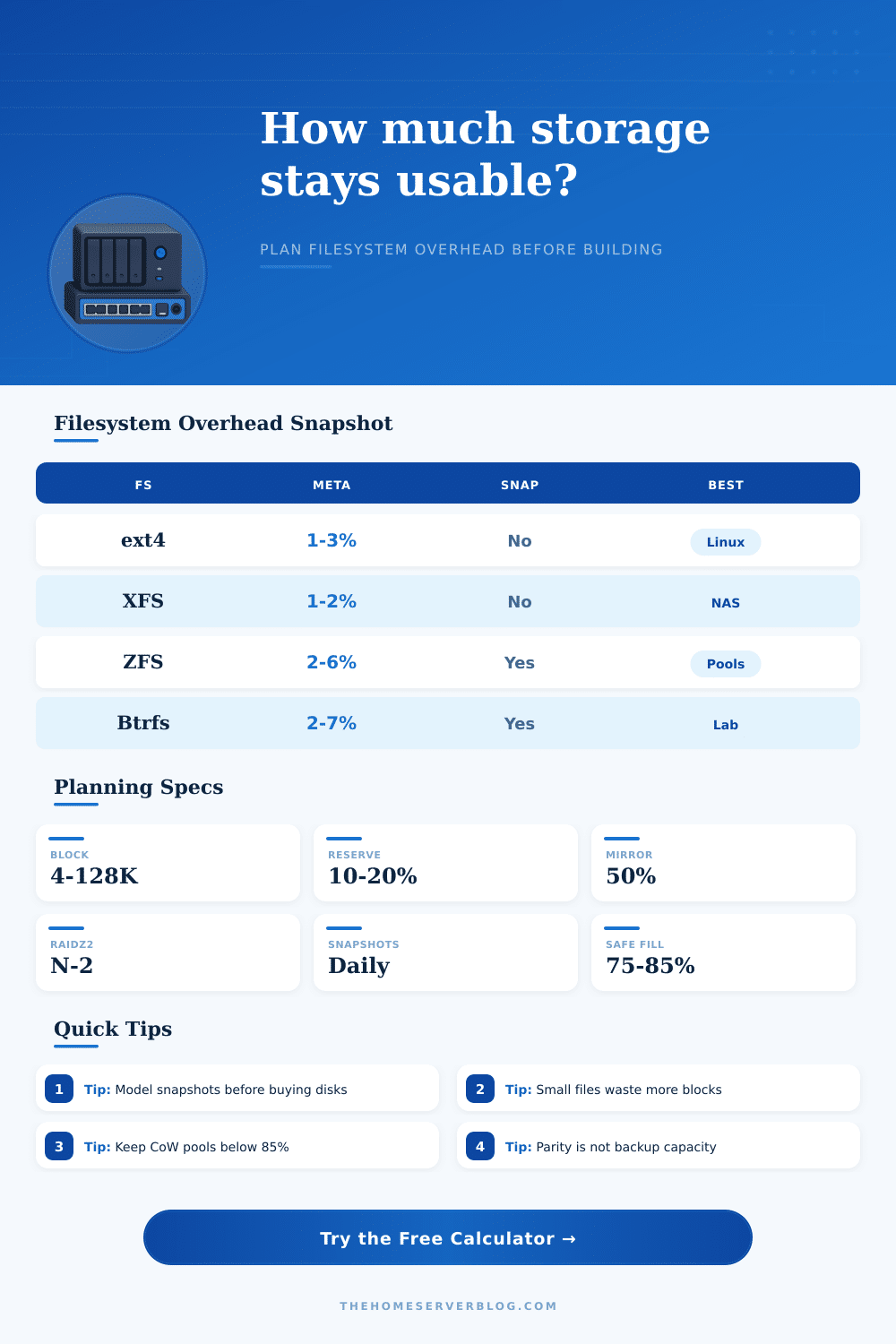
Filesystem Overhead Calculator
Estimate usable capacity after filesystem metadata, allocation unit waste, snapshots, parity or mirror layout, and free-space reservation.
Capacity breakdown
| Filesystem | Typical overhead drivers | Snapshot behavior | Planning note |
|---|---|---|---|
| ext4 | Journal, inode tables, block bitmaps, optional reserved blocks | No native snapshot layer | Good for simple Linux data disks and predictable single-volume servers. |
| XFS | Allocation groups, journals, metadata btrees | No native snapshot layer | Strong for large files, media stores, and backup targets with steady writes. |
| ZFS | Copy-on-write metadata, checksums, spacemaps, parity padding | Snapshots pin changed blocks until deleted | Keep healthy free space; performance and resilver headroom degrade when too full. |
| Btrfs | Metadata duplication, extents, checksums, delayed allocation | Subvolume snapshots retain changed extents | Budget extra for many snapshots and lots of small VM or container files. |
| NTFS | MFT, log file, bitmap, security descriptors, cluster slack | VSS snapshots consume separate changed-block space | Common for removable archives and Windows home lab shares. |
| APFS | Containers, checkpoints, object maps, clones, snapshots | Local snapshots grow with changed blocks | Plan Time Machine targets around retention and change rate, not only disk size. |
| Block or record size | Useful workload | Overhead risk | Home server example |
|---|---|---|---|
| 4 KiB | Small files, documents, source trees, package caches | Lower slack, more metadata entries | Git repos, photos, config backups, personal documents |
| 16 KiB | Mixed small and medium files | Balanced slack and metadata load | General NAS shares and light container stores |
| 128 KiB | Large sequential files and common ZFS records | Excellent for large files, wasteful for tiny ones | Media libraries, backup chunks, disk image archives |
| 1 MiB | Large object storage and streaming writes | High slack if files are small or uneven | Camera dumps, huge datasets, cold archive files |
| Layout | Raw drives | Capacity before metadata | What the calculator models |
|---|---|---|---|
| Single or striped volume | 1 or more | About 100% of raw capacity | No parity loss; only filesystem, snapshots, and reservation reduce planning space. |
| Mirror or Btrfs RAID1 | 2 or more | About 50% of raw capacity | Two logical copies before metadata, useful for small reliable home pools. |
| ZFS RAIDZ1 | 3 or more | (N - 1) / N of raw capacity | One drive equivalent reserved for parity, then filesystem overhead is applied. |
| ZFS RAIDZ2 | 4 or more | (N - 2) / N of raw capacity | Two drive equivalents reserved for parity, then metadata and snapshots are deducted. |
| Project size | Suggested layout | Typical reserve | Capacity planning target |
|---|---|---|---|
| Single media disk | ext4 or XFS on one large disk | 5% to 10% | Plan around large-file slack and leave room for rebuild copies. |
| Two-bay NAS | ZFS mirror or Btrfs RAID1 | 15% to 20% | Expect roughly half raw capacity before snapshots and filesystem overhead. |
| Four-bay home server | ZFS RAIDZ1 or mdraid plus XFS | 15% to 20% | Snapshot change rate can matter more than the base metadata percentage. |
| Six-bay lab pool | ZFS RAIDZ2 with datasets per workload | 20% to 25% | Reserve more for scrubs, resilvering, VM churn, and snapshot cleanup windows. |
Add up the capacity of those big drives that you buy for your home server. Format the array and fill it up with stuff. And then you find yourself wondering why there is less room then you expected. You didn’t cheat; it’s not some kind of magic. It’s filesystem overhead, and it serves its purpose perfectly.
It leaves you with fewer gigabytes when you plan than you actualy get once you start copying a picture. And it all adds up in multiple ways: the metadata layer shows who has access to what and where a file is on disk. Allocation slack is how tiny files gobble up whole block, since those blocks are many times bigger than any one file requires. Your choice of layout. Do you want it to be safe but take more space (mirroring), or spare some space by having data stored redundantly (parity)? And then there’s your reserve; you’ll have to leave part of the disk unused so that it can still operates when needed.
Why Your Storage Is Smaller Than You Think
The calculator takes care of figuring out the math based off what type of retention you require and how many drives you’ve got. That way you don’t have to guess how all these factor multiply against each other. The block size configuration gets overlooked in favor of raw disk size. That’s bad news when dealing with lots of little thing. Setting it too large result in massive waste from internal fragmentation. Each little file gets to claim all the space in its allocated block even though most aren’t actualy anywhere close to that big. Your block size should reflect how much typical data weigh, otherwise you will waste a lot of space storing a bunch of tiny files. The page has a helpful chart showing which workload fits best with each record size. Large blocks are great for media libraries where wasted space doesn’t matter as much and individual files can be enormous. But they’re awful for document stores, as the slack just pile up.
Snapshots are great for protection, but they are bad for capacity planning unless you are using them as free storage. Until data is changed, snapshots don’t use any space. Once they do, they pin those old blocks, preventing the system from reusing the block. Over time, that means that with 2 weeks of history (a common number) and a daily change rate of just 1%, you’re effectively reserving a large portion of your available space for old versions. The tool estimates amount of space needed by multiplying your daily change rate by your retention period; it gives you a realistic estimate of what to reserve, instead of just a theoretical maximum.
Another level of reduction comes from parity and mirroring. Because each byte is stored twice, a mirror cuts you in half. RAIDZ (or other RAID) setups takes one or two disks worth of space to hold parity info. This allows the array to withstand some number of disk failure. It’s not really overhead in the traditional sense, but it does reduce the raw pie before the filesystem has anything to do with it. The only way around this tradeoff is to accept increased risk.
This is also where a lot of people trip up on the whole “build your own home server” thing: They leave it all full, which means it won’t perform well, and critical tasks such as a scrub or resilver will fail. You want copy-on-write systems to have some breathing room so they can do their job in updating metadata. For active pools, I recommend a reservation of fifteen to twenty percent of the total size. That way, when you’re running a background check or restoring a file, there’s enough room on the filesystem for it to operate without locking up.
Finally, that last number, that’s your planning capacity. That’s how much data it can handle safely, with all the reserve and hidden costs factored in. It’ll always be less than the total of your drive labels. And that’s fine. We’re not aiming to pack every single megabyte; we want something that runs well when loaded down. Knowing your usage patterns helps you select the right filesystem for your workloads. A straightforward journaling filesystem may be just fine if you want simplicity. A pool-based system provide features like compression and advanced protection, which come at the expense of slightly trickier capacity calculations.
At the end of the day it’s all about managing expectations. Do not pursue theoretical extremes, but understand your constraints. Reliability is found in the distance between raw storage and what is available for use. If you model those limitations from the beginning you won’t panic when the array fills up. You’ll be building with intention, not responding to shortfalls down the road. That discrepancy between label and reality isn’t a bug. It could of been something that really functions.