Hypervisor Overhead Calculator
Estimate CPU, RAM, storage, and network capacity after platform overhead, host services, migration safety, ZFS or vSAN metadata, and workload demand for Proxmox, ESXi, Hyper-V, KVM, and TrueNAS SCALE.
1Hypervisor Presets
2Capacity Inputs
Overhead Breakdown
3Platform Reserve Snapshot
4Equipment and Spec Comparison Grid
1L Mini PC Node
6-12 coresBest for Proxmox, KVM, or ESXi labs with 64 GB RAM, 2.5 GbE, and one mirrored boot or datastore pair.
NUC / Tiny ESXi Host
8 coresGood for edge VMs and light vCenter labs; storage and NIC count are usually the limiting factors.
Workstation Tower
16-32 coresStrong single-host KVM, Hyper-V, or Proxmox option when PCIe lanes, GPU passthrough, and local NVMe matter.
Used 1U Server
24-48 coresDense CPU and RAM, but reserve more network and storage capacity for fans, HBAs, RAID controllers, and remote management.
TrueNAS SCALE Box
128 GB RAMPlan ARC and ZFS overhead first, then size VM and app memory from what remains after pool services.
10 GbE Storage Host
10-25 GbpsUseful when live migration, NFS, iSCSI, backup, and VM traffic need separate lanes or strict headroom.
5Reference Tables
| Platform | CPU base reserve | RAM base reserve | Storage reserve | Network reserve | Common overhead source |
|---|---|---|---|---|---|
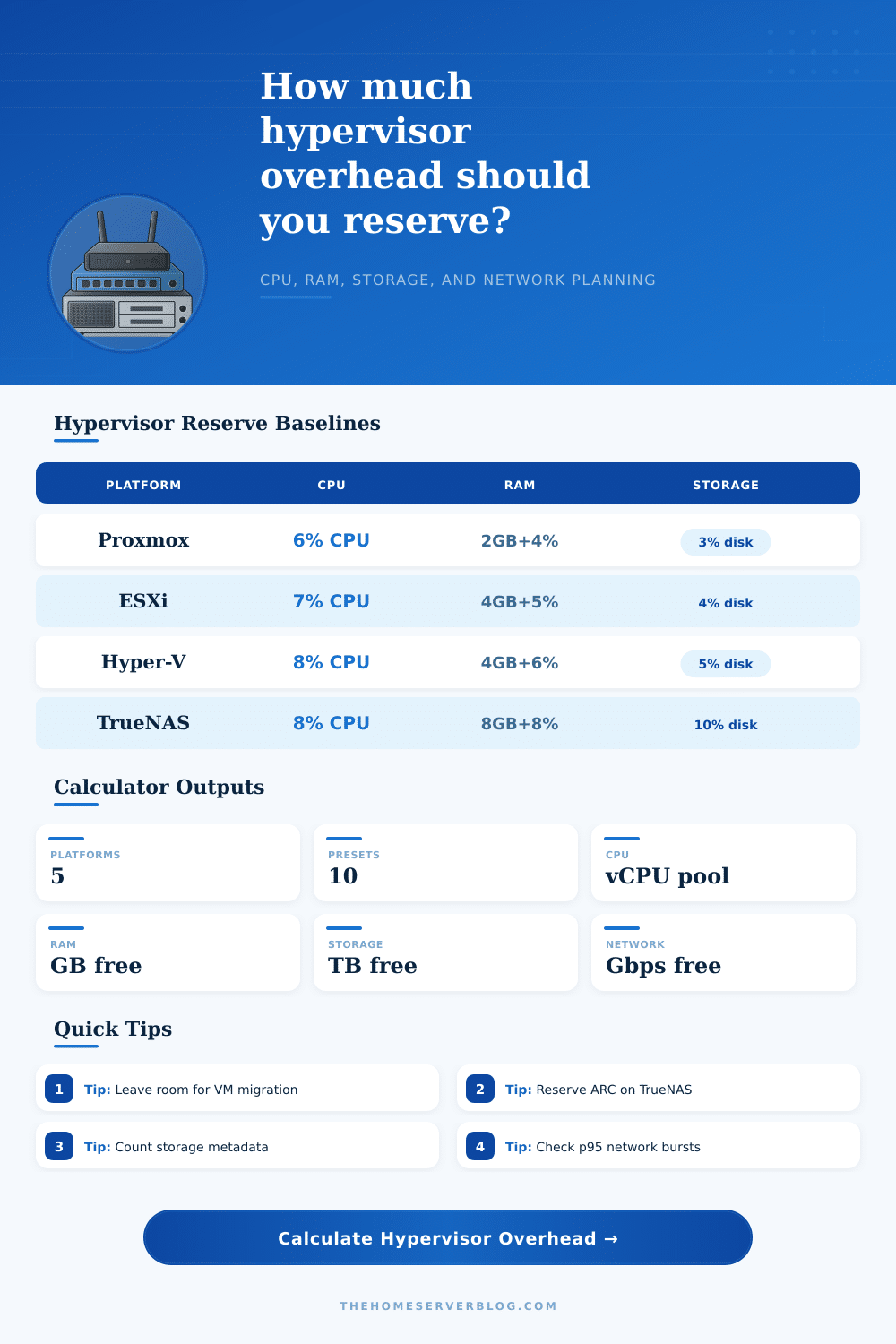
| Proxmox VE | 6% of physical cores | 2 GB per host + 4% | 3% datastore | 5% uplink | KVM, LXC, corosync, backups, optional Ceph daemons |
| VMware ESXi | 7% of physical cores | 4 GB per host + 5% | 4% datastore | 6% uplink | VMkernel, vCenter agents, snapshots, vMotion, optional vSAN |
| Hyper-V | 8% of physical cores | 4 GB per host + 6% | 5% datastore | 8% uplink | Parent partition, checkpoints, dynamic memory, Windows services |
| Linux KVM | 5% of physical cores | 2 GB per host + 3% | 2% datastore | 4% uplink | Host OS, libvirt, bridges, qemu helpers, local storage stack |
| TrueNAS SCALE | 8% of physical cores | 8 GB per host + 8% | 10% datastore | 8% uplink | ZFS ARC, middleware, apps, replication, snapshots, scrubs |
| Reserve policy | CPU add-on | RAM add-on | Storage add-on | Network add-on | Use this when |
|---|---|---|---|---|---|
| Lean lab reserve | 5% | 5% | 10% | 10% | Single host or non-critical lab with manual recovery |
| Balanced production | 10% | 12% | 15% | 15% | Mixed services where updates and backups run regularly |
| N+1 maintenance reserve | 20% | 20% | 20% | 20% | One node may be drained for patching or hardware work |
| Storage-heavy reserve | 12% | 25% | 30% | 15% | TrueNAS, Ceph, vSAN, snapshots, or thin provisioned disks |
| Network-burst reserve | 10% | 10% | 15% | 30% | Backups, live migration, NFS, iSCSI, or replication share links |
| Dense VM reserve | 15% | 18% | 20% | 20% | Many small VMs can create scheduling and metadata overhead |
| Workload profile | Objects | Average CPU | Average RAM | Average disk | Average traffic | Overcommit band |
|---|---|---|---|---|---|---|
| 6 light infrastructure VMs | 6 VMs | 2 vCPU | 4 GB | 80 GB | 50 Mbps | 3.5x |
| 10 small mixed VMs | 10 VMs | 2 vCPU | 6 GB | 120 GB | 80 Mbps | 3.0x |
| 16 general service VMs | 16 VMs | 3 vCPU | 8 GB | 180 GB | 120 Mbps | 2.5x |
| 24 bursty dev VMs | 24 VMs | 2 vCPU | 5 GB | 100 GB | 60 Mbps | 4.0x |
| 8 database or analytics VMs | 8 VMs | 6 vCPU | 24 GB | 500 GB | 250 Mbps | 1.5x |
| 14 NAS and media VMs | 14 VMs | 3 vCPU | 10 GB | 600 GB | 200 Mbps | 2.0x |
| 30 light VDI sessions | 30 sessions | 2 vCPU | 6 GB | 80 GB | 90 Mbps | 3.2x |
| 40 SCALE apps and containers | 40 apps | 1 vCPU | 2 GB | 35 GB | 25 Mbps | 5.0x |
| Build | Typical hardware | Best platform fit | Main overhead risk | Reserve target | Practical note |
|---|---|---|---|---|---|
| Mini cluster | 3 x 1L nodes, 64 GB RAM, 2 TB NVMe | Proxmox VE or KVM | RAM during migration | Balanced or N+1 | Keep quorum, backup, and migration traffic off saturated links. |
| Single NAS host | 8-16 cores, 128 GB RAM, ZFS pool | TrueNAS SCALE | ARC and snapshots | Storage-heavy | Do not size VMs against total installed RAM; ARC will want real room. |
| Windows lab pair | 2 x towers, 10 GbE, shared storage | Hyper-V | Parent partition RAM | Balanced | Check dynamic memory minimums before assuming VM density is safe. |
| ESXi edge host | NUC or ROBO node, local SSD | ESXi | Snapshot and vMotion room | Lean or balanced | Local datastores need extra free space for patching and rollback. |
| Storage cluster | 3-5 nodes, Ceph or vSAN, 25 GbE | Proxmox or ESXi | Network and disk metadata | Storage-heavy | Separate storage replication from client VM traffic when possible. |
6Planning Notes
Figures are planning estimates for small virtualization environments. Validate final allocations with host telemetry such as CPU ready, ballooning, swap, ARC pressure, datastore latency, and p95 network utilization.
Textbooks don’t teach you about physical limitations until you attempt to pack eight virtual machines onto a dual-core laptop. And it’s not just a question of core counts; it’s also a question of what percentage of each core has already been taken up by basic system functions long before you kick off even one guest machine. Each virtualization platform put its own hypervisor overhead on top of your hardware, an invisible cost that if ignored, will make a working server grind to a halt as it struggles to handle disk access.
Typically we assume that every bit of RAM/CPU/disk we have will be used up with nothing remaining. That’s not true. You’ve got to account for base operating system itself. How do you run your KVM/ESXi/Hyper-V/Proxmox? There’s always going to be some disk space used by host OS for storage pools/network bridges/the management interface. By entering in your hardware spec into the page, it’ll calculate that for you (no more conversion/coefficient guessing).
Why You Need Extra Space for Your Server
No marketing speak here. It is just pure numbers showing what you get and how much will go to the host. The hypervisor itself require some of your RAM to do its thing. VMware’s VMkernel does this efficienty, but even so, it takes megabytes to support snapshotting and vMotion. Microsoft Hyper-V reserves some for parent partition, which includes Windows services such as telemetry tools or an antivirus solution.
You’ll be tempted to give all your gigabytes to your guest machines, leaving no room for the host to do stuff like cache disk reads or page faults. Swapping happens, and swapping kills performance more quickly then almost anything else in a lab environment.
The other danger is storage overhead. Neither old-school RAID arrays nor file systems such as ZFS write your data at a one-to-one ratio. They have all sorts of metadata and block maps. There is also frequent background activity doing things like replication or scrubbing. If you’ve got a datastore reporting it’s 90% full, in reality it may only have 70% available; and as your storage becomes more fragmented, the overhead rise exponentially. Here’s the page’s reference table breaking it out by platform, why Truenas scale requires more reserve space for its ARC cache vs. A leaner Linux KVM configuration.
It makes a big difference if you’re planning for future growth instead of just current capacity. Another issue is network headroom. In many cases, there’s no segregation between live migration, storage traffic and backups, so they’re using the same physical network links. You might think you have plenty with a 10-gigabit connection, but then your maintenance window comes up with a backup job and a vMotion migration, and sudden that seems small. To handle this, the tool reserves a portion of the bandwidth for host management activities; that way, VM traffic doesn’t eats itself out of house and home.
Reserve policy selection has nothing to do with adherence to rules. It’s an exercise of determining your comfort with instability. For example, a small lab may choose to go cheap by packing more machines into space, running with little or no buffers, but will have stability problems when updating. In contrast, a production environment should of had N+1 reserves to ensure that you can take one host down for maintenance work without inconveniencing users. There isn’t a right/wrong choice here. Just tradeoffs between resilience vs efficiency.
But at its heart, virtualization is a process of taking away. Take away your capacity entirely. Remove all your safety margins, metadata, and management. Then you arrive at the real value you can get out of your infrastructure. The math says one thing; the “aha!” moment reveals another.
There are no such things as free resources. Each gigabyte and each core has a cost, either you pay it upfront or you chase latency problems later. When workload spikes unexpectedly, you’ll sleep better knowing there’s still space for your hosts to breathe.