Frequency to Channel Calculator
Convert a frequency in MHz into Wi-Fi channel numbers, LTE EARFCN, 5G NR-ARFCN, LoRaWAN channel indexes, or CBRS channel planning values while checking raster error, occupied edges, guard band, regulatory domain, and duplex offset.
Frequency-to-channel result
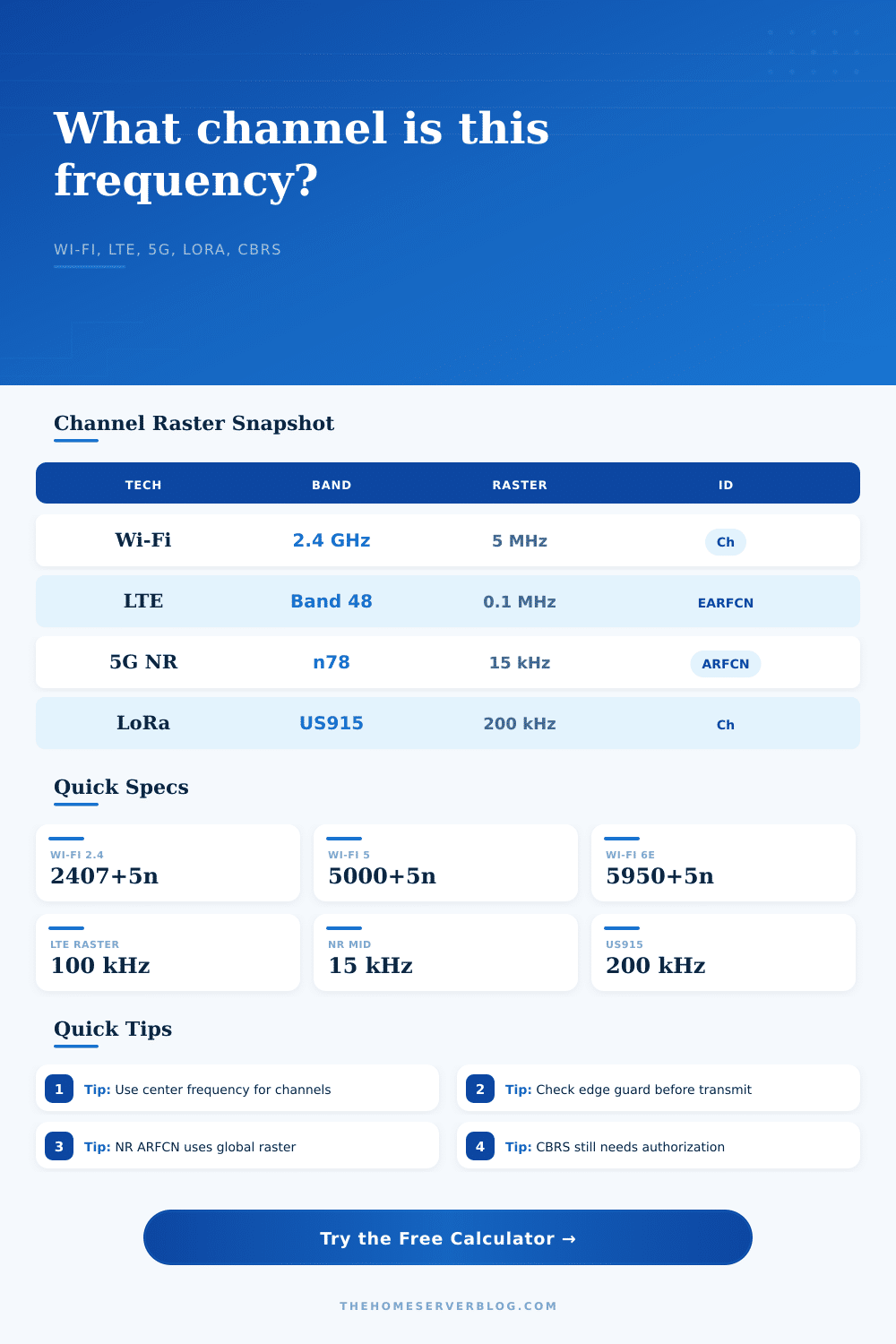
Wi-Fi channel formulas
| Plan | Center formula | Common widths | Planning note |
|---|---|---|---|
| 2.4 GHz | 2407 + 5 x channel, except channel 14 at 2484 MHz | 20, 22, 40 MHz | Channels 1, 6, and 11 are the usual non-overlap set in FCC-style 20 MHz planning. |
| 5 GHz | 5000 + 5 x channel | 20, 40, 80, 160 MHz | U-NII-2 and U-NII-2C channels may require DFS depending on domain. |
| 6 GHz | 5950 + 5 x channel for 20 MHz indexes | 20, 40, 80, 160, 320 MHz | Standard power, low-power indoor, and very-low-power rules differ by country. |
| Generic | base + raster x channel | Custom | Use when converting lab plans, vendor tables, or simple channel maps. |
LTE and CBRS EARFCN examples
| Band | Downlink range | N offset | Duplex note |
|---|---|---|---|
| LTE Band 3 | 1805 to 1880 MHz | 1200 | FDD pair is typically 95 MHz lower on uplink. |
| LTE Band 7 | 2620 to 2690 MHz | 2750 | FDD pair is typically 120 MHz lower on uplink. |
| LTE Band 20 | 791 to 821 MHz | 6150 | FDD pair is typically 41 MHz higher on uplink. |
| LTE Band 48 | 3550 to 3700 MHz | 55240 | CBRS TDD operation depends on SAS authorization. |
5G NR global raster examples
| Frequency range | NR raster | Reference formula | Example bands |
|---|---|---|---|
| 0 to 3000 MHz | 5 kHz | FREF = NREF x 0.005 MHz | n5, n28, n41 |
| 3000 to 24250 MHz | 15 kHz | FREF = 3000 + 0.015 x (NREF - 600000) | n48, n77, n78 |
| 24250.08 to 100000 MHz | 60 kHz | FREF = 24250.08 + 0.06 x (NREF - 2016667) | n257, n258, n260 |
| Band limits | Band table | Raster plus operating band range | Check both ARFCN and band edge fit. |
LoRaWAN channel examples
| Region plan | Channel set | Center formula | Planning note |
|---|---|---|---|
| US915 uplink 125 kHz | 64 channels | 902.3 + 0.2 x channel MHz | Sub-bands are often selected in groups of eight channels. |
| US915 uplink 500 kHz | 8 channels | 903.0 + 1.6 x channel MHz | Used for higher data rate uplink operation. |
| US915 downlink 500 kHz | 8 channels | 923.3 + 0.6 x channel MHz | Network server downlink channels are separate from uplink. |
| EU868 defaults | 3 join channels | 868.1 + 0.2 x channel MHz | Local channel masks and duty-cycle rules still apply. |
| Technology | Identifier | Raster behavior | Best use in this calculator |
|---|---|---|---|
| Wi-Fi | Channel number | Mostly 5 MHz center index spacing | Finding center channels and checking bonded-channel edges. |
| LTE | EARFCN | 100 kHz E-UTRA raster with band-specific offsets | Converting carrier center frequency to a published LTE channel number. |
| 5G NR | NR-ARFCN | Global 5, 15, or 60 kHz raster by frequency range | Checking NR center frequency and band-limit fit. |
| LoRaWAN | Regional channel index | Region-specific channel lists and sub-band masks | Mapping gateway channel plans and uplink/downlink tables. |
| CBRS | LTE EARFCN or NR-ARFCN | 3.55 to 3.70 GHz shared spectrum planning | Channel math before SAS, grant, and deployment checks. |
When your wireless device is dropping packets or won’t connect at all, use this calculator to find out what channel it should be operating on. Is it the internet service provider’s problem? Or maybe it’s the router? No. Chances are it’s the frequency you’re broadcasting on. It does not match the environment; which channel are you operating on?
Use this tool to convert raw frequency numbers to channel identifiers. Use it for Wi-Fi, LTE, 5G, CBRS planning and more. The numbers mean something slightly differenter for each technology. For example, Wi-Fi is easy: just Channel 6 or Channel 11. But the hardware doesn’t care what it’s called; only the precise frequency of megahertz matter.
How to Choose the Right Wi-Fi Channel
This little calculator fills in the blanks between the radio physics and integer number you see on your scan tool. Translation leads to a lot of planning mistakes. In general, channel numbers 1, 6, and 11 is used for Wi-Fi in the 2.4 GHz band. They’re the non-overlapping channels. In Japan they add channel 14 which is at 2484 MHz. Using standard raster formula (with a 5 MHz raster), that won’t work out to anything correct. That’s why it takes into account these regional variations.
Depending on what regulatory domain you pick, it changes the formula to match. Picking the appropriate preset mean picking the right set of rules for your region. It is more accurate to call it cellular math. For LTE, there’s this thing called an EARFCN (channel number counter). For LTE, the world have a 100 kHz raster. So every increment of channel number equals a one-hundred-kilohertz shift.
Now 5G NR gets even finer grained. It switches raster size depending on operating frequency and uses what they call a global NR-ARFCN setup. At frequencies below 3 GHz, it increments 5 kHz. Above 3 GHz, it increments 15 kHz. The calculator do all that for you. You just put in the frequency and it tell you what the right channel step should of been.
It will also calculate the edges of a channel. A channel is not simply one point, but rather it has a width. So what’s the start and end point? What if you’re using a 20 MHz wide channel? Input a guard band. You will experience noise because your signal overlaps with that of your neighbors. The calculator shows you the span of your signal. Does it fit within legal limits? No, it flags an error if you’re transmitting outside the allowed range.
These are the regional channel plans. The LoRaWAN channel plans differs greatly between regions. For example, there is 64 uplink channels in the US915 plan and they have defined spacing. In the EU868 plan there is a different set of channels. If you configure a gateway in Europe but use US channel indexes, you’re out of luck. You can upload those plans into the tool. It checks if your frequency maps to the right index based off where you live. No more guessing about crossing borders when deploying.
The added wrinkle in CBRS is that it’s a shared spectrum. That means that unless you’ve been authorized by a SAS, you can’t pick any frequency. But before you talk to the SAS, you need to know what frequency you are asking for. First, you have to know what the frequency is. And that’s where the calculator comes into play. It reveals to you what the channel ID is on the 3.5 GHz band. That way, you can tell the spectrum manager exactly what you want and make your request.
Planning radio gets tricky. Moving just one MHz can result in a clear or noisy signal. The calculator give us that precision. It translates the abstract frequency into a usable channel number. While you also need to check real-world interference and local regulations, these will give you a clear picture of where your signal lands. That’s helpful when setting up a network.