HomeServerBlog virtualization availability planner
HA Failover Slot Calculator
Estimate VMware-style HA admission control slots from host CPU, memory, reserved failover hosts, largest protected VM reservation, VM count, hypervisor overhead, and operating buffer.
▣HA slot presets
⚙Cluster and slot inputs
Calculation breakdown
Admission status
🖥Equipment and host comparison grid
Slot estimates shown in this grid use the current largest VM reservation, per-VM overhead, host reserve, and buffer. Select a profile above to move its specs into the live calculator.
▦HA planning metrics
Cluster CPU pool after host reserve, before failover reservation.
Cluster memory pool after host reserve, before failover reservation.
Slots intentionally held back for the configured host failure count.
Minimum hosts needed at the current slot density and failover target.
ℹReference tables
Slot calculation formulas
| Metric | Formula | Why it matters | Typical constraint |
|---|---|---|---|
| Host CPU capacity | Cores × GHz × 1000 × usable reserve | Converts a host into MHz available for HA slots. | Clock and reserve |
| Host memory capacity | RAM GB × usable reserve | Removes management and storage overhead from the slot pool. | Installed RAM |
| Slot CPU size | Largest VM CPU MHz × buffer | Defines the CPU size of one conservative failover slot. | Largest VM |
| Slot memory size | (Largest VM GB + overhead GB) × buffer | Defines the memory size of one conservative failover slot. | Reserved memory |
| Slots per host | Lower of CPU slots or memory slots | Admission control uses the resource that runs out first. | CPU or memory |
| Usable slots | Slots per host × (hosts - failover hosts) | Shows how many protected VMs can restart after failures. | N+1 or N+2 |
Admission policy comparison
| Policy | Slot behavior | Best use | Watch point |
|---|---|---|---|
| Strict slots | Largest protected VM sets slot size. | Predictable small HA clusters. | One large VM can shrink capacity. |
| Balanced slots | Blends largest and average reservation. | Home labs with a few oversized VMs. | Less conservative than strict mode. |
| Percent check | Compares consumed CPU and RAM against remaining cluster pool. | Modern clusters with varied VM sizes. | Slots are an approximation. |
| Maintenance check | Reserves failover hosts plus one maintenance host. | Patch windows and rolling upgrades. | Requires extra capacity. |
| N+1 | One host worth of slots held back. | Most small home labs. | Does not cover maintenance plus failure. |
| N+2 | Two hosts worth of slots held back. | Dense racks or important services. | Needs more hosts or smaller slots. |
Common HA cluster sizes
| Project | Host count | Common failover target | Practical note |
|---|---|---|---|
| Two-host starter HA | 2 hosts | 1 host | Works only when each host can run all protected VMs alone. |
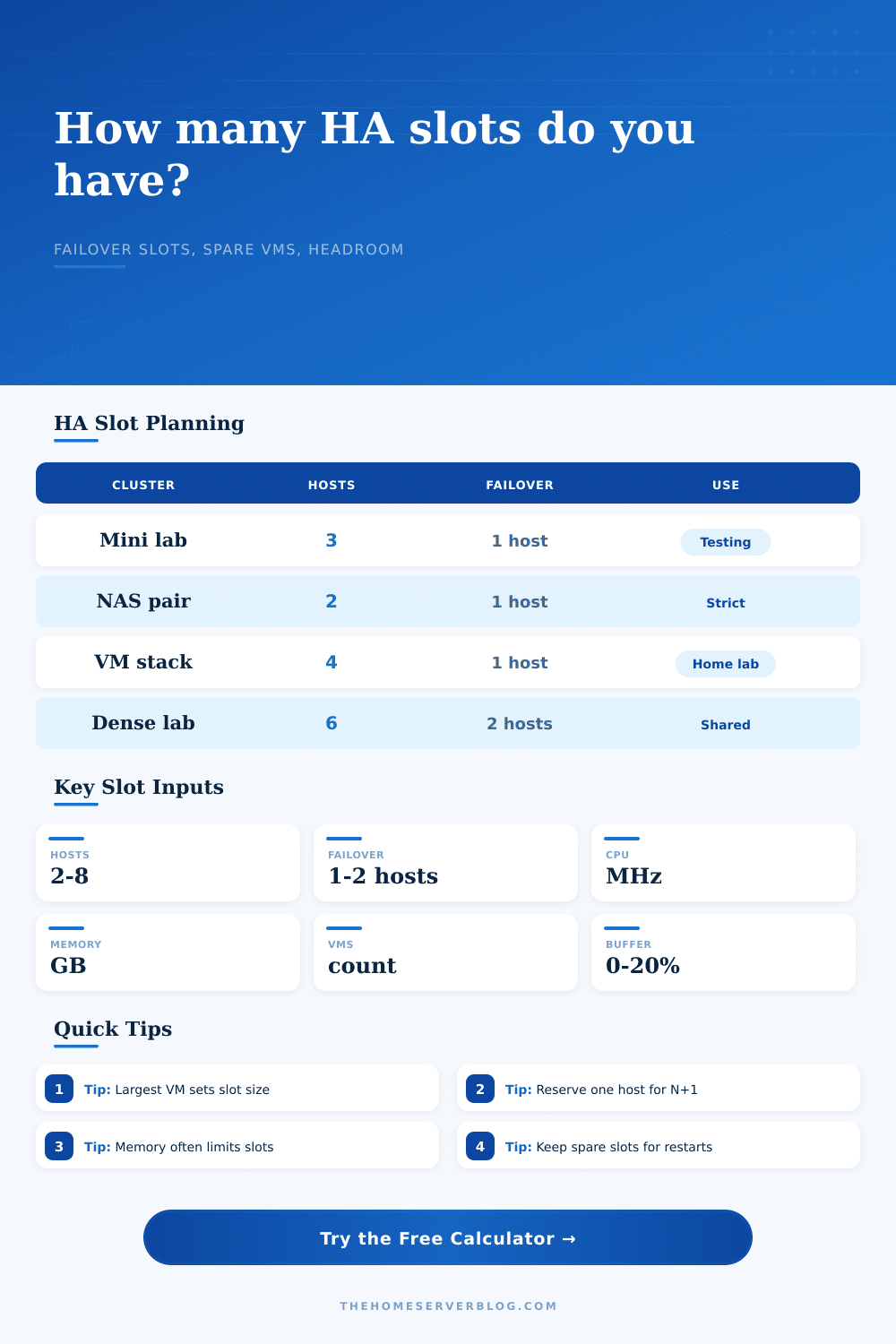
| Three-node mini lab | 3 hosts | 1 host | A strong home-lab baseline with visible spare capacity. |
| Four-host SFF cluster | 4 hosts | 1 host | Good balance of uptime, maintenance, and hardware cost. |
| Six-node lab rack | 6 hosts | 1-2 hosts | N+2 becomes realistic if VM reservations stay small. |
| Storage-heavy cluster | 4-5 hosts | 1 host | Memory slots usually limit before CPU slots. |
| Consolidated rack | 5-8 hosts | 2 hosts | Needs careful largest-VM reservation management. |
Reservation and overhead reference
| VM type | CPU reservation | Memory reservation | Slot planning note |
|---|---|---|---|
| DNS, DHCP, small Linux service | 100-300 MHz | 0.5-2 GB | Usually not the slot setter unless all VMs are tiny. |
| Home Assistant or Docker VM | 300-800 MHz | 2-6 GB | Often fits well in mini-PC HA clusters. |
| Windows Server utility VM | 800-1600 MHz | 4-12 GB | Can become the memory slot setter. |
| Database or monitoring VM | 1500-4000 MHz | 12-64 GB | One large reservation can sharply reduce slot count. |
| VDI or test desktop | 500-1200 MHz | 4-8 GB | Many small VMs make spare slot count important. |
| Storage controller VM | 1000-3000 MHz | 16-128 GB | Validate restart order and datastore availability separately. |
⚡Home lab HA slot tips
Late at night, when a host drops out in the middle of an update, there’s a particular panic that sets in. The dashboard turns red. You stare as the VMs come back online. They bounce from host to host until one doesn’t start up because there’s just no room. That’s not a bug in your software. It’s a math problem about resources. And the HA failover slot calculator helps you solve that problem before it rears its ugly head in the darkness.
It will translate the raw specs on your hardware into a clear cut admission policy, allowing you to see exactly how much headroom you’ve got left. That’s the core concept: High availability is borrowed capacity. You’re expecting the other hosts to shoulder the burden of a dead peer. That means empty slots! The tool above runs the math for you (based off cluster size and largest workload).
How to Use the HA Failover Slot Calculator
And most folks start with cores. They look at their sixteen-core processor and figure, “I’ll just put sixteen heavy workloads on there,” but that is not how it works. Almost always, memory is the bottleneck in small business clusters and home labs. One big Windows Server with a hefty RAM reservation will gobble up a huge chunk of available memory. One big database instance? It is the same thing. If that big VM sets the slot size, all the others are sized to match it, and the slot count drops instanty.
Under strict admission control, your maximum capacity is dictated by your biggest reserved VM in the whole cluster. Add some overhead, which is what that buffer is for. Take your biggest reservation and divide your overall memory or CPU by its slot size. The smallest will be the bottleneck. So if RAM isn’t sufficient but CPU is plentiful, your slots is restricted by RAM. It’s a straightforward constraint. You can’t make RAM out of thin air.
And that’s where host reserve comes in. Your guest VMs don’t have all your megabytes and megahertz. The hypervisor has to breathe. There are management agents and storage drivers and background processes that consume resources. Setting the host reserve to zero is asking for trouble. Eight to ten percent is a conservative level that will keep things humming along nicely. It allows the hosts to stay above water when the load spikes without having to thrash around. That’s what you want. The host reserve gets subtracted out before calculating your slots. That way, the numbers are realistic. You’re not planning for a theoretical peak. You’re planning for sustainable operation.
And that’s where the target of the failover comes into play. With an N plus one policy, you reserve one host worth of capacity. That protects against a single hardware failure (standard in most environments). To protect against two host failures, then you need an N plus two. That means you double up on reserved capacity, which reduces the number of slots available to run VMs by quite a bit. Depending on your workload density, you may find yourself needing additional hosts just to keep the same amount of work running. That tradeoff is immediately visible with the tool. Adjust the failover setting and observe how many slots becomes unavailable. It will make you think about how much risk you’re actually willing to accept.
The buffer setting is something many admins overlook. They consider it an optional pad, but it’s not. Virtual workloads grow and leak memory over time. Their footprint grows during restarts. You account for this drift by adding a ten percent buffer. This provides some wiggle room for the scheduler. Without it you could determine you have enough room to add another VM. When you try to power it on, you are denied because the system is actualy full. That buffer protects against these edge cases. It’s the difference between a clean failover and a partial outage.
Secondly, think about the admission policy type. There are two kinds: strict slots and balanced. Strict slots are conservative; they use the largest VM as the unit of measure. Any VM can be restarted anywhere. Balanced are less safe; they assume you can spread out your smaller VMs, so they use an average. That gives you more density. The calculator lets you try them both out. See what the impact on capacity is if you go balanced. How many more VMs can you pack in? Then you can assess whether the risk of restart failure is worth that extra capacity.
On that page they have reference tables to see how your configuration compares to typical configurations. For example, a popular initial configuration is a three-node mini lab. That provides some redundancy for the price. A six node cluster will give you N plus two failover. Now we are talking about serious uptime. Compare what you are using and tweak if necessary. Is your slot count smaller then one of the comparable reference nodes? Your biggest reservation is likely too big. Often you can cut back on reservations and get more density out of it. Just make sure that your VMs don’t starve at peak usage.
Reacting is hard; planning makes it easy. Design around known slot limits prior to adding a new host. Balance workloads and split up large VMs. Avoid the late-night freakout when the lights turn red, everything stops moving, and you’re up all night. Use the calculator to get the numbers. Turn abstract capacity into concrete slots. Trust the math. When that last host finally dies, you should of been ready. The slots will be there. The VMs will start again. Go back to sleep.