Hard Disk Space Calculator
Estimate usable home server HDD capacity after parity, mirrors, hot spares, filesystem overhead, snapshots, backup retention, camera footage, media libraries, and growth headroom.
Calculated hard disk space plan
| Layout | Minimum Drives | Capacity Rule | Home Server Planning Note |
|---|---|---|---|
| Single disk | 1 | All drives usable | Good for scratch, downloads, or replicated data; not a backup by itself. |
| Two-way mirror | 2 | One drive usable per pair | Simple boot pool or small NAS layout with fast rebuilds. |
| RAID10 | 4 | About 50% usable | Strong random I/O for VMs, but capacity cost is high. |
| RAID5 or RAIDZ1 | 3 | One drive used for parity | Acceptable for smaller arrays; large HDD rebuild risk deserves caution. |
| RAID6 or RAIDZ2 | 4 | Two drives used for parity | Common home server choice for 6 to 12 bay HDD pools. |
| RAIDZ3 | 5 | Three drives used for parity | Useful for very large or slow-to-rebuild archive arrays. |
| Unraid or SnapRAID | 2 | Largest parity drive excluded | Flexible mixed-drive media storage, but parity is not live striping. |
| Drive Label | Decimal TB | Approx OS TiB | Four-Drive RAIDZ1 Approx |
|---|---|---|---|
| 4 TB HDD | 4.0 TB | 3.64 TiB | 12.0 TB before filesystem reserve |
| 8 TB HDD | 8.0 TB | 7.28 TiB | 24.0 TB before filesystem reserve |
| 12 TB HDD | 12.0 TB | 10.91 TiB | 36.0 TB before filesystem reserve |
| 16 TB HDD | 16.0 TB | 14.55 TiB | 48.0 TB before filesystem reserve |
| 20 TB HDD | 20.0 TB | 18.19 TiB | 60.0 TB before filesystem reserve |
| 24 TB HDD | 24.0 TB | 21.83 TiB | 72.0 TB before filesystem reserve |
| Data Type | Typical Space Driver | Compression Reality | Planning Advice |
|---|---|---|---|
| Movies and TV libraries | Codec, resolution, and remux size | Usually already compressed | Do not assume ZFS compression will reduce video files. |
| Photos and phone backups | RAW files, HEIC/JPEG, and duplicates | Low to moderate savings | Use snapshots for protection, then include them in the space plan. |
| VM disks and containers | Base images, logs, snapshots, databases | Often moderate savings | Keep more free space for copy-on-write filesystems and active writes. |
| PC image backups | Daily change rate and retention | Depends on dedupe tool | Calculate retention from changed data, not only full backup size. |
| IP camera footage | Bitrate, camera count, and retention days | Already compressed video | Use actual Mb/s from the camera UI for best accuracy. |
| Scratch and downloads | Temporary staging size | Mixed | Separate scratch space if you often unpack, transcode, or seed files. |
| Common Project | Drive Set | Practical Usable Space | Best Fit |
|---|---|---|---|
| Small mirrored NAS | 2 x 8 TB mirror | About 6.8 TB after 15% reserve | Documents, photos, backups, and small media shares. |
| Four-bay media server | 4 x 12 TB RAIDZ1 | About 29 TB after ZFS and reserve | Plex or Jellyfin library with moderate redundancy. |
| Six-bay family NAS | 6 x 12 TB RAIDZ2 | About 38 TB after reserve | Balanced double-parity storage for backups and media. |
| Eight-bay Unraid box | 8 mixed drives, 2 parity | Sum of data drives minus reserve | Expandable media archive with mixed drive sizes. |
| VM-focused Proxmox pool | 4 x 4 TB RAID10 | About 6 TB after reserve | Faster random I/O and simple mirror replacement. |
| Camera retention server | 6 x 16 TB RAIDZ2 | About 52 TB after reserve | High write workload with longer surveillance retention. |
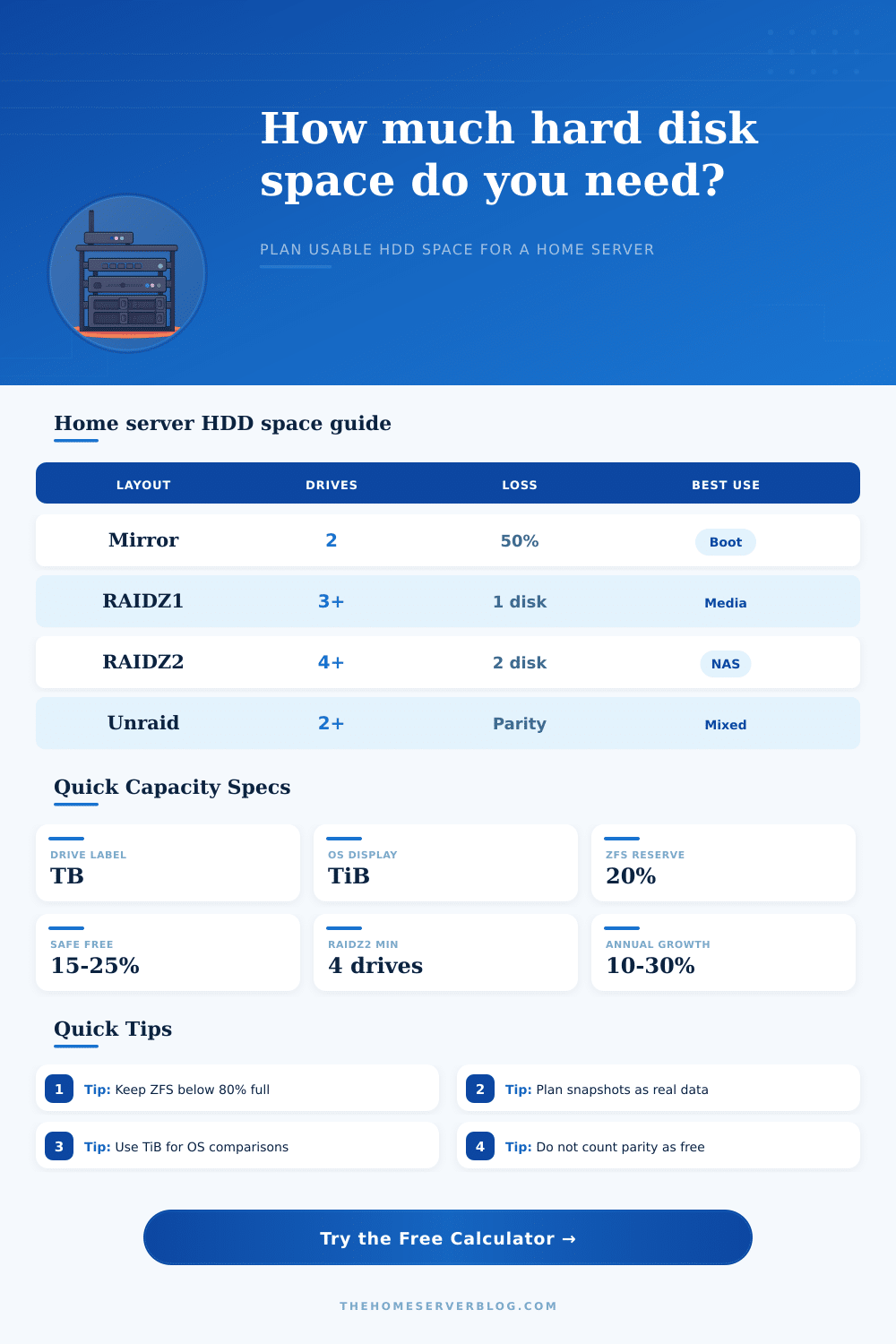
When you plan storage for a home server, you have to account for the fact that the advertised capacity of a drive is slightly different than the actual usable capacity of that drive. Manufacturers advertise the capacity of drives in decimal unit of measurement. Operating systems report drive capacity in binary units.
Because binary units are smaller than decimal units, the operating system will report a capacity that is roughly nine percent smaller than the advertised capacity. Therefore, the advertised capacity of drives is not the same as the usable capacity, and you must account for that fact in your planning before you even consider how many drives you might need for redundancy or snapshots. You must also decide how much data protection you would like to use.
How Much Storage You Can Actually Use on a Home Server
If you choose a method like a two-drive mirror, you will lose half of your total raw capacity to data protection. If you use double parity, you can protect against the failure of two drives in your array. Double parity require that you lose a smaller percentage of your total raw capacity than a mirror does.
However, the selection of a protection method will impact the length of time that it takes to rebuild your drives if one of them should fail. Furthermore, the selection of a protection method will also impact the amount of headroom that you must leave for copy-on-write behavior. The different workloads that you have in your home will impact how much space they take up in your storage pool.
Media libraries will take up space over time, but they will not take up space at a much higher rate than normal. Virtual machines and containers will spike the amount of data that is wrote to your drives when you take a snapshot of those virtual machines. Similarly, if you are staging an update to one of your virtual machines, there will be a spike in the amount of data that is written to your drives.
Camera footage will write at a constant rate to your drives, even when the rest of your system is idle. The calculator can help you to determine the amount of space each of these categories will use. It does so by combining all of the categories in one estimate.
The calculator applies estimates for the amount of space that will be saved by data compression and snapshots, then compares that total to the usable space after you have accounted for the space that is lost to parity and the filesystem. The filesystem that you use will also have an impact on your storage plan. Filesystems like ZFS and Btrfs use copy-on-write mechanics to allow the filesystem to efficiently perform changes to data.
However, because the drives must have enough space in the pool to contain these changes, you cannot allow your pool to ever go above eighty percent of it’s total raw capacity. If it does reach that percentage, the performance of your storage pool will drop. In order to avoid this situation, you should use a reserve percentage of the total raw capacity of the drives in your pool.
This percentage will treat some of that raw capacity as unavailable for the storage of data. However, this treatment of that space as unavailable is a reflection of how that filesystem will behave when it has to write snapshots and databases to the drives. Planning for the growth of your data is also necessary.
Even though twenty percent growth in raw data per year may seem to be a relatively small amount of growth, it can become significant over time, especially if you also add more camera footage, more shows, and more phone data backups. The calculator will project the amount of data that you have now into the future and will calculate for you whether or not your current drives will be sufficient to support your data needs next year. The calculator will not make such a promise for you, but it will allow you to see the future of your storage plan.
The tables located on this page have been constructed to reflect some of the most common layout decisions for home server storage. These tables explain the reasons why RAIDZ2 is a popular choice of RAID configuration for cases that have six to twelve drive bays. The tables also provide an explanation of why Unraid is a popular choice for those who want to store drives of different sizes within the same array.
The tables also explain why using single parity with large drives is a risky strategy. These tables will not replace the requirements that your data has, but they will provide context for the number values that you enter into the calculator. One of the most common mistakes in building a storage plan is to ignore the fact that parity uses space in your drives every day until one of them fail.
The space that is used in this way is permanent. Another of the most common mistakes is to assume that data compression will add to the usable space within your storage pool. If your data consists of video files and encrypted data backups, it is likely that data compression will add very little to the total raw capacity of your drives.
As such, you can set the compression rate to zero in the calculator if your data includes only this type of already-compressed content. In planning your storage, you must always account for the fact that the usable capacity is always smaller than the total sum of all of the drive labels in your storage pool. The difference between these two values is not a waste of that space.
That difference is the cost of redundancy and snapshots. Once you understand that usable capacity in your drives will always be smaller than the advertised capacity of those drives, you can stop thinking about how much space you can buy, and you can begin to think about how much space you can actualy use in your storage pool without causing any trouble to your systems operation.