RAID 5 Capacity Calculator
Estimate usable RAID 5 storage from drive count, smallest disk size, hot spares, filesystem reserve, metadata overhead, snapshots, current usage, growth rate, and rebuild throughput.
RAID 5 Capacity Breakdown
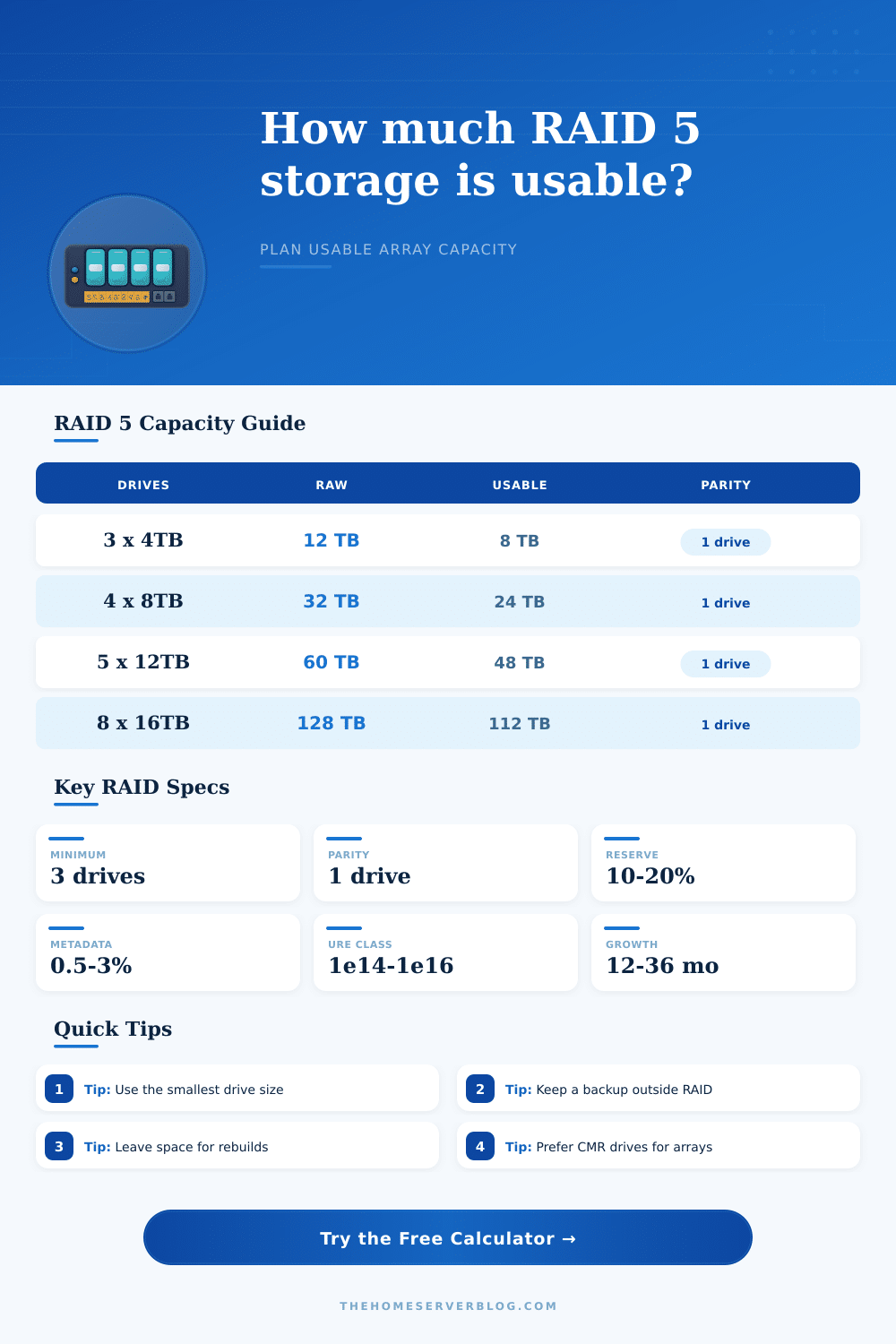
| Array Layout | Raw Capacity | RAID 5 Usable | Efficiency |
|---|---|---|---|
| 3 x 4 TB | 12 TB | 8 TB before reserves | 66.7% |
| 4 x 8 TB | 32 TB | 24 TB before reserves | 75.0% |
| 5 x 12 TB | 60 TB | 48 TB before reserves | 80.0% |
| 6 x 16 TB | 96 TB | 80 TB before reserves | 83.3% |
| 8 x 20 TB | 160 TB | 140 TB before reserves | 87.5% |
| Drive Class | Planning URE Rate | Typical Rebuild Speed | Home Server Note |
|---|---|---|---|
| Desktop SATA HDD | 1 error per 10^14 bits | 80 to 150 MB/s | Fine for light labs, but vibration and duty cycle can be weak points. |
| CMR NAS HDD | 1 error per 10^14 bits | 120 to 220 MB/s | Common home NAS choice; avoid SMR models for write-heavy arrays. |
| Enterprise HDD | 1 error per 10^15 bits | 160 to 260 MB/s | Better workload rating and error recovery behavior for larger arrays. |
| SATA SSD | Usually stronger than HDD | 250 to 500 MB/s | Rebuilds are faster, but write endurance and power-loss protection matter. |
| NVMe SSD | Model dependent | 800 MB/s plus | Fast parity rebuilds can expose controller, slot, and thermal limits. |
| Reserve Item | Common Range | What It Protects | When To Increase |
|---|---|---|---|
| RAID metadata | 0.5% to 3% | Controller labels, parity maps, alignment, and implementation overhead. | Use more for appliances, RAIDZ1, or small-file-heavy shares. |
| Filesystem free space | 5% to 20% | Performance, defrag space, copy-on-write behavior, and repair tasks. | Use 15% to 20% for ZFS, Btrfs snapshots, and busy VM datastores. |
| Snapshots and recycle bin | 5% to 25% | Previous versions, deleted file retention, and rollback windows. | Use more when backups, photos, or documents change often. |
| Planning buffer | 5% to 20% | Rounding, future shares, growth surprises, and array maintenance room. | Use more for large HDDs where expansion is slow or disruptive. |
| Project | Suggested Layout | Usable Before Reserve | Planning Check |
|---|---|---|---|
| Starter NAS | 3 x 4 TB RAID 5 | 8 TB | Good for documents, light media, and one-disk fault tolerance. |
| Media library | 4 x 8 TB RAID 5 | 24 TB | Keep 10% to 15% free so scrubs and shares have working room. |
| Photo archive | 6 x 12 TB RAID 5 | 60 TB | Consider stronger backups because rebuilds are long on large disks. |
| VM lab datastore | 5 x 2 TB SATA SSD RAID 5 | 8 TB | Watch write endurance, power loss behavior, and snapshot growth. |
| Large backup target | 8 x 16 TB RAID 5 | 112 TB | RAID 6 or RAIDZ2 may be a better fit for this scale. |
Planning a home server array involve calculating the amount of usable storage space that will be available for your data. A variety of factors will always somewhat reduce the total raw capacity of your hard drive. For RAID 5 arrays, for instance, one drive will be used to store parity information, and hot spares will be kept in a state where they is not being used for data.
Additionally, there will always be some amount of storage that the operating system, snapshots of your drives, and the growth of your data over time will use up. A calculator can help you to determine the amount of usable storage space that will be available for your data by requiring you to enter the number of drives that will be used in your array, the size of the smallest drive, and the various reserves that you intends to keep in your array. If you change the percentage for the various reserves that you plan to establish, the amount of usable storage space that will be available for your data will change.
Calculate usable storage and rebuild time for your home server
This is due to the fact that the amount of usable storage space that will be available is the amount that you will actualy use for your media and backups. In addition to being able to calculate the amount of usable storage space that will be available in your array, the calculator can also estimate the amount of time that it will take for your drives to rebuild in the event that one of your drive should fail. The amount of time that it will take for your drives to rebuild is an important figure to consider in the planning of your array.
Should any drives fail, the array will have to read each of the other disks in the array to restore the data that was stored on the failed drive. This process of rebuilding drives can take many hours to complete, especially if the drives that failed are very large. Additionally, the array will be in a state of reduced protection during this period of rebuilding drives.
It is beneficial to have faster speeds in rebuilding drives than in the array in general. The speed at which drives can rebuild will depend upon the class of drives that you select for your array and the tasks that the server will perform within the array. The amount of data that you plan to add to the array will determine how long you will have to run the array before it becomes full of data.
Arrays that are used to store document archives, for instance, will have a different annual growth rate then arrays that are used to store the video media that a household may create. The runway for your data in the array can be viewed in number of months. It is helpful to be able to view this runway in number of months so that you can compare the length of the runway to your schedule for adding data to the array.
If your goal is for your array to have a runway of data of two years, but the calculator indicates that it will only have a runway of nine months, you will have to alter your plan prior to purchasing the drives that will be used in your array. The class of drives that you select will affect the performance of your array and the risk of failure of your array. Often, people use consumer desktop drives for light task.
However, these drives are more vulnerable to the physical vibrations that occur with desktop computers than are other classes of drives. NAS-rated CMR drives are often used for home computer servers and are of a medium cost and capability. The most expensive drives are the enterprise-class drives that have strong ratings for the workload that will be performed on the drives in your array.
You can easily swap the class of drives in the calculator to determine how different assumptions of the error rates of the drives will affect the risk of failure of your array. Another factor to consider is whether you will use drives of mixed size in your array. If you add drives of a larger size to an array that contains drives of a smaller size, you will lose the potential use of the extra storage space on the larger drives until you also upgrade the smaller drives.
The calculator can account for this loss of storage space to help you decide whether to purchase drives that are all of the same size or those that you already own. In addition to the factors discussed above, it is also important to account for the need of the filesystem to reserve some of the drives for snapshot images of the array. File systems based off copy-on-write technology can become slow if the filesystem comes close to filling with data.
If you set the snapshot reserve to too low of a percentage, your array may become slow in its daily use. You can see this tradeoff with the calculator to ensure that you dont experience any problems with the performance of your array while it is in daily use. The number of hot spares that your array will contain is another factor that the calculator can account for.
While hot spares will reduce the amount of time that your array spends in a degraded state (due to the failure of one of the drives in the array), they will also reduce the amount of data that can be stored in your array. Those who wish to have protection from failed drives may opt for a cold spare drive that is stored on a shelf in the server room, while others may prefer the automatic protection that a hot spare provide to the array. You can test this factor in the calculator to determine how it will affect both the usable storage space and the total number of drives that will be used in the array.
Perhaps the primary value of the calculator is the ability of the array to change one of the variables to see how the other variables will affect the results. You can increase the snapshot reserve to see the effect that an increased snapshot reserve will have on the usable storage space. You can increase the growth rate of the data that will be stored in the array to see how that will affect the storage runway for the array.
Through these types of changes, you can determine whether your array will be able to meet your data storage needs in the future. While the calculator will not replace the backups in your array, it can remove the guesswork from setting up your array in a way that meets your data storage needs.