HomeServerBlog virtualization sizing tool
Memory Overcommit Ratio Calculator
Plan VM and container RAM promises against physical host memory, ballooning reclaim, cache reserve, NUMA reserve, and swap-risk pressure before your home server starts paging.
Memory planning breakdown
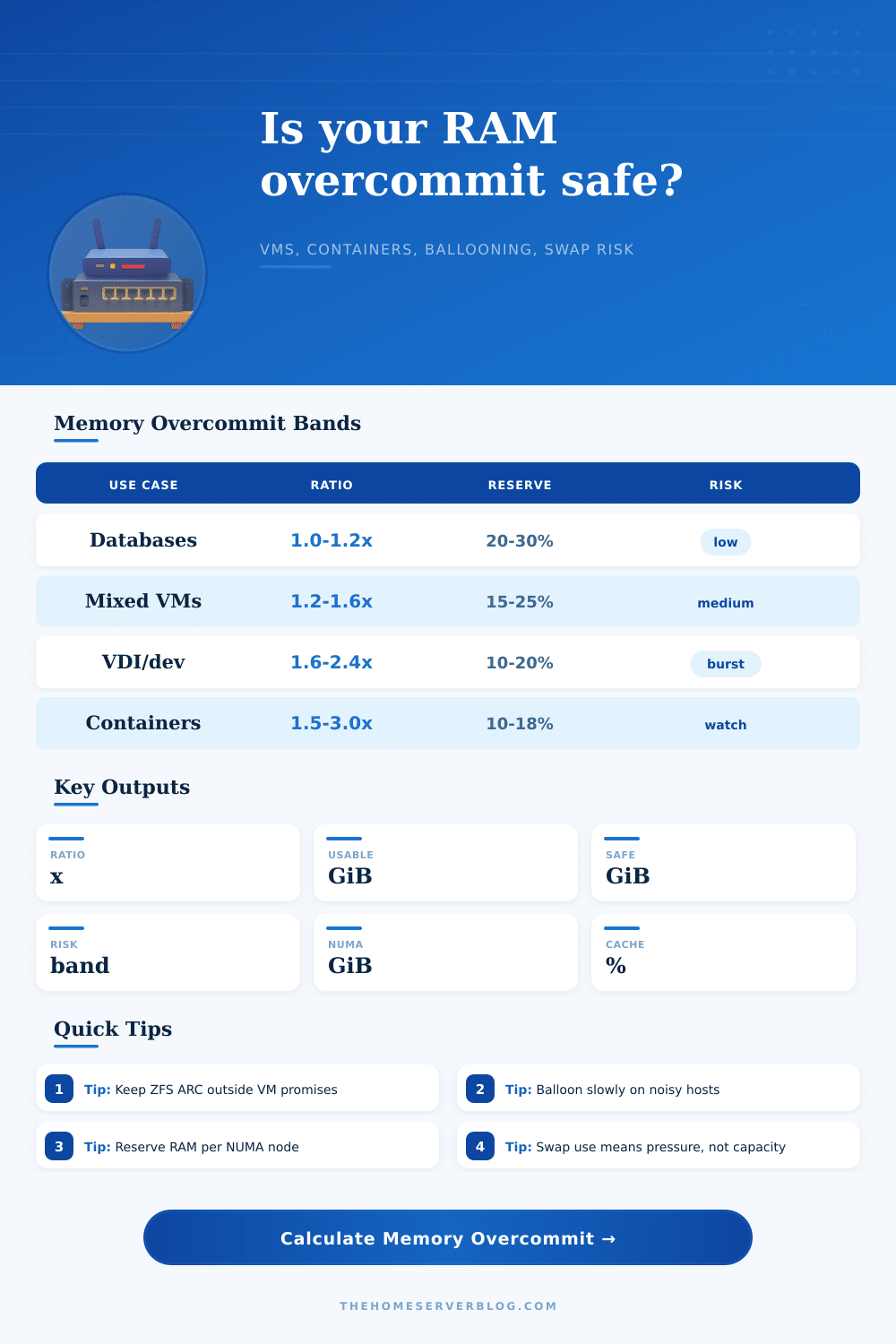
| Workload pattern | Practical commit ratio | Reserve target | Swap-risk signal |
|---|---|---|---|
| Databases / storage | 1.0x to 1.2x physical RAM | 20% to 30% plus explicit host reserve | Any swap-in activity is a capacity warning, not free memory. |
| Mixed always-on VMs | 1.2x to 1.6x physical RAM | 15% to 25% for host, cache, and migrations | Sustained balloon pressure or cache collapse means the ratio is too high. |
| VDI / dev burst | 1.6x to 2.4x physical RAM | 10% to 20%, with aggressive monitoring | Acceptable only when many guests are idle at the same time. |
| Containers | 1.5x to 3.0x declared limits | 10% to 18% plus kernel and page cache | OOM kills, pressure stall information, and reclaim latency are the real alarms. |
| Mode | Cold-memory reclaim | Best fit | Planning caution |
|---|---|---|---|
| No ballooning / hard reserve | 0% to 10% | Databases, latency-sensitive services, storage appliances | Commit ratio should stay close to installed RAM after reserves. |
| Soft ballooning | 20% to 35% | Home services, light Linux VMs, small lab workloads | Watch guest page cache shrinkage before the host swaps. |
| Balanced ballooning | 35% to 50% | Proxmox and VMware labs with idle-heavy guests | Works best when guest tools are installed and memory stats are current. |
| Container cgroup limits | 45% to 60% | Kubernetes, Docker, LXC, ephemeral build workers | Limits can be promises on paper; resident set and cache pressure decide reality. |
| Scenario | Host RAM | Typical committed RAM | Reserve note |
|---|---|---|---|
| Small Proxmox mini PC | 32 GiB | 36 to 48 GiB | Leave 4 to 6 GiB for host services and page cache. |
| NAS plus app VMs | 64 GiB | 70 to 90 GiB | ZFS ARC, backups, and file sharing need a real cache reserve. |
| Mixed 128 GiB ECC node | 128 GiB | 150 to 210 GiB | Balanced ballooning is reasonable when active set stays below 65%. |
| Dual-socket 256 GiB host | 256 GiB | 280 to 380 GiB | Reserve memory per NUMA node and avoid splitting large VMs unnecessarily. |
| Signal | Healthy range | Watch range | Action |
|---|---|---|---|
| Host memory pressure | Below 80% resident demand | 80% to 92% resident demand | Delay new VMs, increase cache reserve, or reduce guest promises. |
| Swap-in rate | Near zero during steady state | Any repeated swap-in bursts | Find the guest causing pressure; do not treat swap as capacity. |
| NUMA locality | Large VMs fit a node | Large VMs span nodes | Pin or resize memory so hot pages stay closer to their CPU cores. |
| Cache behavior | Stable ARC/page cache | Cache collapses under guest load | Raise cache reserve before storage latency becomes the bottleneck. |
This calculator is a planning model. Validate the result with host metrics such as resident set size, balloon driver status, memory pressure stalls, cache hit rate, and swap-in activity during your busiest maintenance window.
It’s probably how you began. With the best of intentions. Maybe you were running out of room when upgrading your home server so you added another stick of RAM. Then maybe you fired up Proxmox and ran three virtual machines. Perhaps you noticed that your hardware specs looks good on paper but not in real life? Well, that’s where memory overcommit comes in.
That’s the gap between your hosts’ actual physical memory versus your guests’ perceived memory. Once you enter your total committed guest memory and physical RAM, the calculator do the math for you. This saves you from guessing if you’re going to make your hypervisor panic.
How to Plan Your Server Memory Safely
That’s not really a capacity question, however; it’s a demand vs. It is an idle allocation question. Your database VM may claim sixteen gigs, but on quiet days, it only consumes four. Ballooning happen within that difference. And that’s what the tool asks about as well; it wants an estimate of how much of your VMs’ total claimed RAM is their actual “working set” while awake versus asleep. What percent of their RAM are actively used by them while they’re doing things?
If you say “all of it,” you’ll underutilize your hardware because no one actualy uses all of their RAM all the time. If you say “none of it,” you’ll find yourself swapping out your kernel and wondering why everything feels sluggish. It’s a tricky balance, but it matters.
Most plans fail in this area of host reserves: We like to pretend that the hypervisor is a magic box that requires no resources. Nope, it’s also an operating system. It needs memory for storage drivers, cache for file sharing and headroom for management agents. The calculator requests a percentage of cache reserve. Prevents ZFS or page cache collapse. This isn’t fatal until it is fatal. You don’t notice it happening until after your disks has slowed down, while your CPU might not even notice yet.
Don’t try borrowing from the future here. Because NUMA (non-uniform memory access) topology makes things more complicated, dual-socket hosts will have multiple memory pools talking back and forth over a bus. Don’t leave too little space between your VMs. If the hypervisor move them around between nodes, you will see a spike in latency. This happens not because you’re running out of memory, but because you’re trying to get at remote memory instead of local memory. To avoid this invisible tax on cross-socket traffic ruining your performance metrics, the planner leaves each node with reserves big enough to hold a big guest near its own cores.
The changing nature of ballooning changes everything, since aggressive reclaim sounds good till you see your development container stall because it got its cache squeezed out too quickly. The conservative mode looks safe enough … but there’s all that expensive hardware sitting around doing nothing. And the reference table on the page helps match workload type with a fair ratio. Web servers can share more freely, requests arrive in waves, but databases can’t; latency destroys users’ trust, and they need hard limits. Containers falls somewhere in-between, depending on cgroups limits which are promises, not guarantees.
Swap is also not a safety net: It’s an alarm bell. Some guides will tell you to use swap as if it were additional RAM, and they’re wrong. You’ve already overcommitted beyond what makes sense for the hardware when your home lab begins consistently running into swap. Most virtualized workloads can’t handle the tradeoff between swap space and speed.
A watch status means we modelled that actual demand minus reserves exceeds available host memory, so you’ll be ok today but fragile tomorrow. If you’re not sure where to start, begin with the presets; they will give you an idea of how common setups such as dual-socket nodes or mini PCs maps to reasonable expectations. From there tweak to match your workload mix (remember: it’s not about maxing out, it’s about stable operation under load). You don’t want a system that chokes your web server while running a backup job, so leave some wiggle room to account for those unexpected bursts that inevitably occur when real people make use of your services.
Memory planning is less about counting gigabytes and more about understanding behavior. You know how your workloads change, which means you need to acknowledge that your systems follows a pattern. This allows you to turn those percentages into actual numbers for headroom. The calculator let you see these numbers alongside their physical limits. Then, when you reach the edge of safety, back off just a bit.
You don’t build a home lab to test its breaking point, but to operate smoothly. Let that thought guide all of your slider adjustments.