NAS Storage Calculator
Estimate raw drive capacity, usable NAS storage, parity overhead, snapshot reserve, compression gain, growth runway, and rebuild time for a home server or small lab.
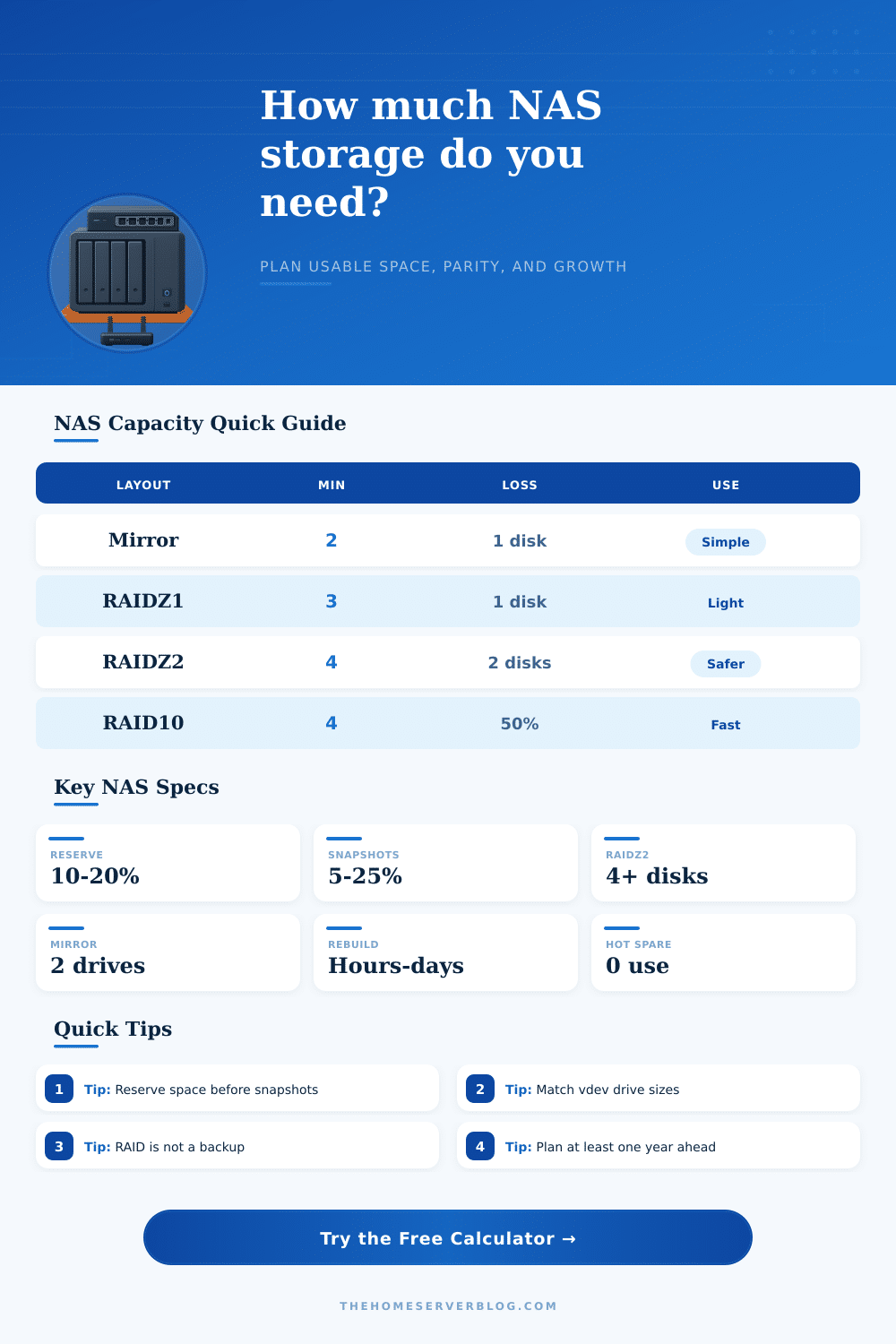
| Layout | Minimum drives | Capacity formula | Drive loss tolerance |
|---|---|---|---|
| No parity / single pool | 1 drive | N x drive size | No redundancy. Use only for scratch space, replicated backups, or data that can be restored elsewhere. |
| Two-way mirror | 2 drives | floor(N / 2) x drive size | One drive per mirror pair. Capacity is conservative and rebuilds are usually simpler. |
| RAID 10 mirrored stripes | 4 drives | floor(N / 2) x drive size | One drive per mirror pair. Good for VM, database, and high random-IO home labs. |
| RAID 5 / RAIDZ1 | 3 drives | (N - 1) x drive size | One drive. Better for small arrays and lighter-risk media pools than very large disks. |
| RAID 6 / RAIDZ2 | 4 drives | (N - 2) x drive size | Two drives. A common home NAS choice for large HDDs and long rebuild windows. |
| RAIDZ3 triple parity | 5 drives | (N - 3) x drive size | Three drives. Useful for large, slow, archive-heavy arrays where rebuild risk matters. |
| Project | Example hardware | Usable target | Planning comment |
|---|---|---|---|
| Family documents and photos | 2 x 4 TB mirror | About 3 TB after reserve | Prioritize backup copies and snapshot retention over raw capacity. |
| Plex or Jellyfin media NAS | 5 x 12 TB RAIDZ1 | About 38 TB after reserve | Large files compress poorly, so use realistic no-compression estimates. |
| Proxmox VM datastore | 6 x SSD RAID10 | About 45% of raw | Random IO, snapshots, and thin provisioning can consume space quickly. |
| Backup target | 6-8 drive RAIDZ2 | 60% to 70% of raw | Keep extra space for retention chains, synthetic fulls, and pruning delays. |
| Surveillance archive | 4-8 HDD RAIDZ1/2 | Depends on retention days | Calculate camera bitrate separately, then enter monthly growth here. |
| Item | Rule of thumb | Why it matters | Calculator field |
|---|---|---|---|
| TB to TiB display | 1 TB = 0.909 TiB | Operating systems often show less capacity than drive boxes because they use binary units. | Storage unit display |
| ZFS free space | Keep 10% to 20% open | Full pools slow down, fragment more, and leave less room for snapshots and scrub operations. | Free-space reserve |
| Snapshot allowance | 5% to 30% | Changed blocks remain referenced by snapshots until retention removes them. | Snapshot allowance |
| Hot spare capacity | 0 usable TB | A spare helps recovery automation but does not increase usable capacity. | Hot spare drives |
| Rebuild estimate | Drive size / MB/s | Real rebuilds also include verification, load, throttling, and array health. | Rebuild speed |
| Workload | Compression expectation | Snapshot churn | Capacity planning note |
|---|---|---|---|
| Media library | 1.00x to 1.08x | Low | Video, music, and ISO files are usually already compressed. |
| Photo library | 1.00x to 1.12x | Moderate | RAW workflows create previews, edits, exports, and version history. |
| Virtual machines | 1.10x to 1.60x | High | Thin disks look efficient until snapshots and updates accumulate. |
| Backup target | 1.20x to 2.00x | High | Deduplicating backup software may save space outside the NAS file system. |
| Documents and app data | 1.30x to 2.50x | Moderate | Small files compress well but need room for metadata and retained versions. |
When planning out your home server, you have to consider a lot more than just the total amount of capacity that your hard drives will holds. You have to consider how much usable space there will be after considering the data that will be used for system recovery, snapshots, and drive failures. Many people encounter problems with their server setups because of the gap between the total capacity of the drives versus the usable space.
A dedicated calculator will help you to determine how much usable data capacity your drive will have, and it will make the math for you so that you can easily see how much usable space the drives will have. The first decision that you will have to make is the layout of your drives. Mirror layouts will allow for fast recovery in the case of drive failure, but you will lose half of your drives capacity.
How Much Usable Space Will My Home Server Have
RAIDZ2 and RAID6 layouts allow for two hard drive failures, but both requires two drives to be used for the layouts protection. As with using a large amount of mechanical drives, the risk of drive failure increase if the drives must be rebuilt over several days. The calculator will show both of these layout options for you, as well as the effect that using hot spares will have on your drives.
Another factor that will play a critical role in your usable space is the type of workload that you will place upon your drives. Drives that contain media files will not compress well, will not create many snapshots, and will have fewer failed drive than drives that contain virtual machines. As with virtual machines, however, RAID layouts will use thin provisioning, meaning that the drives will take up as much space as the data is stored, but will also create snapshots of the drives data at regular intervals.
This snapshot functionality will be adjustable in the calculator so that you can see how it will impact the total amount of usable space on your drives. Many people are unaware of the concept of reserve space for their drives. Both ZFS and RAID systems becomes slow if they are too full of data.
Furthermore, snapshots of the drives must take up some of that space to store the data that is created by the snapshots until they are deleted. While many people know that 10 to 20% of their drives should remain unoccupied, no one remembers exactly how much space should be set aside for snapshots. You can test this percentage in the calculator, so that you can see how much usable capacity each percentage will take up.
The rebuild time for drives is another factor that people must consider. While it may take nineteen hours to rebuild a 12 TB drive, it may actualy take longer in the real world due to the drives being utilized by the machine. The calculator can estimate the rebuild time for you, which will help you determine if you need an additional level of parity to your drives or an additional hot spare.
Finally, the length of time that your drives will have before they become full is referred to as your “runway.” People often do not plan for their drives to become full and must buy additional drives to accommodate for the additional data. If you are adding a terabyte of data each month, your seemingly large amount of data will become smaller within eighteen months. The data that will be used in the calculation of your “runway” will be your current data and the data that is to be added each month, but divided by the amount of data that you will add each month.
The tables provided for each layout will display the difference that each RAID layout will make to the capacity of your drives. RAIDZ1 will lose one drive’s worth of data and RAIDZ3 will lose three drives’ worth of data. Additionally, although mirrored drives are the simplest to manage, they will cost you the most in regards to the amount of data that can be stored per drive.
These tables are helpful when determining which case will house your drives, but you primarily use them for removing guesswork from the RAID layout selection process for your home server. There are some common mistake that many people make when designing their home server. One mistake is purchasing large drives without ensuring that your hardware can support those drives.
Second, people will typically skip the reserve space for their drives for fear of losing data capacity. However, if you dont set aside space for your snapshots, you will not be able to create them. Thirdly, another common mistake is using RAID as a means of backing up data.
However, RAID will not protect you from data loss caused by events like ransomware or data deletion. You can evaluate all these common mistakes in the calculator prior to purchasing any hardware for your home server. Beyond just providing you with the maximum amount of data that can be stored in each drive, the other goal of creating a home server is to ensure that your data is protected and to provide you with an understanding of when you will need to purchase additional drives.
Thus, by using the calculator to create a timeline for when each drive will be full, you can more easily plan for the time in which you will need to purchase additional drives for your server.