Home Server Cluster Planner
Node Pool Sizing Calculator
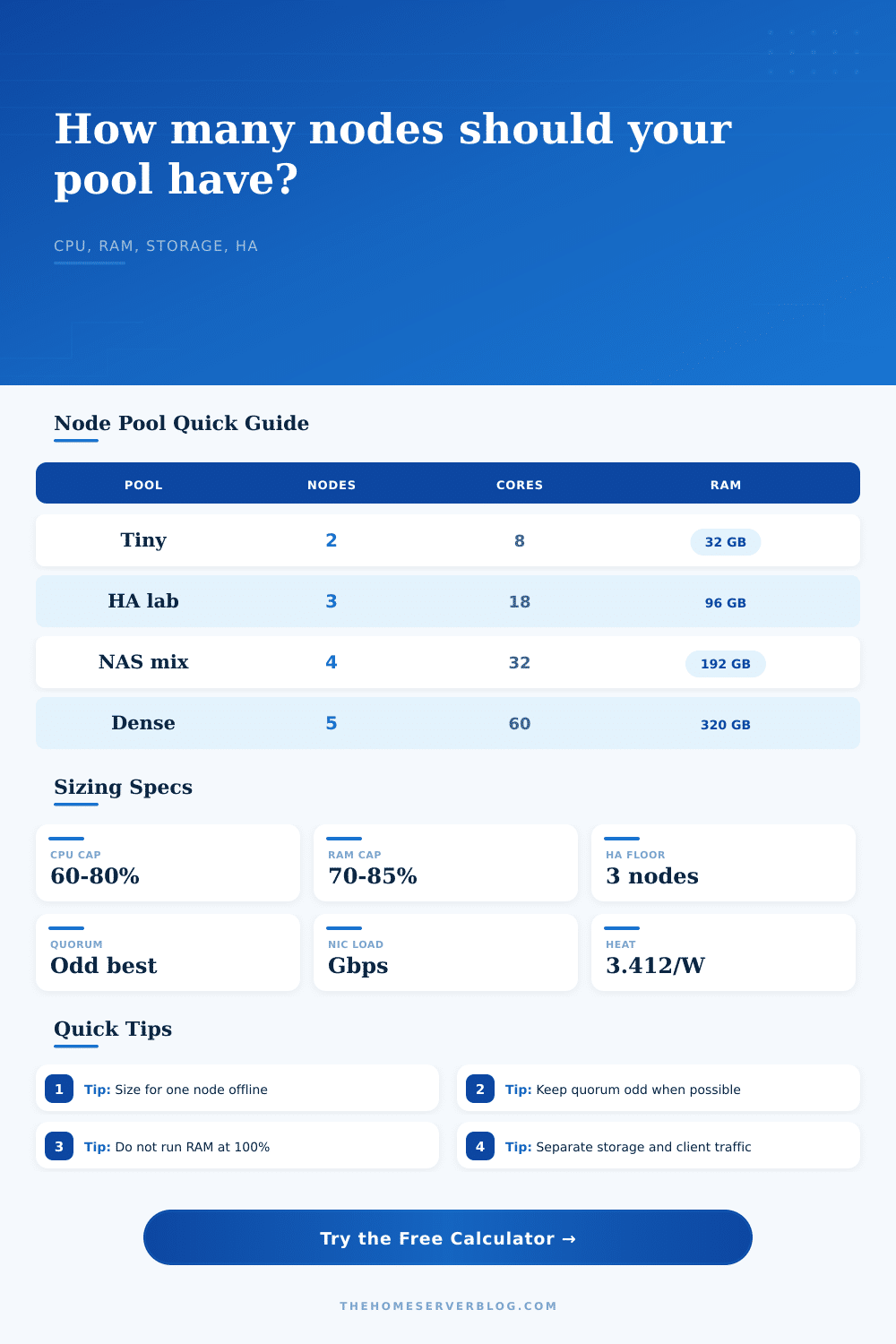
Estimate the number of home lab nodes needed for CPU, memory, storage, network throughput, cluster overhead, utilization limits, and one-node-failure reserve.
Presets fill the workload and node profile, then calculate immediately.
| Node type | Typical CPU | Memory | Best fit |
|---|---|---|---|
| Intel N100 mini PC | 4 efficient cores | 16-32 GB | Low power Kubernetes, DNS, monitoring |
| TinyMiniMicro i5 | 6-8 threads | 32-64 GB | Balanced VM and container pool |
| Ryzen micro node | 12-16 threads | 64 GB | Build runners, media tasks, bursty labs |
| ITX NAS node | 8-12 threads | 64 GB ECC | Storage-heavy services and backups |
| Used 1U Xeon node | 16-32 threads | 96-192 GB | Proxmox VMs and denser homelab stacks |
| Repurposed workstation | 16-24 threads | 64-128 GB | GPU passthrough and heavier services |
| Dense EPYC node | 32-64 threads | 256 GB | Many VMs, CI, nested virtualization |
| ARM SBC cluster node | 4-8 cores | 4-16 GB | Light edge services and learning clusters |
| Configuration | Per-node CPU reserve | Per-node RAM reserve | Sizing note |
|---|---|---|---|
| Kubernetes / K3s | 0.35 vCPU | 1.2 GB | Includes kubelet, CNI, ingress, metrics |
| Proxmox VE | 0.50 vCPU | 2.0 GB | Allows host daemons and VM scheduling slack |
| Docker Swarm / Nomad | 0.25 vCPU | 0.8 GB | Lean coordinator overhead for containers |
| Hyperconverged Ceph | 0.90 vCPU | 4.0 GB | Accounts for OSD, monitor, and recovery load |
| Mixed VM and container | 0.60 vCPU | 2.8 GB | Good middle ground for mixed schedulers |
| Planning factor | Common value | Formula used | Practical limit |
|---|---|---|---|
| CPU scheduling cap | 60-80% | threads x cap - reserve | Lower for latency-sensitive services |
| RAM scheduling cap | 70-85% | GB x cap - reserve | Leave room for page cache and failover |
| Storage replication | 1x to 3x | persistent data x copies | Ceph 3x needs at least 3 failure domains |
| Ethernet capacity | 1-10 Gbps | NIC Mbps x 70% | Keep east-west and client bursts separate |
| Thermal conversion | 3.412 BTU/hr | watts x 3.412 | Use wall power for cooling estimates |
| Project style | Typical nodes | Primary constraint | Secondary check |
|---|---|---|---|
| Learning K3s cluster | 2-3 mini PCs | Quorum and RAM | One node can be offline only with 3 nodes |
| Proxmox HA pool | 3-5 nodes | Memory after failover | Shared storage or replicated VM disks |
| Media and NAS mix | 3-4 nodes | Storage and NIC throughput | Plan transcode bursts separately |
| CI and dev runners | 4-6 nodes | CPU concurrency | Keep fast local scratch storage free |
| Ceph learning pool | 3-5 nodes | Raw storage overhead | Recovery traffic can saturate 1 GbE |
you have two mini PCs and want them up 100% of the time. One serve as your development container server; the other hosts your media stack. It’s the best of both worlds, right? But that changes.
After a week, you decide to patch one of the nodes, and the other grinds to a halt under increased load. Here’s the single largest blindspot in home lab design: Failure reserve. Most people design their cluster assuming all machine are always on. Reality doesn’t cooperate.
How to Plan Your Home Lab
The calculator helps you plan for capacity if a node goes missing, moving you from the first state to the second so that your services stays available after hardware issue or reboot. It’s simple: the core logic. It’s so simple you forget how much logic there is.
Size it based off what you want to run. Define it first. Do you want to run heavy, memory-hungry virtual machines? Or do you want to run lightweight containers? The questions require an answer… They’re forced honesty that spreadsheets avoid.
Want to estimate a service requires two gigs of memory? What about when it backs up? Four? You’ll be in trouble. This is why the tool applies a cap on use (about seventy-five percent), giving some breathing room for bursty traffic and a bit of page caching. Without that cushion, you would of get alerted at midnight.
For example: the exact hardware you choose is important. For lightweight stuff, an Intel N100 mini PC works well enough, though it’s got strict limitations on things like memory bandwidth and heat. You might be able to throw together some old workstation, which may have more cores but take up more power and need to be properly cooled. There are presets in the calculator for various classes of hardware, ranging from dense EPYC servers all the way down to ARM single-board computers.
And this isn’t just a question of raw computing power. It’s a question of aligning physical restrictions of your hardware with logical requirements of your stack. Even though one big server may appear more powerful on paper, managing a bunch of smaller nodes for redundancy might actualy be simpler.
Another trap to avoid is storage replication. For complete protection, you’ll want three copies of your data if you’re using mirroring or Ceph. This means your raw drive space must be significantly larger then your usable capacity. As the table in the article explains, you will have to account for this multiplier when trying to figure out how much storage you require.
Two terabytes? No, it’s really six terabytes of raw disk if you’re going to use a three-copy policy plus account for overhead. Don’t forget about the multiplier, you’ll fill up your disks sooner than expected.
And then there’s the other less visible bottleneck: Network Throughput. People always harp on RAM and CPU usage because it is so easy to see, but a recovery event can easily saturate a gigabit link within seconds as workloads communicates with each other. To make sure your throughput holds up we factor in network needs per workload along with NIC load into the calculator. You don’t need to have the network be your slowest component or you’ll end up stalling your entire cluster. It is a small thing, but it is very important for performance.
Lastly there’s the reality of power and heat. Your tool will consume some amount of watts which must then be released as heat in the area it sits. A high concentration of devices is effectively a little space heater. This thermal load is an important consideration when designing where the dense cluster will live, whether it’s a small room or even a closet. Just because the software looks great on paper doesn’t mean you can ignore the physical world around you.
There are no magic bullets; building a resilient home lab isn’t about purchasing the shiniest hardware. It’s about recognizing the tradeoffs between cost, redundancy, and capacity. The math is straightforward, but the art is in practicing that discipline.
First identify your workload, include a buffer for failure, and then defer to the tools. When the numbers match your power and physical space budgets, stop guessing. Start knowing. It will give you peace of mind that is worth much more than adding another core.