Storage Capacity Calculator
Plan usable NAS, RAID, ZFS, snapshot, reserve, and growth-ready capacity before you buy drives or fill bays.
| Layout | Minimum drives | Usable formula | Fault tolerance | Best fit |
|---|---|---|---|---|
| Single disk | 1 | Drive count × size | None | Scratch data and replaceable cache |
| RAID0 stripe | 2 | Drive count × size | None | Temporary fast workspace |
| Mirror / RAID1 | 2 | One drive worth per mirror set | One disk per mirror | Boot pools and two-bay NAS builds |
| RAID10 | 4 | Half of installed data drives | One disk per mirror pair | VM storage with strong random I/O |
| RAID5 / RAIDZ1 | 3 | (Drives - 1) × size | One disk | Small arrays with modest rebuild risk |
| RAID6 / RAIDZ2 | 4 | (Drives - 2) × size | Two disks | Large home NAS and media libraries |
| RAIDZ3 | 5 | (Drives - 3) × size | Three disks | Wide vdevs and long rebuild windows |
| Unraid / SnapRAID | 2+ | Total minus selected parity drives | Parity drives selected | Mixed-size media archive arrays |
| Advertised drive | Approx OS view | 4-drive RAID5 | 6-drive RAIDZ2 | 8-drive RAID6 |
|---|---|---|---|---|
| 4 TB | 3.64 TiB | 12 TB / 10.91 TiB | 16 TB / 14.55 TiB | 24 TB / 21.83 TiB |
| 8 TB | 7.28 TiB | 24 TB / 21.83 TiB | 32 TB / 29.10 TiB | 48 TB / 43.65 TiB |
| 12 TB | 10.91 TiB | 36 TB / 32.74 TiB | 48 TB / 43.65 TiB | 72 TB / 65.48 TiB |
| 18 TB | 16.37 TiB | 54 TB / 49.13 TiB | 72 TB / 65.48 TiB | 108 TB / 98.22 TiB |
| 22 TB | 20.01 TiB | 66 TB / 60.02 TiB | 88 TB / 80.03 TiB | 132 TB / 120.04 TiB |
| Project | Typical layout | Raw storage | Usable before reserve | Planning note |
|---|---|---|---|---|
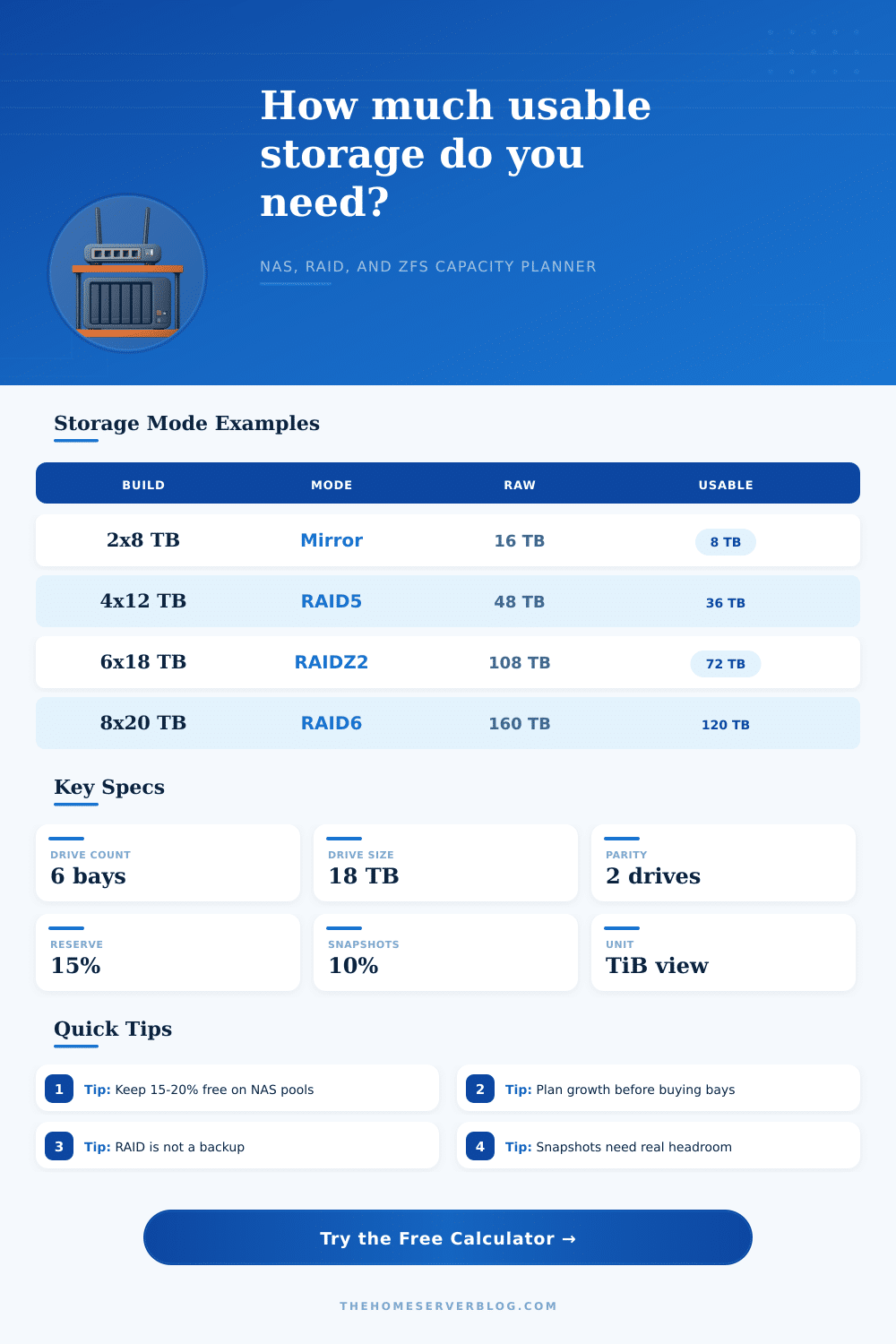
| Two-bay family NAS | 2 × 8 TB mirror | 16 TB | 8 TB | Simple redundancy, easy replacement |
| Four-bay media NAS | 4 × 12 TB RAID5 | 48 TB | 36 TB | Good capacity, single-disk fault tolerance |
| Six-bay ZFS lab | 6 × 18 TB RAIDZ2 | 108 TB | 72 TB | Balanced home lab reliability |
| Eight-bay archive NAS | 8 × 20 TB RAID6 | 160 TB | 120 TB | Strong capacity with two-disk parity |
| VM SSD datastore | 4 × 4 TB RAID10 | 16 TB | 8 TB | Random I/O and quick rebuilds matter |
| Allowance | Light NAS | Media archive | VM datastore | Backup target |
|---|---|---|---|---|
| Filesystem overhead | 2-4% | 2-4% | 4-6% | 4-6% |
| Free-space reserve | 10-15% | 10-20% | 20-25% | 15-25% |
| Snapshot allowance | 5-10% | 5-15% | 15-35% | 25-35% |
| Growth planning | 2-3 years | 3-5 years | 1-3 years | 2-4 years |
When calculating the amounts of storage space available to a person for a home server or NAS system, many people make the assumption that the amount of storage space that will be available is the same than the number that is printed on the hard drive. The storage space that will be available to a person, however, will typically be significantly more smaller than the number that is printed on the drives label. The drives’ manufacturers utilizes decimal units to indicate the amount of storage space that is within the drives.
The operating system, in contrast, utilizes units based on a binary system to calculate the available storage space within that drive. As a result, the operating system will report a smaller number of available drives than the manufacturer has label on the drive. Beyond the storage space taken up by the drives’ parity, their filesystem, their reserves, and their snapshots, the usable storage space will be between thirty and forty percent of the raw total of all of the drive that are contained within the storage array.
Why you have less storage than the drive says
The calculator that is available on this page allow a person to enter specific numbers related to the storage array that is to be created. For instance, a person may enter the number of drive that will be utilized, the size of each of those drives, the layout of the protection that will be provided to the drives, and the targets that will be utilized within the storage array. The calculator will then report the raw total of all of the drives, the available space after the parity drives is subtracted, the available space after the reserves and snapshots is subtracted, and the amount of space that will be available in the future based upon the entered factors.
The administrator of the storage array can manipulate each of these factors. For instance, the administrator can change the protection layout from RAIDZ2 to RAID5, or the percentage of drives that can be allocated for reserves can be changed from fifteen percent to twenty percent. Each of these changes will impact the available space for data within the storage array, and the calculator allow a person to understand how each decision will impact that space.
When individuals begin to implement their data libraries or virtual machines onto a new storage array, they will typically become aware of the difference between the raw storage and usable storage space. The storage drive that is purchased and manufactured may boast a high amount of storage space. However, the operating system will report a smaller drive due to the need to allocate drives for parity, to allocate storage space to the filesystem software, and because the data will eventually be used to create snapshots of that data library.
If an individual does not plan for the implementation of snapshots, those snapshots will still take up storage space over time. Additionally, the system will require a reserve in which to store data in order to avoid having the drive become overloaded; many filesystems become slow when the storage space within the drive is more than eighty or eighty-five percent full. Ensuring that there is a reserve of storage space for a system will help to ensure that the system remain responsive to the requests of the users of that system, and will help to prevent the system from becoming out of storage space while the user is utilizing the system.
Beyond reserving space for snapshots and maintaining a healthy level of storage within the drives, an individual also must plan for the growth of their data. Data tend to grow over time. If data is known to grow at a certain percentage per year, the amount of data that will need to be stored within the storage array will become much greater in three or four years than it is today.
The calculator allows for the input of the growth rate of the data and the expected compression factor for that data to provide a projection that is likely to be accurate. Media data does not tend to compress well, but virtual machines tends to compress well. Underestimating the growth rate of data will result in the storage array becoming out of data space sooner than expected.
Overestimating the compression factor for data will result in the same outcome. Beyond planning for the growth of data and reserving space for snapshots, an individual can also create their data storage array with a certain protection layout. RAID5 and RAIDZ1 layouts utilizes one drive’s worth of storage to create parity within the array.
RAID5 and RAIDZ1 layouts are most utilized for those data arrays that has a relatively small amount of drives, but are at risk of the failure of a drive within that array. RAID5 and RAIDZ1 layouts can, however, be risky for drives that is larger than ten or twelve terabytes in size. RAID6 and RAIDZ2 layouts use two drives’ worth of storage for the creation of parity in the array.
RAID6 and RAIDZ2 layouts are more protective of the drives in the array, but utilize more storage space for the implementation of that protection. Both RAID arrays can incorporate what is known as a hot-spare drive. A hot spare drive is a drive that is incorporated into the array to be kept in readiness in case of the failure of one of the drives in the array.
The hot spare drive, however, reduces the total amount of data storage space that can be dedicated to data. An individual can also change the filesystem that will be implemented into the array. ZFS uses more storage space for filesystem overhead than ext4 due to the use of a copy-on-write filesystem.
The copy-on-write filesystem makes it easy to create snapshots of the data, which can help to protect that data from deletion. Many users allocate ten or fifteen percent of their drives for snapshots. These snapshots are not “wasted” storage space; however, they do act as insurance policies for that data should the user of that system delete a file.
If an individual intends to test their storage array with various configurations, more space will need to be allocated for these snapshots. It is important to understand that redundancy is not the same as having a backup. The redundancy that is created within a storage array through the use of parity will protect that data from the failure of a single drive within that array.
However, redundancy does not protect against the use of ransomware to encrypt the data, does not protect against fire, and does not protect against the accidental deletion of data from that array. A storage array that utilizes redundancy is not a backup. To have a backup, an individual must have an additional copy of their data stored separately from the storage array.
Otherwise, should the array fail, they will lose that data. The process of planning a storage array and how much data will be stored in that array is a process of managing risk. An individual must decide how much redundancy that they would like to provide for the data, how much performance they are willing to sacrifice to provide redundancy for that data, and how much they would like their data to grow over time.
By answering these questions, the administrator can calculate how much storage space will be required to accommodate their data. By following this process, the storage array will be constructed in a way that ensures that it will match the way in which the data is to be used.