HomeServerBlog snapshot capacity planner
Storage Snapshot Reserve Calculator
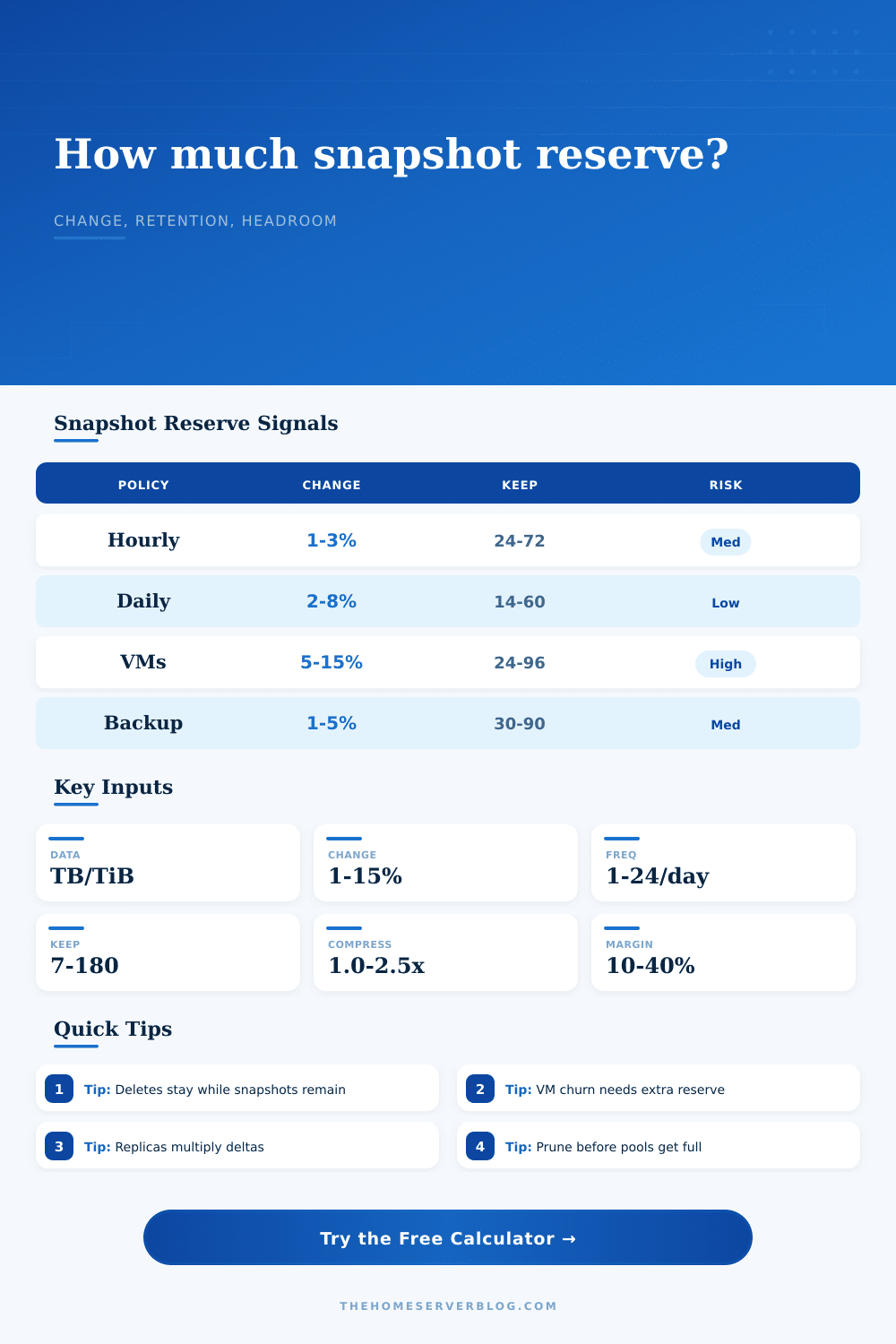
Estimate how much protected storage to reserve for ZFS, Btrfs, LVM-thin, VM, NAS, and backup snapshots after change rate, frequency, retention, compression, deduplication, deletion lag, replication copies, metadata, and growth margin.
Reserve breakdown
Policy pressure
| Workload | Daily Change | Snapshot Shape | Reserve Signal |
|---|---|---|---|
| Media library | 0.2% to 2% | Imports and deletes | Deletion lag matters more than edits. |
| Family NAS | 1% to 5% | Mixed files | Daily snapshots usually fit well. |
| VM datastore | 4% to 15% | Block churn | Hourly points can grow quickly. |
| Database lab | 8% to 30% | Hot pages | Keep short retention or isolate logs. |
| Backup target | 1% to 8% | New chains | Dedup helps only when measured. |
| Frequency | 30 Points | 90 Points | Best Use |
|---|---|---|---|
| Weekly | 210 days | 630 days | Media and archives. |
| Daily | 30 days | 90 days | General NAS rollback. |
| Every 6 hours | 7.5 days | 22.5 days | App and project shares. |
| Hourly | 1.25 days | 3.75 days | VM lab safety net. |
| Every 30 minutes | 15 hours | 45 hours | Short burst rollback. |
| Data Type | Compression | Dedup Cue | Metadata Cue |
|---|---|---|---|
| Encrypted files | 1.00x | Low | 2% to 5% |
| Photos and media | 1.05x to 1.20x | Low | 3% to 6% |
| Documents | 1.30x to 1.80x | Light | 4% to 8% |
| VM clones | 1.10x to 1.60x | Medium | 6% to 12% |
| Logs and text | 1.80x to 2.50x | Medium | 8% to 15% |
| Headroom | Status | Likely Cause | Action |
|---|---|---|---|
| Above 35% | Comfortable | Low churn or high free space | Keep monitoring trend. |
| 20% to 35% | Workable | Normal reserve load | Review after imports. |
| 10% to 20% | Tight | Retention or deletes | Prune old points soon. |
| 0% to 10% | Risky | Pool near reserve limit | Reduce snapshots now. |
| Below 0% | Short | Reserve exceeds free space | Add capacity first. |
Have you ever looked down into your 90% filled-up pool and had the panic of seeing that red snapshot schedule? If so, it was probably Sunday night, and you suddenly realized that your Btrfs or ZFS pool have gobbled up all the empty space in silence.
But with the storage snapshot reserve calculator, you can estimate how much space will really be needed to retain snapshots, and shift the planning process from hopeful guesswork to real numbers.
How to Plan Storage for Snapshots
The issue here is that everyone calculates how much space they have in terms of what they can currently see. “Oh, I’ve got a two-terabyte pool, and I’m using a terabyte for my photos, so I’ve got a terabyte to expand into.” However, they haven’t accounted for the hidden burden of versioning.
A snapshot doesn’t copy your whole file. Instead it makes a pointer to where your file is at this point, and starts tracking just the changed blocks from there. It is efficient until you look away from the efficiency and looks at the pileup instead.
For example, take a simple home media server. It’s a relatively static system that grows by maybe one or two percent per day as you add new episodes. That’s a small change, which the calculator handle well.
Compare it to a Proxmox host with several virtual machines doing heavy database loads. Every second, those disks are churning, writing and overwriting blocks. Fifteen to thirty percent per day isnt uncommon for the change rate there. When you take an hourly snapshot of such a system, you’re not storing a copy of the data. You’re storing a continuous stream of modifications. The size of that stream increase exponentially with retention time.
Retention is the silent killer of free space. It makes sense to keep snapshots for 30 days, right? Wrong. Files never realy go away; they stay allocated until all snapshot referring to them are deleted. This is why you need an input for deletion lag. On Monday you delete a large video file and your retention policy has snapshots for three weeks. That file will still consume space until the Friday of the third week.
The calculator factors in the lag time so you’re not surprised by seemingly freed up space that’s merely waiting to be released.
Honesty helps: Deduplication and compression help, but they’re no cure-all. Set the calculator to bold assumptions about how much space it can save through compression. However, if you have a bunch of highly-compressed video files or just plain old encrypted stuff, the savings will be nearly non-existent, almost one-to-one.
The page has some reference tables that help break down the different types of workloads. Documents compress nicely. Photos dont. If you peg your media library at a high compression estimate, you’ll feel safer than you should of. You can dial that back into real-life.
There’s one more wrinkle: Replication. If you’re using snapshots and replicating those snapshots to an off-site backup target, then you want some reserve on that target as well. Multiply the delta space times your replication copy factor, so that in addition to preserving the local pool you don’t run out of space at the remote target. A little bit of a multiplier, but important for long-term resiliency.
You get back two numbers: a headroom check and a reserve number. How much “free” space do you have, compared to how much should be there? Your headroom is the buffer between your calculated reserve and your actual free space. You want some headroom. Enough to avoid an emergency when growth occurs as expected. That way, you can manage it without declaring a crisis on a weekend.
Having planned for your reserve ahead of time protects you from the crunch. An outage becomes a metric… Something that gets monitored but not feared.