HomeServerBlog storage capacity planner
Storage Thin Provision Risk Calculator
Estimate thin pool overcommit, usable runway, alert timing, reclaim relief, snapshot pressure, policy fit, and emergency headroom before virtual disks or datasets consume the real storage behind them.
Capacity breakdown
Risk model
Physical used level that should trigger owner action.
Maximum logical promise under the selected overcommit target.
Expected used capacity at the end of the planning window.
Extra usable capacity needed to clear the model.
| Ratio | Interpretation | Typical Use | Watch Item |
|---|---|---|---|
| 1.0x-1.3x | Conservative | VMs, databases | Snapshots and logs |
| 1.4x-1.8x | Balanced | Home NAS | Growth trend |
| 1.9x-2.4x | Aggressive | Backup pools | Retention cleanup |
| 2.5x+ | Lab only | Test sandboxes | Hard quota drift |
| Runway | Meaning | Action | Home Server Note |
|---|---|---|---|
| 12+ months | Comfortable | Keep watching | Review after big imports. |
| 6-12 months | Plannable | Schedule upgrade | Good time to price disks. |
| 2-6 months | Tight | Reduce promises | Audit snapshots weekly. |
| Under 2 months | Urgent | Add or reclaim | Pause new thin volumes. |
| Reserve | Snapshot Pattern | Good For | Risk If Ignored |
|---|---|---|---|
| 5% | Short retention | Media shares | Rollback loss |
| 10%-15% | Daily rotation | Mixed NAS | Alert surprises |
| 16%-25% | VM rollback | Proxmox, labs | Fast pool growth |
| 25%+ | Heavy versions | Backups | Capacity lockup |
| Source | Expected Speed | Needed Signal | Planning Note |
|---|---|---|---|
| TRIM / UNMAP | Fast if passed | Pool sees free | Verify through the whole stack. |
| Snapshot expiry | Delayed | Old blocks drop | Deletion may not free space at once. |
| Dedupe cleanup | Variable | References fall | Do not count twice in runway. |
| Quota cleanup | Manual | Owner action | Best paired with alerts. |
Thin provisioning, in contrast, gives your virtual machine more space different than it has on its hard drive. For example, you can assign fifty terabytes to a virtual machine even though the underlying drive contain just twenty. As long as the virtual machine has written less then three terabytes of data, everything works fine. That extra space look good on paper because there’s unused capacity. In this way, thin provisioning lets you delay buying new hardware.
But physical reality differ from paper capacity. Once snapshots pile up, or once the virtual machine itself consume all of the space that was allocated to it, the physical disk will be out of blocks. When the disk becomes full, it won’t write any additional data, no matter what logical quota are in place.
How to Plan Your Storage Space
Physical storage minus provisioned storage = the math
Enter the inputs: Physical totals, total provisioned space, and growth rate. Growth rate is most important input. Most admins guess with old trends, or use optimistic averages. Security cameras and backup systems increases constantly and steadily. Don’t estimate what might happen. Instead, analyze your disk usage over past 3 months. If in doubt, then enter a larger growth rate. It is better to plan for an unneeded upgrade then to suddenly run out of space.
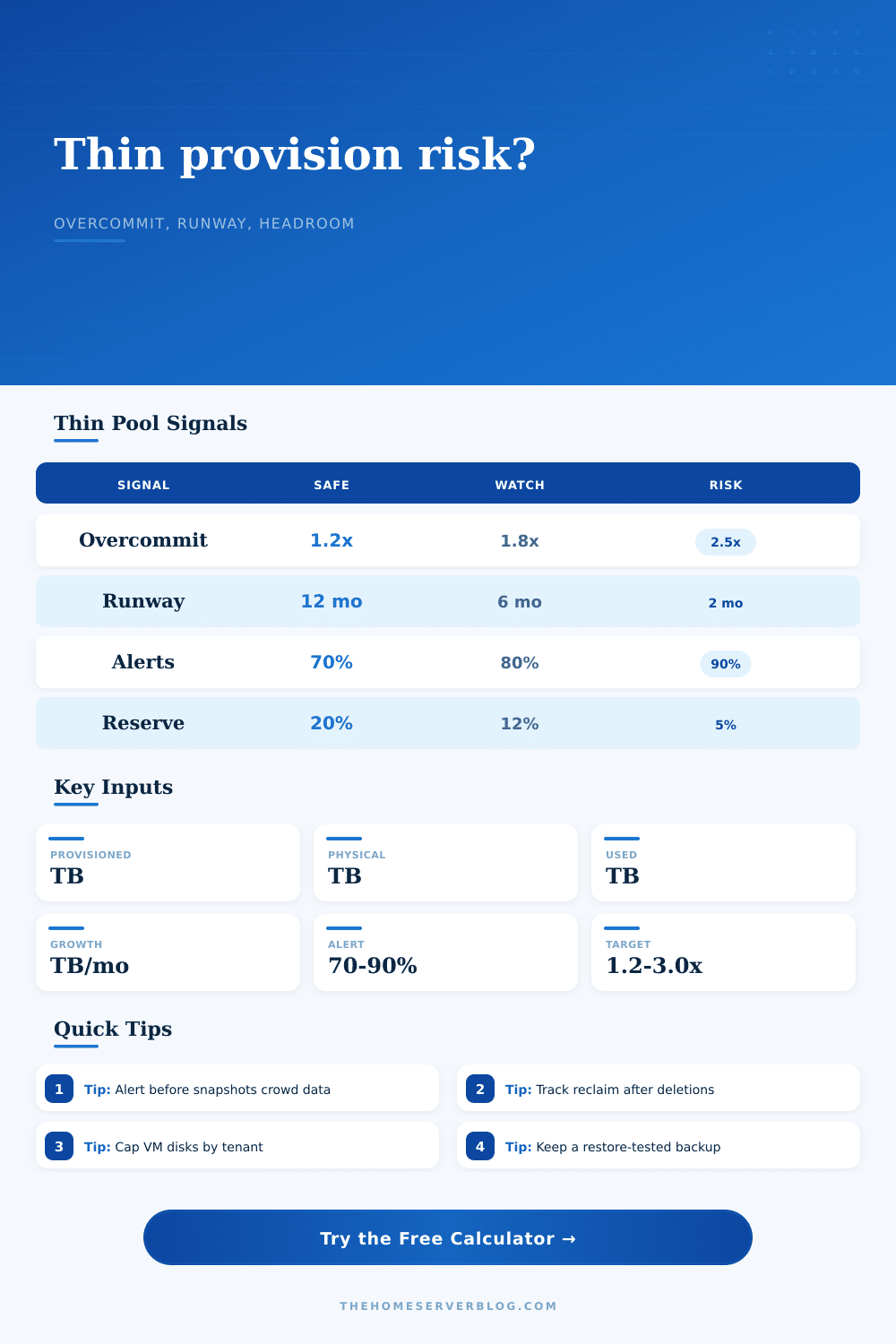
To start, let’s take a look at the overcommit ratio. The overcommit ratio are the total provisioned space divided by the physical usable space. Twenty percent (0.20) is a conservative and safe ratio. In other words, you’ve only promised twenty percent more space than what’s available. This provides a buffer for unexpected increase in metadata or sudden writes of data.
Fifty percent (2.5) is an aggressive ratio. Depending on your situation this might be okay if you’re building a disposable test environment. For a production backup target or a production file server, it’s risky due to its reliance on borrowed space.
Physical space used for Snapshots is not visible in virtual disk usage. For every snapshot, the system builds a copy-on-write structure. When original data changes, the old blocks are retained and referenced by the snapshot. Snapshot patterns is linked with their corresponding reserve percentage in the reference table. If you want to retain daily snapshots over a week, then you need a meaningful reserve. Even though your virtual disks might be nearly empty, the storage pool could fill up.
In the settings of the calculator, you can configure the snapshot reserve percentage. Consider it mandatory.
Whether the operating system supports sending UNMAP or TRIM commands determines how much space will be reclaimed. When a file is deleted, it doesn’t necessarily free up space right away. If guest OS or hypervisor doesn’t support reclamation, and the feature is turned off, then data stays on the disk. In other words, you’re paying for space that is technichally empty but physically occupied.
You can enter a reclaim rate. If you don’t know what kind of reclamation your system supports, set this to zero. It means you’ll plan for the worst-case scenario.
Early warning systems uses alert thresholds. Knowing when your capacity is close to being full is good information that you want to recieve long before it happens. Most home servers need to know this at least seventy or eighty percent. Otherwise, by the time the alert comes in, the system might be experiencing slow writes, or the disk is already fragmented. Give yourself some breathing room with the alert (the reason for the high usage could be a virtual machine suddenly expanding, a failed backup job, or a bloated database).
You can afford to be less precise with home server storage than you could in a data center. But don’t forget that your hardware has real-world limits. A couple of terabytes of unaccounted growth can be the difference between a working NAS and a failed storage pool. You should of planned for this.
Run the planner and see how much storage time you have left. If it indicates you’ll run out in six months, start planning for new hardware. If it indicates a dozen or so months left, then keep an eye on things.
Stable storage wins; optimizing every last byte doesn’t.