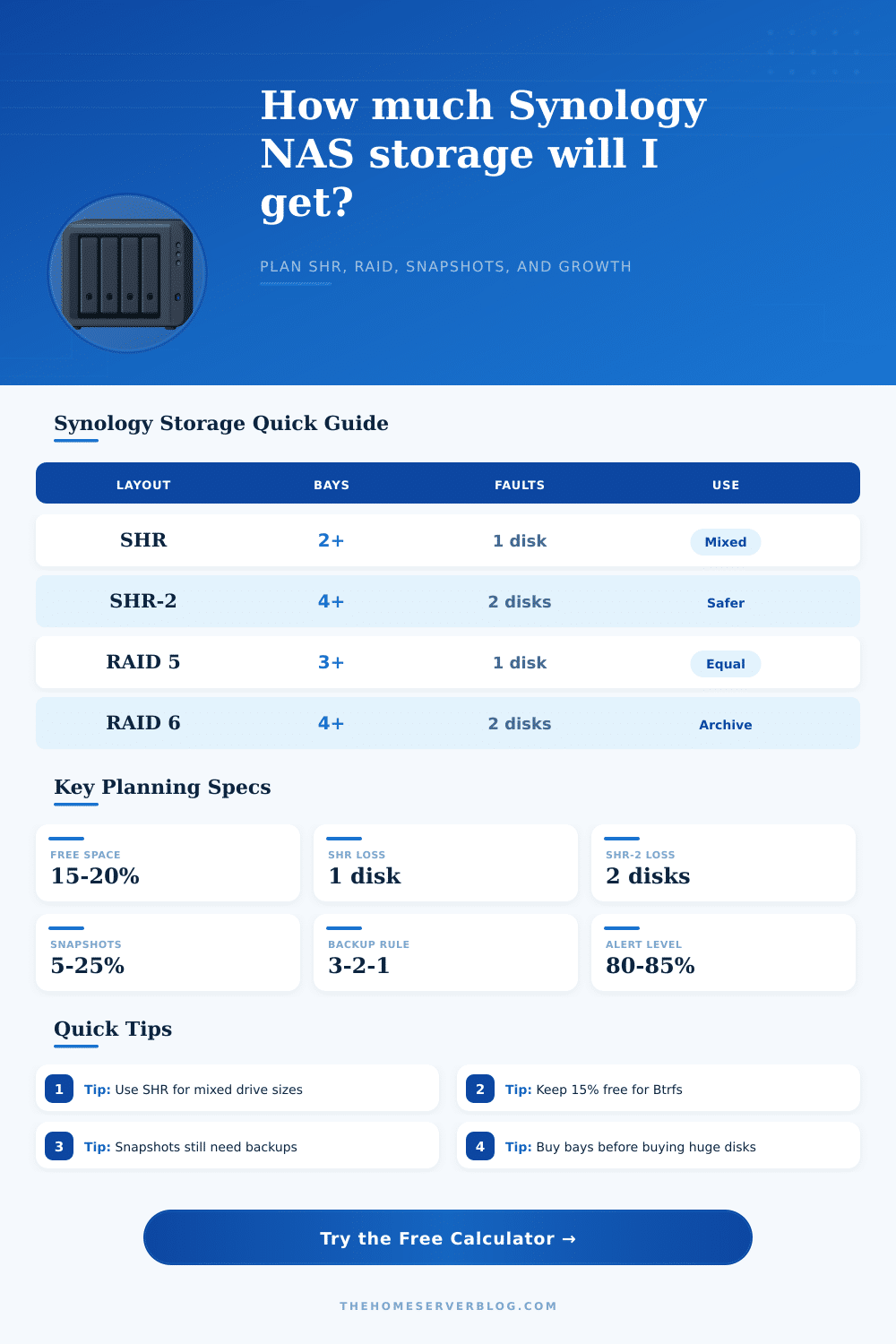
Synology NAS Storage Calculator
Estimate usable space for Synology SHR, SHR-2, RAID 1, RAID 5, RAID 6, and RAID 10 after TiB conversion, Btrfs snapshots, recycle bins, backup staging, and growth reserve.
| Synology layout | Minimum drives | Usable capacity estimate | Best fit |
|---|---|---|---|
| SHR | 2 drives | Mixed-size estimate is total drives minus the largest drive. Equal drives behave like RAID 5 once you have 3 or more disks. | Most home Synology builds, staggered upgrades, mixed drive sizes, and users who want easier expansion. |
| SHR-2 | 4 drives | Mixed-size estimate is total drives minus the two largest drives. Equal drives behave like RAID 6. | Larger HDDs, slower rebuild windows, business shares, backup targets, and archives where two-drive fault tolerance matters. |
| RAID 1 | 2 drives | Capacity is limited to one smallest-drive copy, even if additional mirror members exist. | Simple 2-bay NAS systems, quiet family shares, and datasets where simplicity is more important than capacity efficiency. |
| RAID 5 | 3 drives | Smallest drive size times drive count minus one parity drive. | Equal drive sets, 3-bay or 4-bay pools, and budget-sensitive home media libraries. |
| RAID 6 | 4 drives | Smallest drive size times drive count minus two parity drives. | Large equal-drive pools, backup targets, and systems where rebuild risk is a serious concern. |
| RAID 10 | 4 drives | Smallest drive size times half the even-numbered drive count. | VM storage, databases, heavier random I/O, and labs that can trade capacity for rebuild speed and performance. |
| Project size | Typical Synology | Common drive plan | Capacity note |
|---|---|---|---|
| Family photos and documents | DS224+ or DS223 | 2 x 8 TB in SHR or RAID 1 | Expect roughly one drive of usable space before Btrfs reserve, snapshots, and Synology Photos thumbnails. |
| Plex and home media | DS423+ or DS923+ | 4 x 12 TB in SHR or RAID 5 | Media compresses poorly, so plan using raw video size plus poster art, metadata, downloads, and one-year growth. |
| Small office file server | DS923+ or DS1522+ | 4 to 5 large drives in SHR-2 | Synology Drive versions and snapshots can be the hidden capacity consumer, especially on shared office documents. |
| Backup vault | DS1821+ or RS1221+ | 6 to 8 drives in SHR-2 or RAID 6 | Leave more free space for backup rotation, retention pruning, replication windows, and restore testing. |
| VM and container lab | DS1522+ or DS1621+ | 4 or 6 drives in RAID 10 or SHR | Capacity is only part of the story; IOPS, RAM, SSD storage, and 10 GbE often matter more than raw terabytes. |
| Planning item | Rule of thumb | Where it appears | Why it matters |
|---|---|---|---|
| TB to TiB conversion | 1 TB is about 0.909 TiB | DSM, Windows, macOS, Linux tools | A 12 TB drive may display near 10.9 TiB before parity and formatting, which surprises many first-time NAS buyers. |
| Btrfs free space | Keep 15% to 20% free | Shared folders, snapshots, package work areas | Running a Btrfs volume too full makes snapshot cleanup, indexing, sync jobs, and package updates more fragile. |
| Snapshot retention | 5% to 25% of active data | Snapshot Replication, Synology Drive | Low-churn photo libraries need little space, while office files, VM images, and backups can churn quickly. |
| Recycle bins | 3% to 8% of shared folders | SMB, Synology Drive, user home folders | Recycle bins are helpful, but forgotten bins quietly reduce capacity until scheduled cleanup is enabled. |
| Hyper Backup staging | 5% to 25% reserve | Backup targets and local jobs | Backup tasks need room for changed blocks, version pruning, integrity checks, and temporary package files. |
Planning a Synology NAS require you to understand how much usable storage a Synology NAS will provides after you configure the Synology NAS. The capacity listed on the drive box will be less then the amount of storage the Synology NAS will report on the DSM software once you add the drive to the NAS. Furthermore, the storage capacity within the DSM will take away more storage for redundancy and snapshot.
This usable storage will be even less once you factor in recycle bins and staging area for backups. It is essential to calculate how much usable storage will be available because otherwise, you may find yourself in a situation in which your NAS becomes full faster then you would of anticipated. The calculator allow you to input your model class, your chosen layout, and the drive sizes.
How to Calculate Usable Storage for a Synology NAS
These determine your usable storage. The drive count and sizes will give you an idea of how much raw storage is available. However, the layout will show you how much of that raw storage the system will use for parity.
The Synology Hybrid RAID layout is best if you have drive of mixed sizes. However, the SHR layout will use some of your drive for parity. The SHR-2 or RAID 6 layout will also use some of your drives for fault tolerance with an additional layer of protection to your data.
However, it will use more of your drives than the SHR or RAID 5 layout. The calculator will allow you to view these trade-off between fault tolerance and storage capacity. The Btrfs free-space reserve will reduce your usable storage.
You should leave 15 to 20 percent of your drives to the Btrfs free-space reserve. Using the drive nearly to it’s full capacity will cause problem for the NAS. The Btrfs free-space reserve also affects how much usable storage you will have for your data.
Some of your storage will be used for snapshots. The amount of space used for snapshots will depend on the type of data you will store on your drive. For example, a drive used to store photo library will use less space for snapshots than one used to store virtual machine images.
You can adjust the snapshot overhead within the calculator. You should account for how much data you have now and how fast your data will grow in the future. Your storage pool may seem large now, but it will seem small once you start adding new backup data and new files each month.
A second setting that you can adjust is the compression factor. Depending on what kind of data you will store on your NAS, the encrypted video may take up the same amount of space as office documents. Another factor that will impact your NAS is the rebuild speed of the drives.
The larger the drive, the longer it will take to rebuild in the case of a drive failure. If you use a layout with single-drive fault tolerance, a longer rebuild time is more of a risk for data loss. Many people makes mistakes when purchasing a Synology NAS when they dont consider all the factor.
For example, the drive sizes will state a certain amount of storage. However, the amount of storage is less. For example, 12 TB will provide you with 10.9 TiB of storage.
Furthermore, people do not account for how much storage will be used for snapshots and versioning data. Synology considers these factors in the calculator provided to show you the usable storage. The number that will determine whether or not your storage plan will work over time is the practical data budget.
Your workload will impact your NAS in many way. For example, a surveillance archive will write to the NAS constantly, and the data will not compress well. In contrast, the creator will work with large files that may be deleted.
The information that the calculator provides you will differ depending on the workload that you choose for your NAS. This information will help you determine which layout for your drives is best for your data. Although the calculator consider all the important factors for storage, it will not consider power usage and noise level.
Furthermore, the calculator will not include the amount of space your drives will take up and their network speed. If you plan on using your NAS for more than file sharing, you may need to account for ten-gigabit networking or an SSD cache. The storage calculator will not consider these factors.
However, it will allow you to make intelligent decisions about your network and hardware based off the storage calculation that it will provide. The goal for planning your Synology NAS is to ensure that it will have enough storage for your data to grow in the future. By planning now, when you purchase your drives, you can ensure that your NAS will remain comfortable after the first year of data growth.
Furthermore, you will provide enough fault tolerance for the drives to fail and account for the data growth. This will result in a better performing NAS than if you did not account for these factors.