vCPU Calculator for Home Server Capacity
Estimate safe VM density from sockets, cores, SMT, host reserve, workload mix, utilization, and oversubscription policy before a Proxmox, ESXi, Hyper-V, or KVM build runs out of CPU headroom.
vCPU Capacity Results
SMT siblings improve throughput, but the calculator converts them to effective core capacity using your efficiency setting so the result does not treat threads as full physical cores.
| Workload type | Typical ratio | CPU behavior | Planning note |
|---|---|---|---|
| Firewall, router, PBX, realtime VM | 1:1 to 2:1 | Latency sensitive | Avoid noisy neighbors and keep host ready time very low. |
| Database, search, storage service | 2:1 to 3:1 | Steady bursts | Watch IO wait and never size only from idle CPU. |
| Media server with occasional transcode | 3:1 to 4:1 | Bursty compute | Hardware encode lowers CPU demand but backups can overlap. |
| Home apps, DNS, monitoring, small web | 4:1 to 6:1 | Mostly idle | Good overcommit candidate when memory is not the bottleneck. |
| CI, compile, rendering, lab stress tests | 1:1 to 3:1 | All-core spikes | Separate from always-on services or add a larger peak multiplier. |
| Configuration | Usable host count | Best use | CPU sizing impact |
|---|---|---|---|
| Single host | All hosts | Simple home lab | Uses full capacity but has no failover spare. |
| N+1 cluster | Hosts minus one | HA services | Leaves one host worth of CPU for failure or maintenance. |
| Maintenance window | Hosts minus one | Patch cycles | Checks if workloads fit while a node is drained. |
| Development lab | All hosts | Temporary VMs | Can run higher ratios if users tolerate brief waits. |
| Always-on services | All hosts | Core homelab apps | Keep target load lower for alerts, backups, and updates. |
| Signal | Healthy range | Watch when | Action |
|---|---|---|---|
| CPU ready time | Under 5% | VM waits to run | Lower vCPU count or reduce overcommit. |
| Host CPU target | 70% to 80% | Backups or updates run | Keep headroom for bursts and scheduler overhead. |
| NUMA boundary | Within socket | Large VMs | Avoid assigning more vCPU than local cores when possible. |
| SMT benefit | 20% to 40% | Sibling threads saturate | Use SMT efficiency instead of counting threads as full cores. |
| Co-stop risk | Low | Wide VMs | Do not give every VM 4 or 8 vCPU by default. |
| Project | CPU shape | Typical vCPU plan | Good target |
|---|---|---|---|
| N100 NAS and apps | 4 cores, no SMT | 8 to 14 vCPU | Light apps, DNS, backup agent, one media VM. |
| Ryzen all-in-one | 8 cores, 16 threads | 28 to 44 vCPU | Mixed services with room for bursts. |
| Three mini PCs | 3 x 6 cores | 54 to 84 vCPU | Clustered lab with one node maintenance margin. |
| Dual Xeon rack host | 2 x 12 cores | 80 to 120 vCPU | Many low-idle VMs, storage, and monitoring. |
| EPYC dense host | 32 cores, 64 threads | 130 to 220 vCPU | VM density, labs, CI, and multiple tenants. |
When one is planning on creating a home server, it is important to determine how many virtual machine can be created on a piece of hardware. By not properly determining how many virtual machines will be created on a hardware component, those virtual machines may cause the hardware to become slow and dificult to use. A vCPU calculator can help determine the number of virtual machines that can be created on a given piece of hardware.
The calculator consider various factors about the hardware, such as the number of physical sockets available to the processor, the number of cores that are available on those processors, the number of threads created by those processors through simultaneous multithreading, and how many virtual machines will be require. A person must understand that the number of physical CPUs and virtual CPUs is not necessarily the same. For example, a processor that has eight physical core and simultaneous multithreading will create sixteen virtual CPUs.
How to Plan Virtual CPUs for a Home Server
However, the number of virtual CPUs do not create double the performance of the physical CPUs. The sixteen virtual CPUs will create between twenty and forty percent of the additional performance of the physical CPUs. A vCPU calculator can prevent a person from making any mistake in this calculation by allowing the person to input the efficiency of each virtual CPU, which will prevent those virtual CPUs from being counted twice.
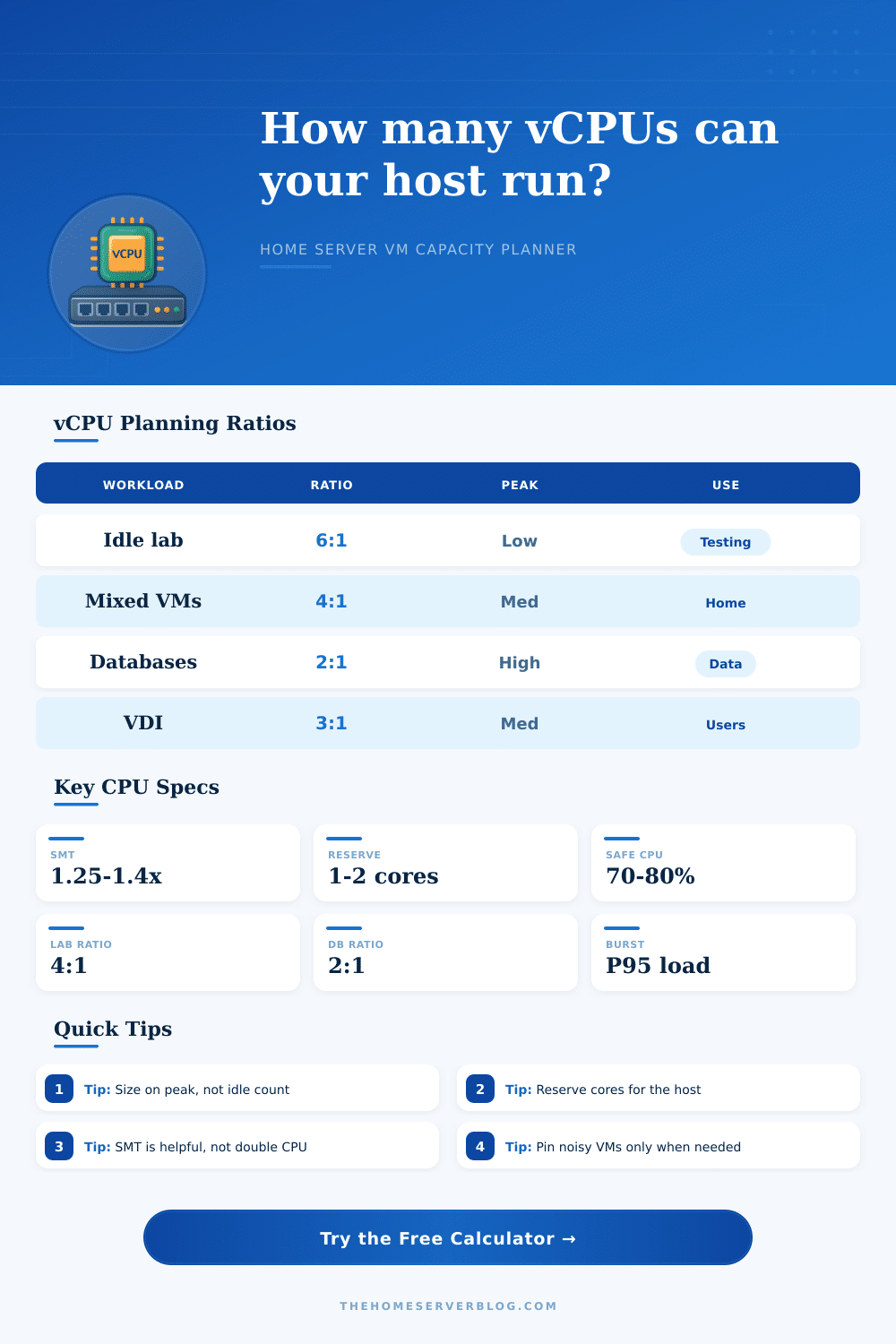
There are various types of workloads that will require different allocations of virtual CPUs to each virtual machine. For example, virtual machines that are used as firewalls or phone systems will require a one to one mapping between virtual CPUs and physical CPUs. This is to ensure that the virtual machines can handle real-time data packets.
However, lab systems may allow virtual CPUs to be set up in a manner where there are six virtual machine to each physical CPU. This is because lab systems are often idling while waiting for another virtual machine to access storage or network resource. Other virtual machines, such as databases and storage systems, may require a different ratio of virtual CPUs to physical CPUs.
Each virtual machine may have a profile associated with it that will allow the vCPU calculator to automatically adjust the ratio of virtual CPUs to physical CPUs rather than having to remember each of the different ratios for each type of virtual machine. In addition to reserving some of the physical CPUs for each virtual machine, some physical CPUs must be reserved for the hypervisor and the host system. One or two physical CPUs should be reserved for the hypervisor in order to ensure that the hypervisor, any backup agent, and any virtualization software isnt competing with the physical CPUs of the virtual machines.
If a cluster with high availability is to be created, then this calculation must be made again in determining the number of CPUs that is needed to support each virtual machine. This is to ensure that should one node fail, another can take its place. A potential problem for a home server plan is peak load.
The average CPU utilization of a system may be low with a vCPU allocation plan, but that average does not account for periods when virtual machines are backing up data, compiling code, and performing other intensive task. During these peak times, the CPUs may be required to handle three times the average demand. A vCPU calculator allows a person to set a peak load factor to the plan, multiplies it by the average demand, and displays a number that indicates if the virtual machines will be able to meet their demand during peak times.
In addition to the individual host, a cluster will impact the number of virtual machines that can be created by that host. If a cluster of hosts is to be used, the number of virtual machines that each host can create will be reduced to ensure that at least one host is available in case of failure of another host in the cluster. Thus, another factor in the vCPU calculator will be the number of hosts that can be offline in the cluster at once.
The physical machines will be able to support the same number of virtual machines, but with a different configuration. Reference tables are often included within a vCPU calculator to assist the user in gaining an understanding of the capabilities of the vCPU calculator. These tables may indicate the different virtual CPUs to physical CPUs ratios for each type of virtual machine, and how many virtual machine of each type a home server can support.
These tables allow the user to compare their determined ratio of virtual to physical CPUs to a range of virtual machines that are created by various types of workloads. A vCPU calculator will not account for all of the factors that may impact the actual creation of a virtual machine cluster. For example, virtual machines that include heavy memory use may become a bottleneck in the system, even if the CPUs are not becoming saturated.
Furthermore, virtual machines that span over multiple sockets may become an issue regarding memory latency. Thus, despite understanding the calculations that a vCPU calculator can make, the budget that is calculated from the vCPU calculator is only the starting point for the creation of virtual machines. Monitoring of the CPUs and virtual machines will occur after the starting of the virtual machines.
The scheduler will adjust the virtual machine CPUs according to the reports that are provided for the virtual machines. In order to ensure that the virtual machines will operate smoothly and without becoming an emergency situation if additional virtual machines are to be added, an individual should follow a simple habit when creating the virtual machines. Such a habit would be to size a server to the peak demand, to reserve some CPUs for the host, and to ensure the ratio of virtual CPUs to physical CPUs remains consistent with the type of virtual machines that are created.
By following this habit, a data center will avoid an emergency should new virtual machines be added to the data center.