Wi-Fi DTIM Interval Calculator
Estimate DTIM wake timing, multicast delivery delay, beacon and multicast airtime, and battery friendliness for home lab, IoT, voice, camera, and multi-AP SSID designs.
Calculated DTIM Plan
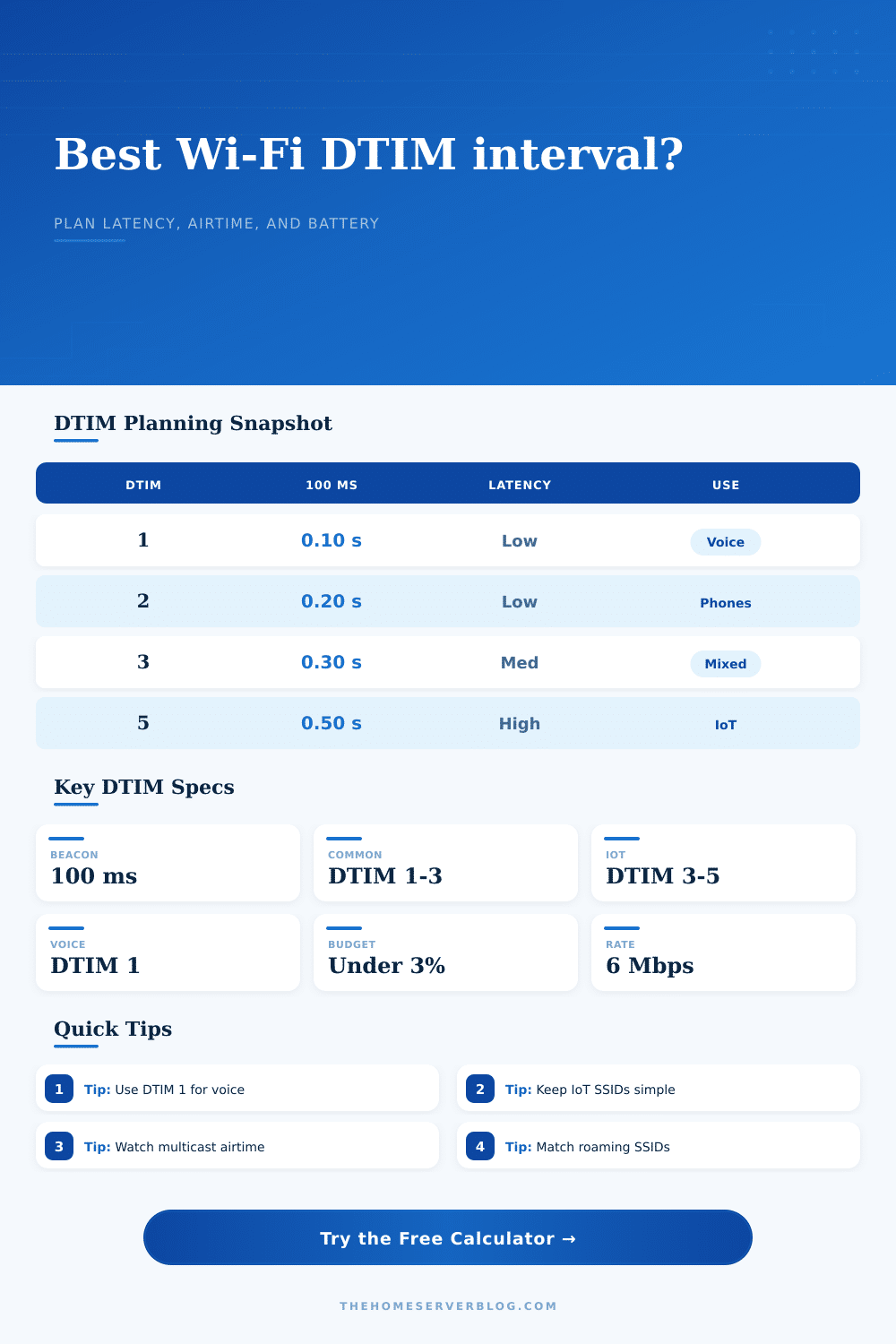
| DTIM Period | 100 ms Beacon Interval | Typical Fit | Main Tradeoff |
|---|---|---|---|
| 1 | 0.10 seconds | Voice, roaming, multicast-heavy WLANs | Lowest buffered latency, most frequent battery wakeups. |
| 2 | 0.20 seconds | Phones, tablets, normal home SSIDs | Good balance when multicast traffic is moderate. |
| 3 | 0.30 seconds | General home Wi-Fi and IoT blends | Common default, watch real-time apps. |
| 5 | 0.50 seconds | Dedicated sensor or low-power SSID | Better sleep potential, slower group traffic delivery. |
| 10 | 1.00 second | Special-purpose lab networks | High multicast delay and possible app discovery lag. |
| Client Type | Latency Sensitivity | DTIM Starting Point | Planning Note |
|---|---|---|---|
| Wi-Fi calling handset | Very high | 1 | Prefer low DTIM and low basic-rate airtime for stable voice. |
| Laptop or tablet | Medium | 2 or 3 | Usually fine with standard defaults unless multicast apps are active. |
| Smart speaker or casting device | Medium | 2 or 3 | Discovery protocols can feel sluggish when DTIM gets too long. |
| Battery sensor | Low | 3 to 5 | Works best on a quiet SSID with reduced multicast chatter. |
| Security camera | Varies | 1 to 3 | Use a lower DTIM if the camera depends on group discovery or alerts. |
| SSID Count | Beacon Load Signal | Recommended Action | Why It Matters |
|---|---|---|---|
| 1 to 2 SSIDs | Low | Use client needs to choose DTIM. | Beacon overhead is usually small unless rates are very low. |
| 3 to 4 SSIDs | Moderate | Audit duplicate guest or IoT networks. | Every SSID repeats beacon and TIM data on every AP. |
| 5 to 8 SSIDs | High | Consolidate roles or split bands carefully. | Management airtime can compete with real traffic. |
| 9 or more SSIDs | Very high | Reduce SSIDs before stretching DTIM. | DTIM tuning cannot fully compensate for beacon bloat. |
| Multicast Rate | Airtime Effect | Useful For | Caution |
|---|---|---|---|
| 1 Mbps | Very high | Legacy 2.4 GHz reach | Broadcast and multicast can consume large channel time. |
| 6 Mbps | Moderate | Modern minimum basic rate | Common starting point for home and lab APs. |
| 12 Mbps | Lower | Dense 5 GHz or 6 GHz | Far clients may fail to receive management frames. |
| 24 Mbps | Low | Small high-SNR spaces | Only use when coverage is clean and clients are modern. |
DTIM intervals are something you’ve likely never thought much about, until your smart home stops making any sense. You hit the button on your wireless lock and it doesn’t do anything for half a second. You step into living room and your phone drops your music stream while trying to switch access points. It seems like poor Wi-Fi, but the problem is often hidden deep inside a setting that most of us will set to their defaults and never touch again.
The DTIM interval governs when devices will wake up to see if there’s any buffered multicast traffic waiting for them. Get it wrong and you’re faced with a tradeoff that many don’t know exists: responsiveness versus battery life. Here’s the gist of the dilemma: Your Wi-Fi access point periodically broadcasts beacon frames; typically once per hundred milliseconds. These tell power-saving devices if there is data on the network for them. A special type of beacon called DTIM (for Delivery Traffic Indication Message) alerts these devices when there’s multicast or broadcast traffic being held in a buffer for them. When the DTIM period are set to one, each beacon is a wake-up call. If it is set to five, clients will sleep through four beacons before waking up for fifth.
Why Your Wi-Fi Feels Slow
Use our calculator above to match this timing with how much traffic and how many devices you have. It spares you having to guess which will matter more than your sensor network: deeper sleep or faster delivery.
Imagine this scenario: You’ve got your usual dozen smart plugs; a couple of door locks; a security camera at home. Each device live in power-save mode; whether that’s to save battery life or avoid getting too hot. It sleeps, waiting for the next DTIM beacon to tell it to listen. Set the interval too low, and it wakes up all the time, burning through cells that should of lasted a year in only three months. Set it too high, and entering your code feels sluggish on the lock. Maybe the camera misses a quick motion alert because its multicast stream has been buffered too long. Most people shrug off the delay as part of the hardware flaw. What they don’t know is that it’s a matter of choice in how you configure it.
That’s why the inputs. Because it alters the math on airtime. Beacon frames consume time in a channel that might otherwise used to carry your real internet data. It factors in the number of networks and access points you’re operating. Which is important if there are multiple device per square foot. Even if you set the DTIM high enough, all those extra broadcasts (of say five networks emanating from each AP) will significant add to the overhead. You can’t tinker with the DTIM to ease a channel that’s already saturated with management frames. This is another error. People dial back the DTIM to conserve battery; they don’t realize that every additional network, IoT or guest, they’ve needlessly added has also doubled the amount of beacons being sent.
Another hidden knob is the rate at which your access point multicasts. A tiny packet will take some time to beam over if your AP’s sending that group traffic at one megabit per second. That burns up airtime. When that multicast rate bumps up to six megabits or more, the duration of each burst’s hold on the channel decreases.
The DTIM interval is something you can adjust. This is where the calculator comes into play. It tells you how much time each burst of multicast traffic blocks the channel, or takes up a small, acceptable amount of it. On crowded 2.4 gigahertz networks, that can be the margin between uninterrupted streaming and a stream of buffer spins.
That’s especially true in the case of voice applications. To avoid lag when making calls over Wi-Fi, those packets needs to show up nearly instantly. That means they typically require a DTIM period of one. That way, all your voice frames will get sent through with as little delay as possible. But it comes at the price of draining more battery from whatever else is on that network.
This is why having multiple SSIDs really helps. Stick all the sleepy sensor onto a high-DTIM network. Leave the gaming and voice stuff on their own low-DTIM network. The competing demands then don’t get in each other’s way.
In summary: tuning DTIM means setting it at whatever is the longest interval that your most sensitve client will tolerate. You can’t set it for deep sleep and instant response at the same time on the same channel. The tool gives you a snapshot of what your current config looks like. It points out the airtime costs and the latency. And then you make the decision. Is it okay if my IoT stuff has a 300 millisecond latency? Do I need two networks or something?
And remember, this isn’t perfect. This is just a predictable mix. Everything stays charged (your sensors), stays connected (phones), and responds in time (locks). If you have that, that’s worth finding.